
Before You Begin
Make sure you have completed:
- Created your Maple account
- Entered your legal business name
- Selected your plan and completed billing
- Your restaurant’s main phone number
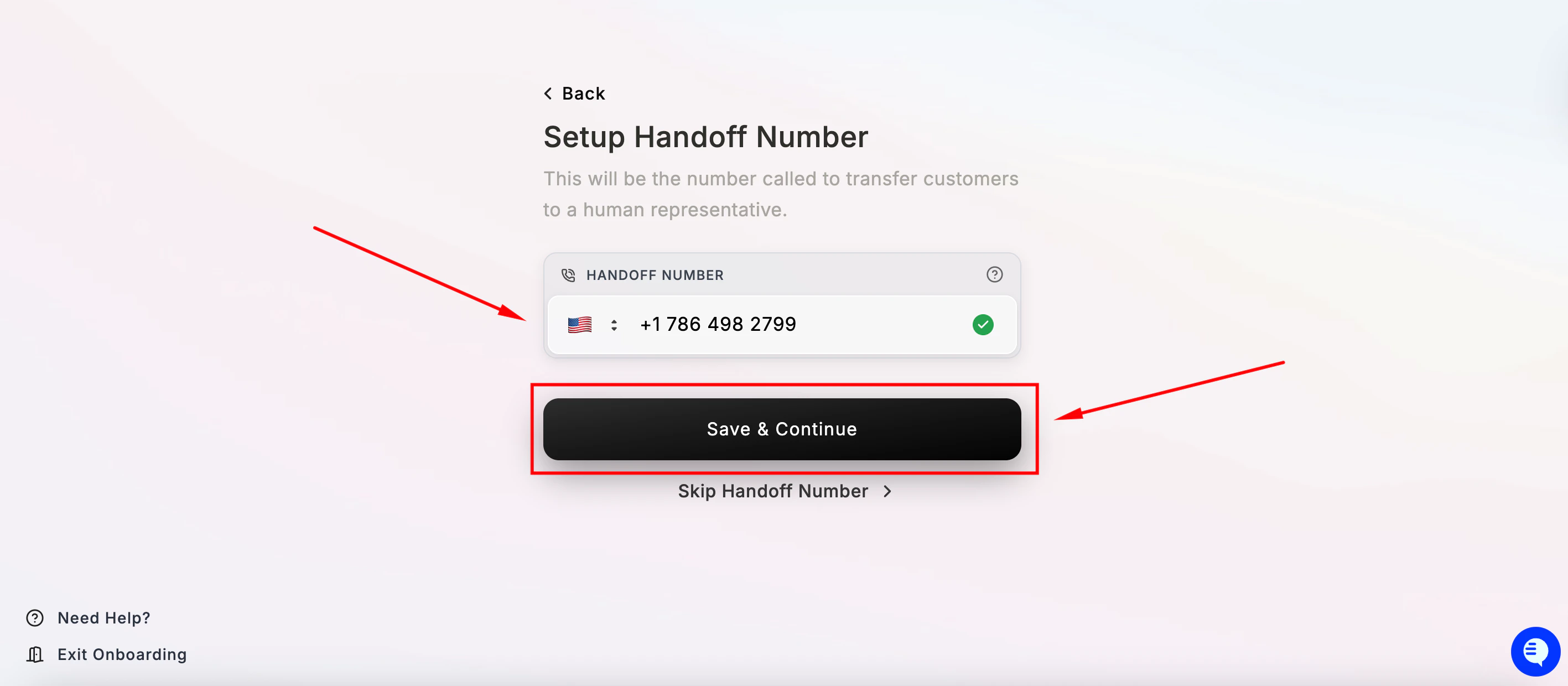
- A second phone line for handoff — this must be different from your main restaurant line.
Step 1 — Get started
After completing billing, you’ll see a Payment Successful confirmation screen. Your merchant account is now ready.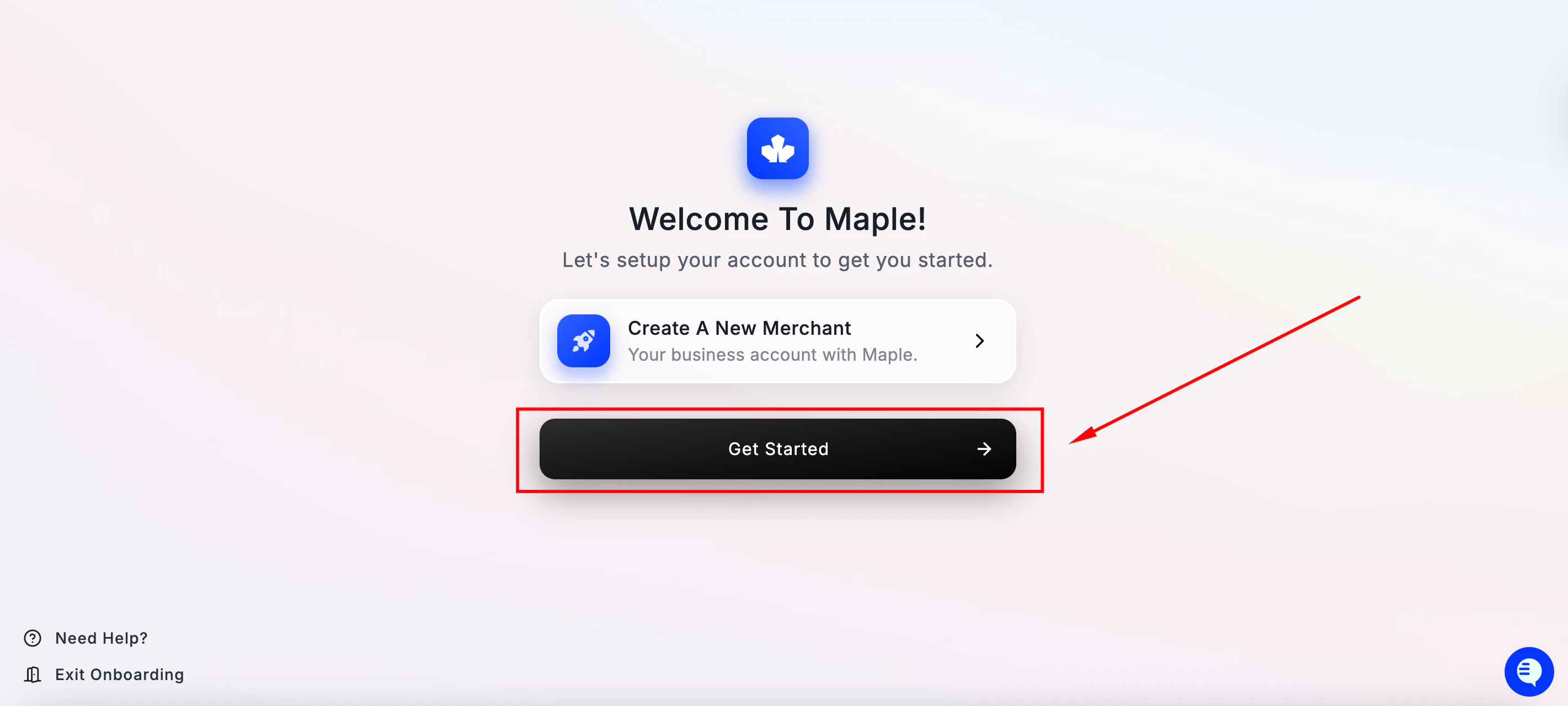
Step 2 — Set up your first location
You’ll see a screen outlining what’s needed to set up your location: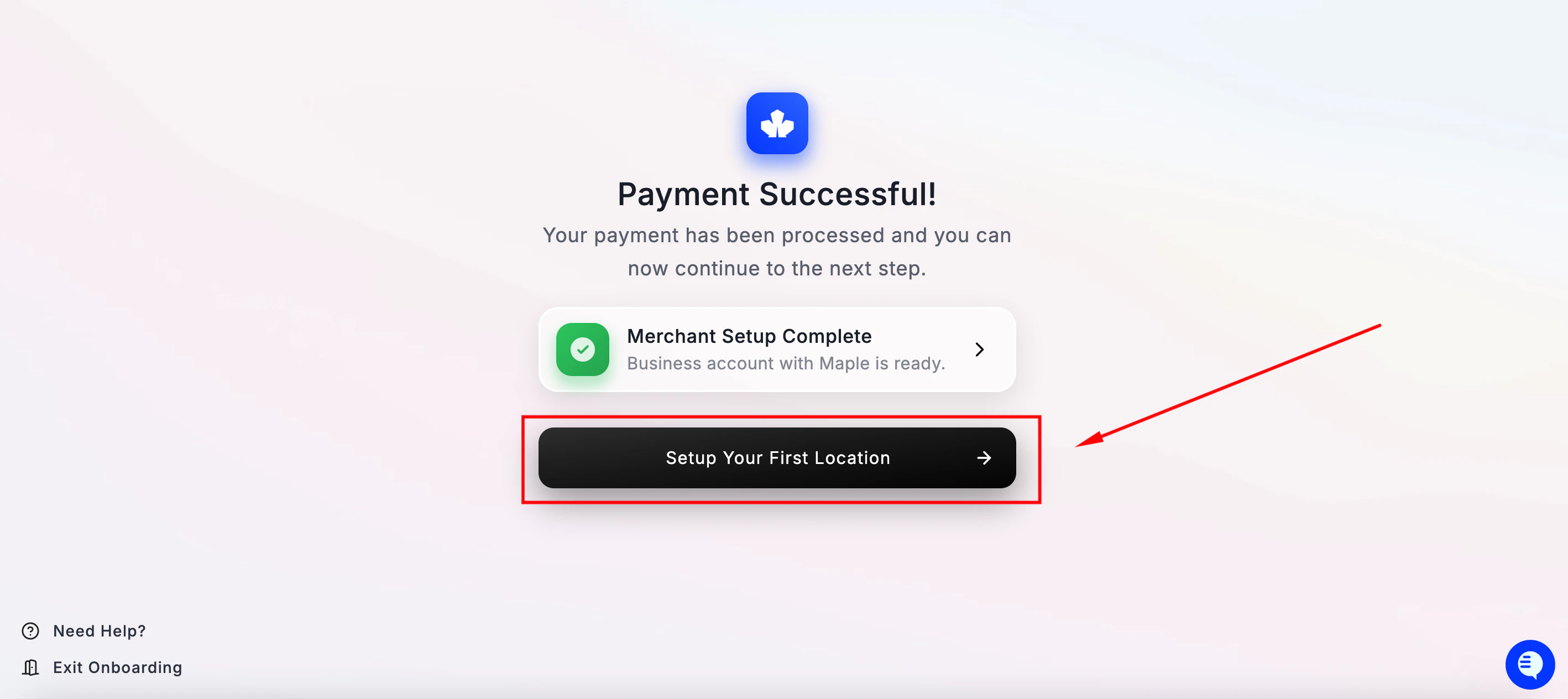
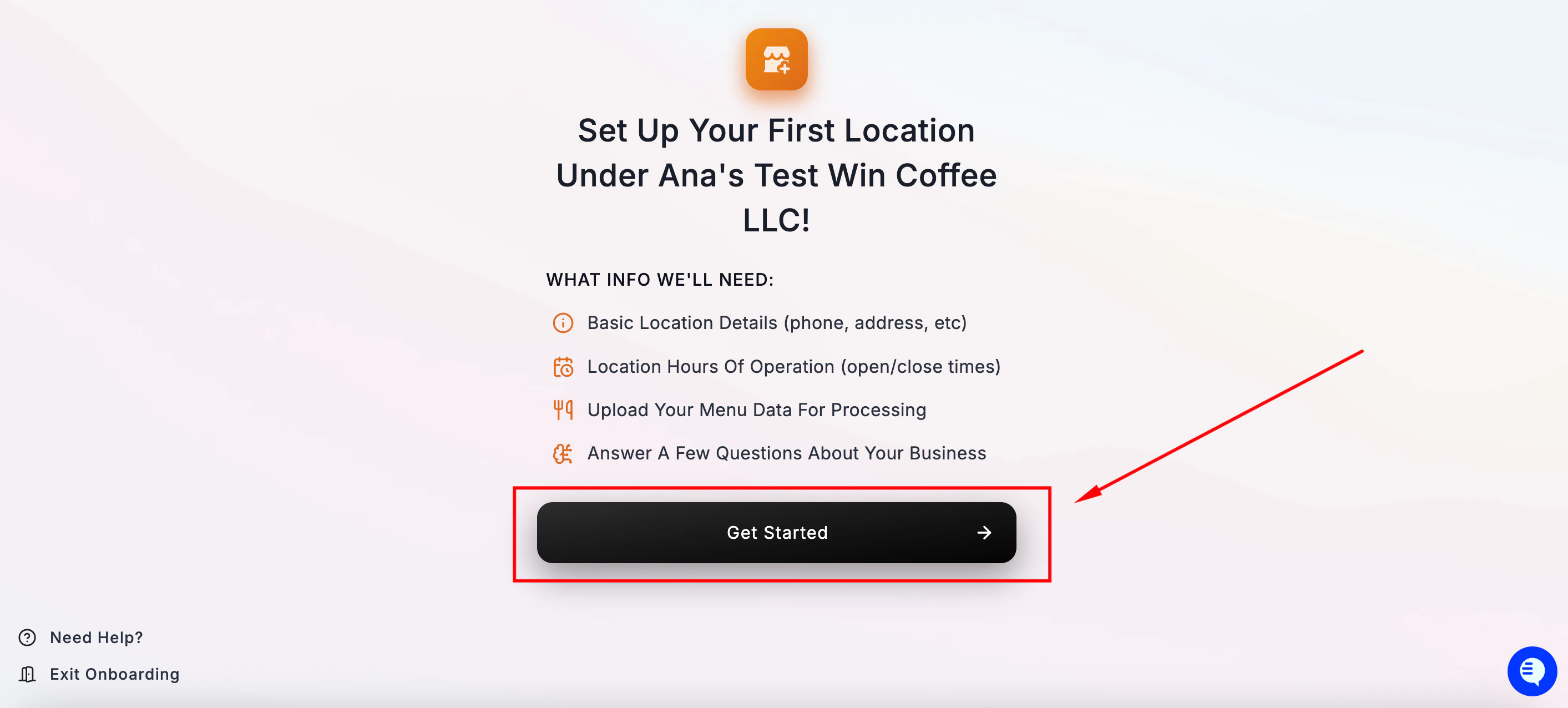
Step 3 — Look up your location
Maple will try to find your restaurant automatically to pre-fill your location details. Type your restaurant’s name in the search bar. Select it and click Confirm Location Details. It will search for your restaurant online and pull the name, location, and hours of operation.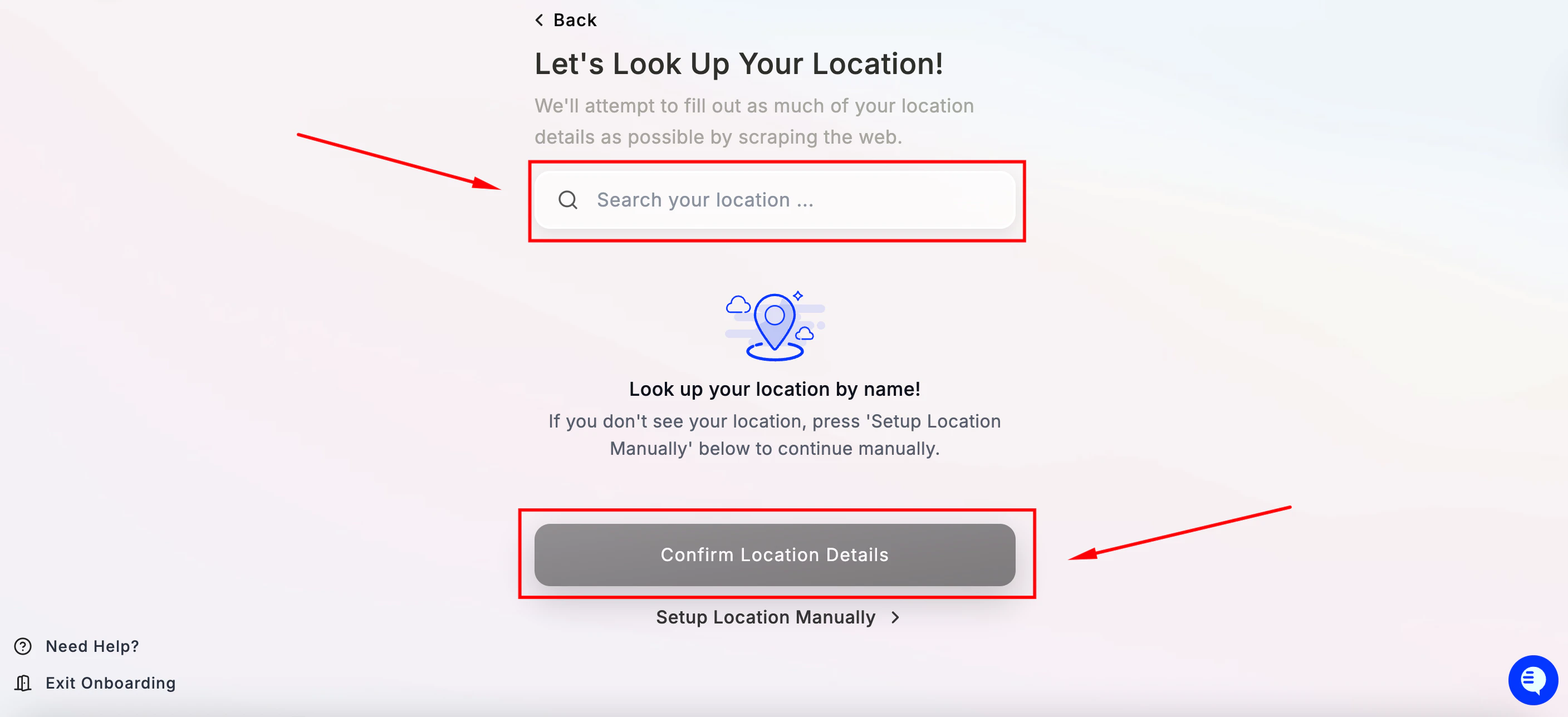
Step 4 — Create your Maple agent
You’ll see a confirmation that your agent is ready to be created. Click Get Started to begin agent setup.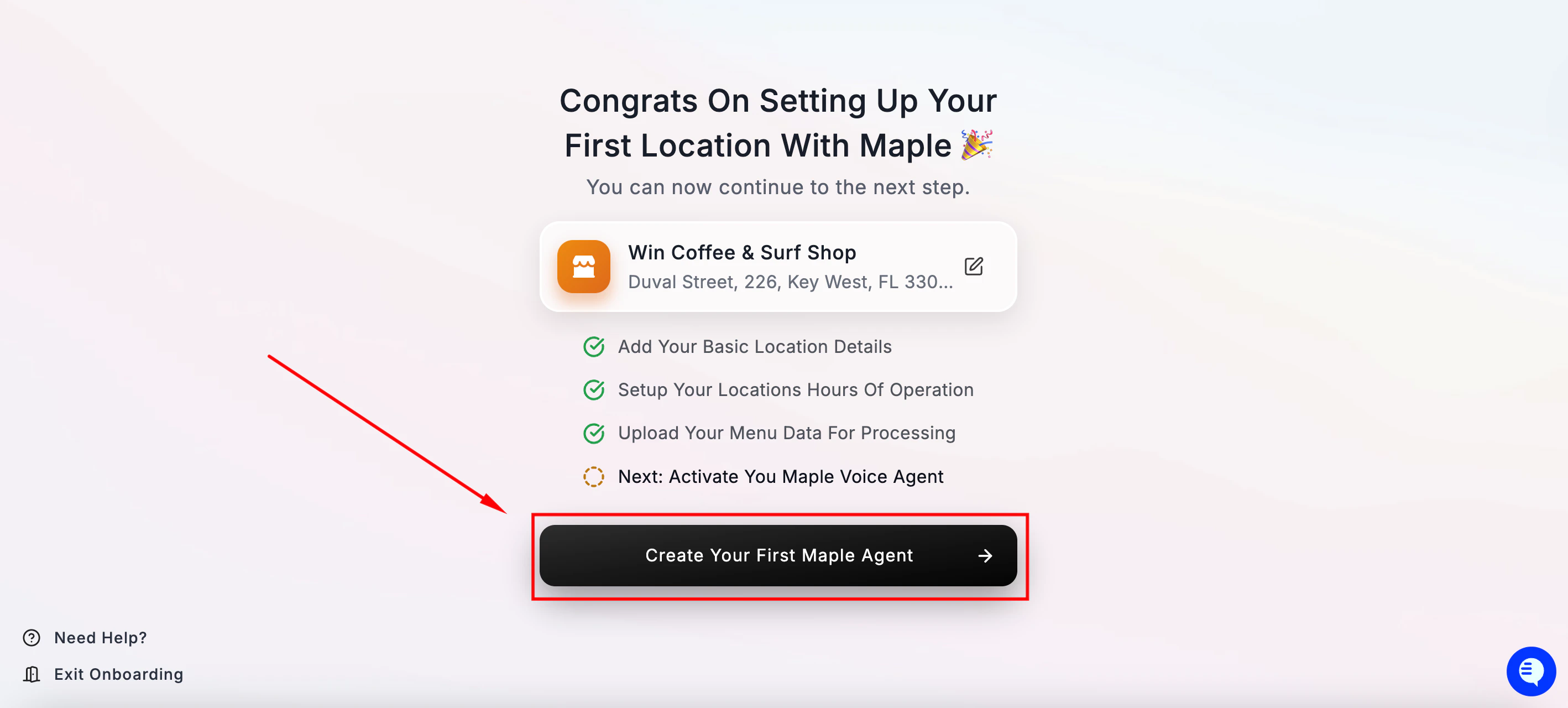
.png)
Step 5 — Assign a phone number to your agent
Maple will suggest an auto-assigned phone number for your agent. This is an internal number used for routing — your customers will never see it or dial it directly.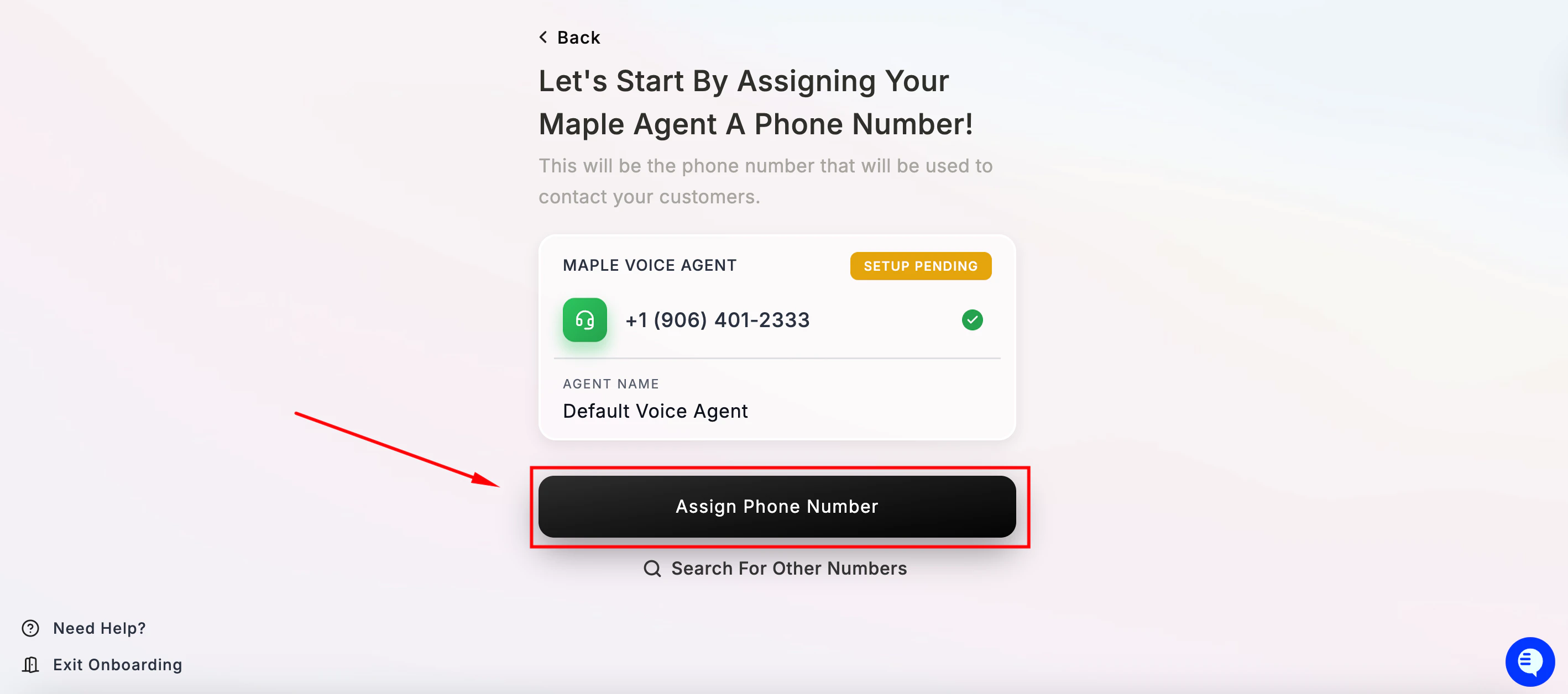
Step 6 — Set your welcome message
This is the first thing your customers hear when they call. Maple generates a default message based on your location name.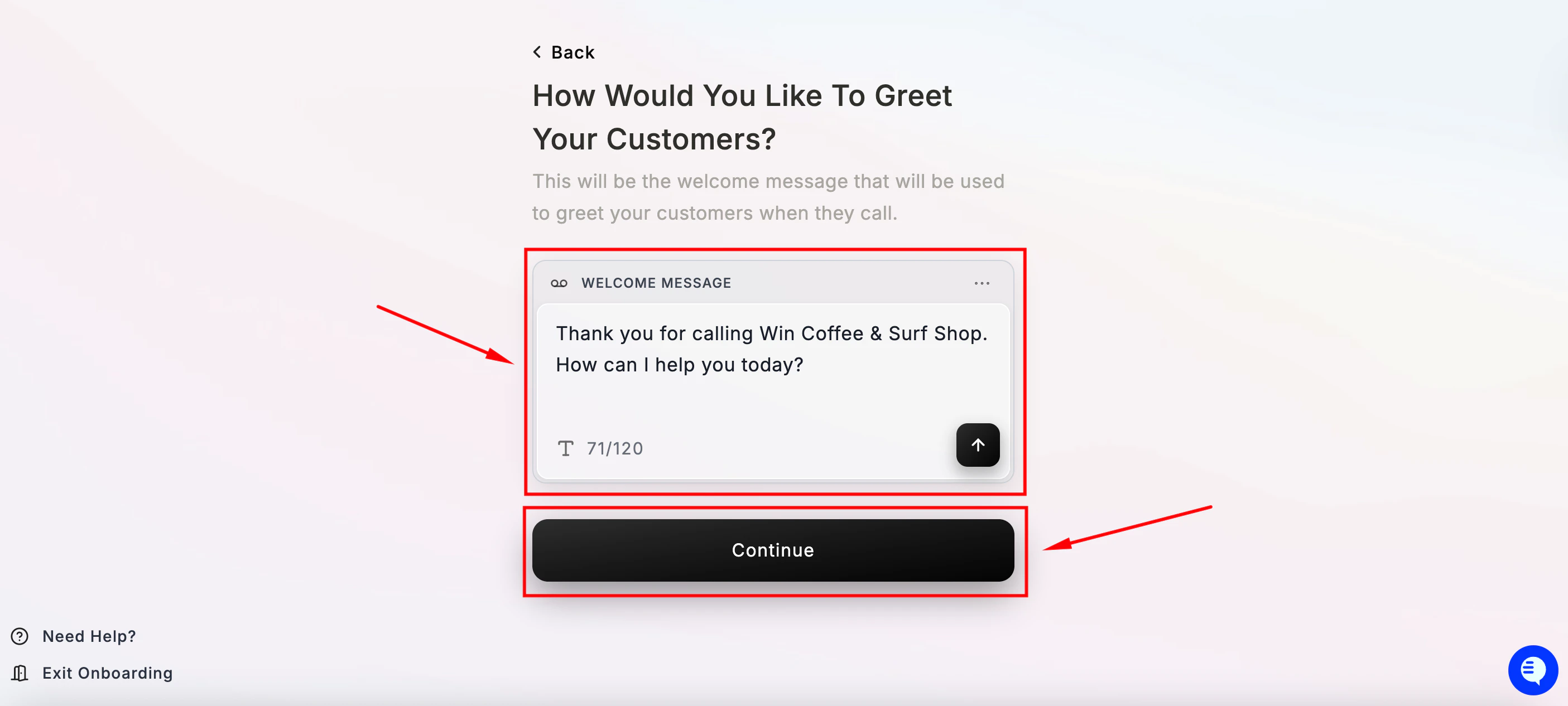
Step 7 — Set up your handoff number
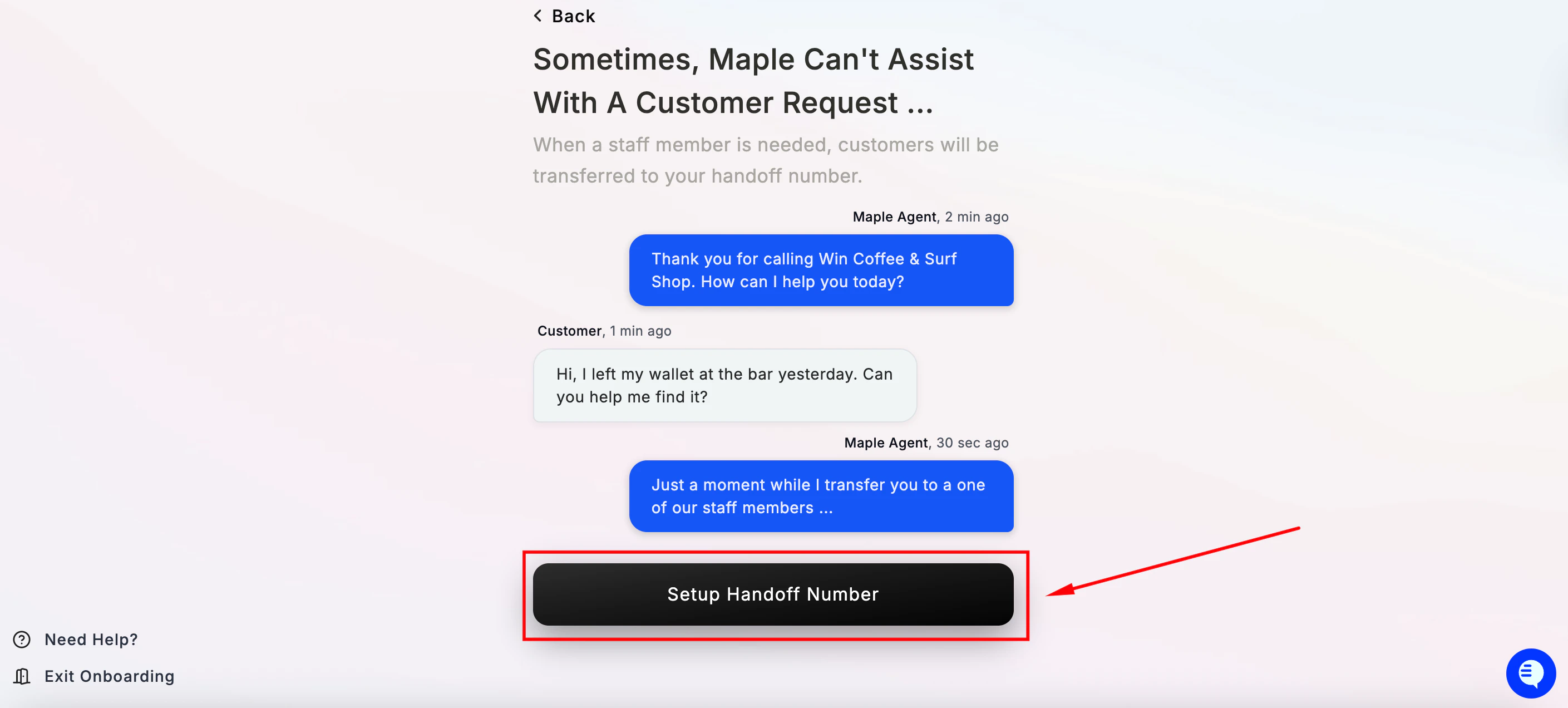
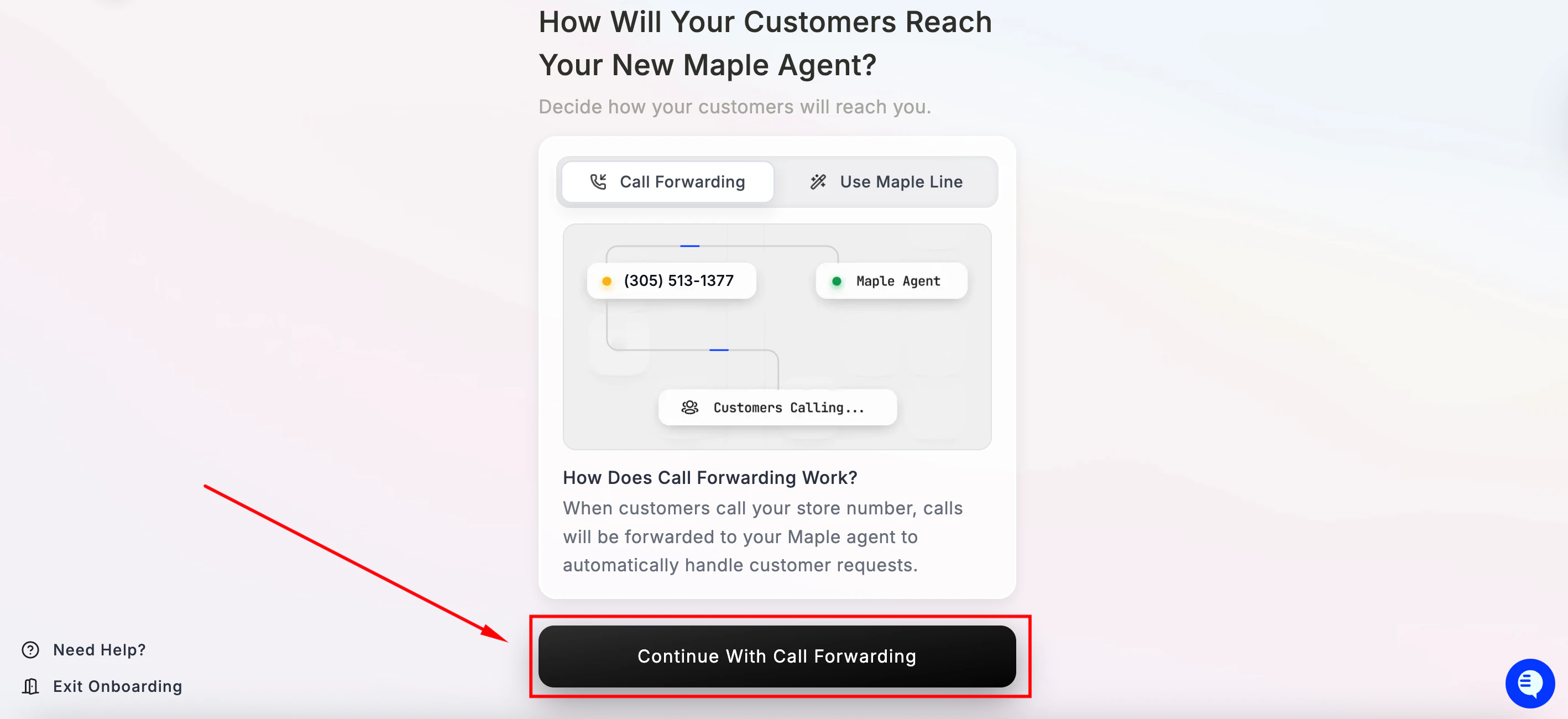
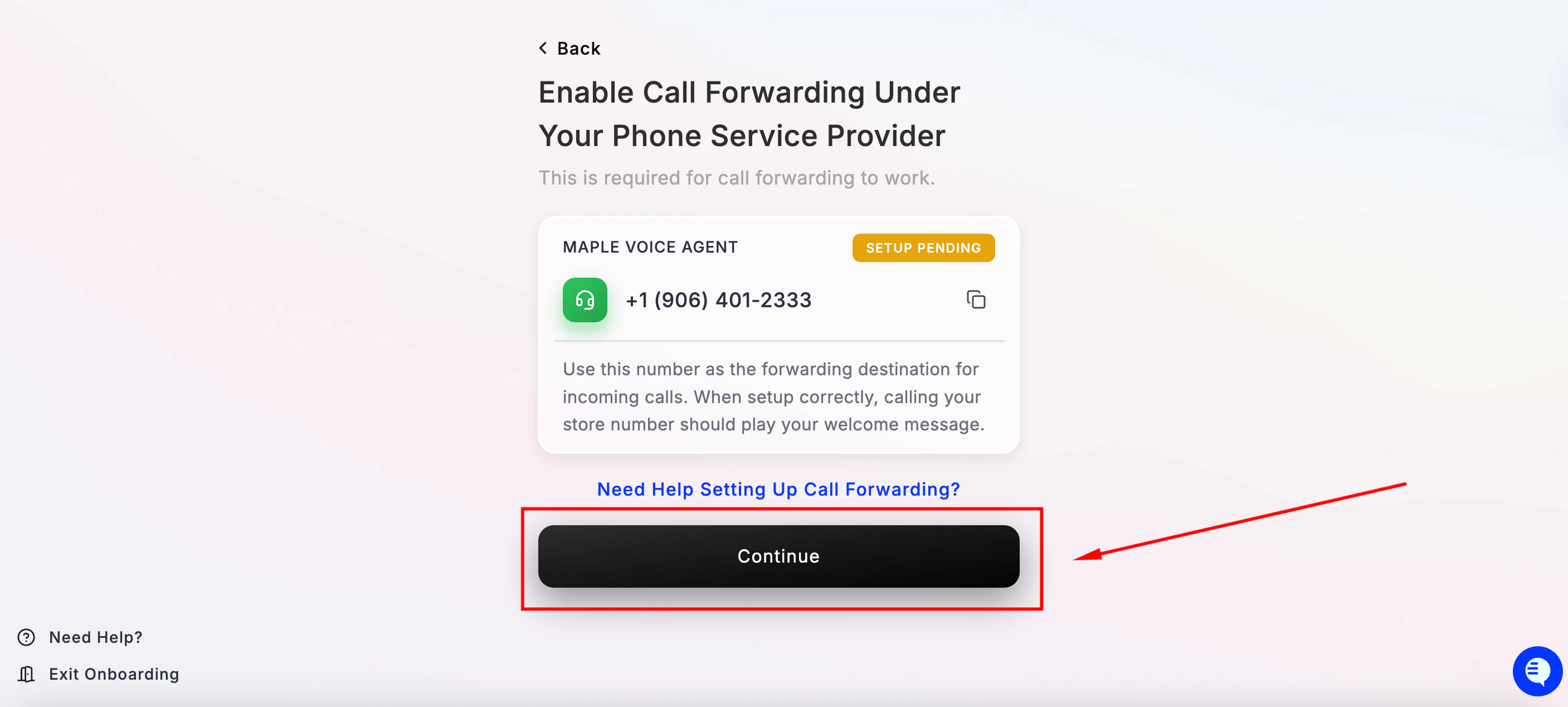
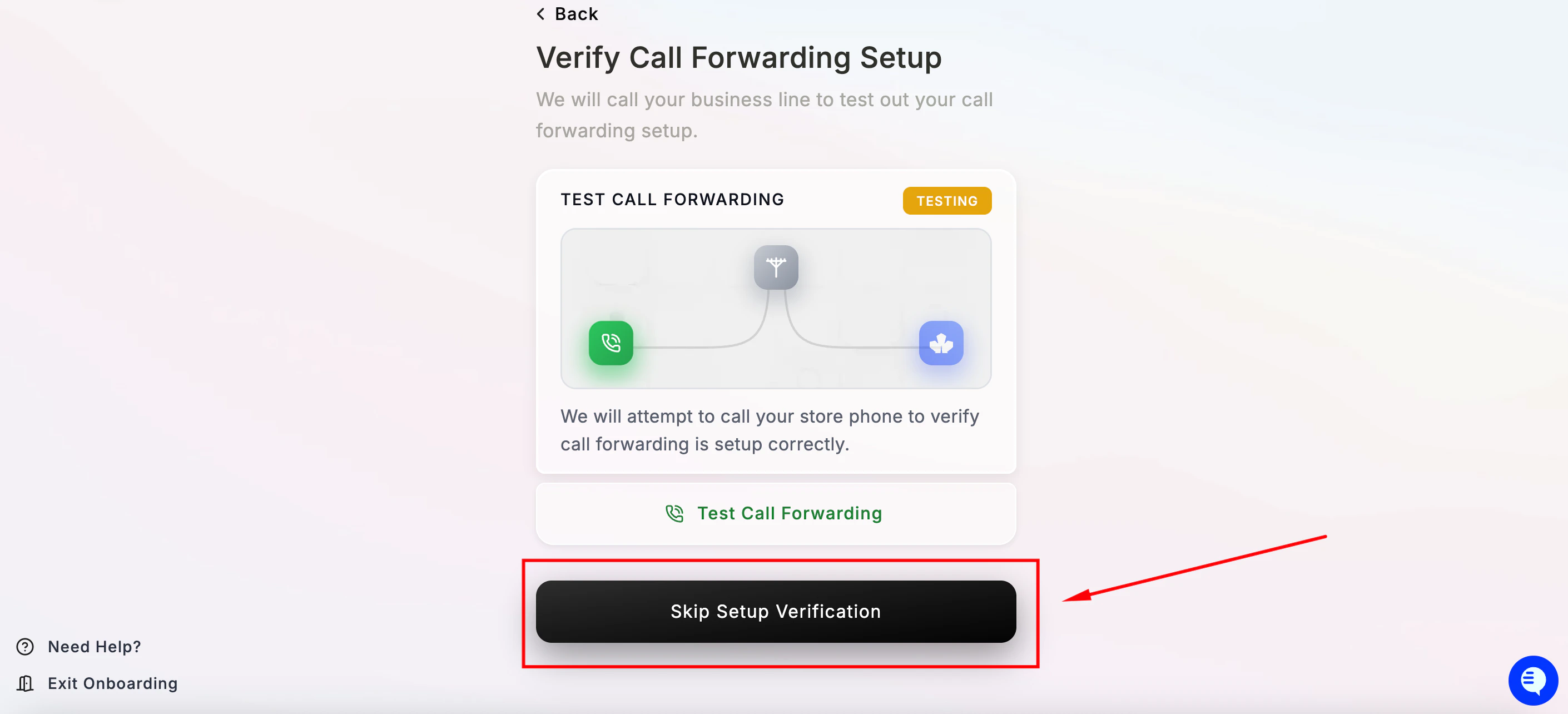
Step 8 — Continue with Call forwarding
Step 9 — SMS setup (optional)
Maple can send SMS text messages to your customers — payment links, booking confirmations, online ordering links, and more.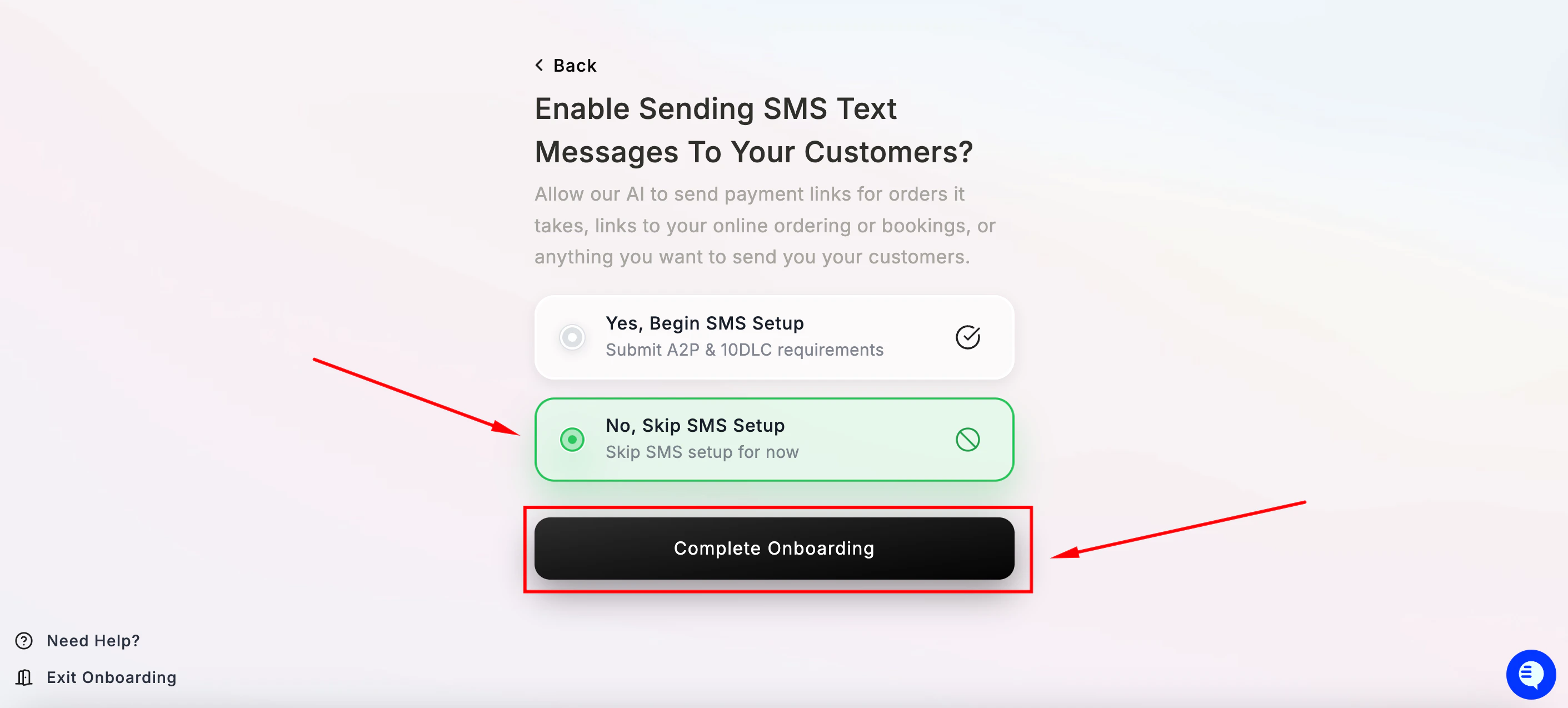
Step 10 — You’re all set! 🎉
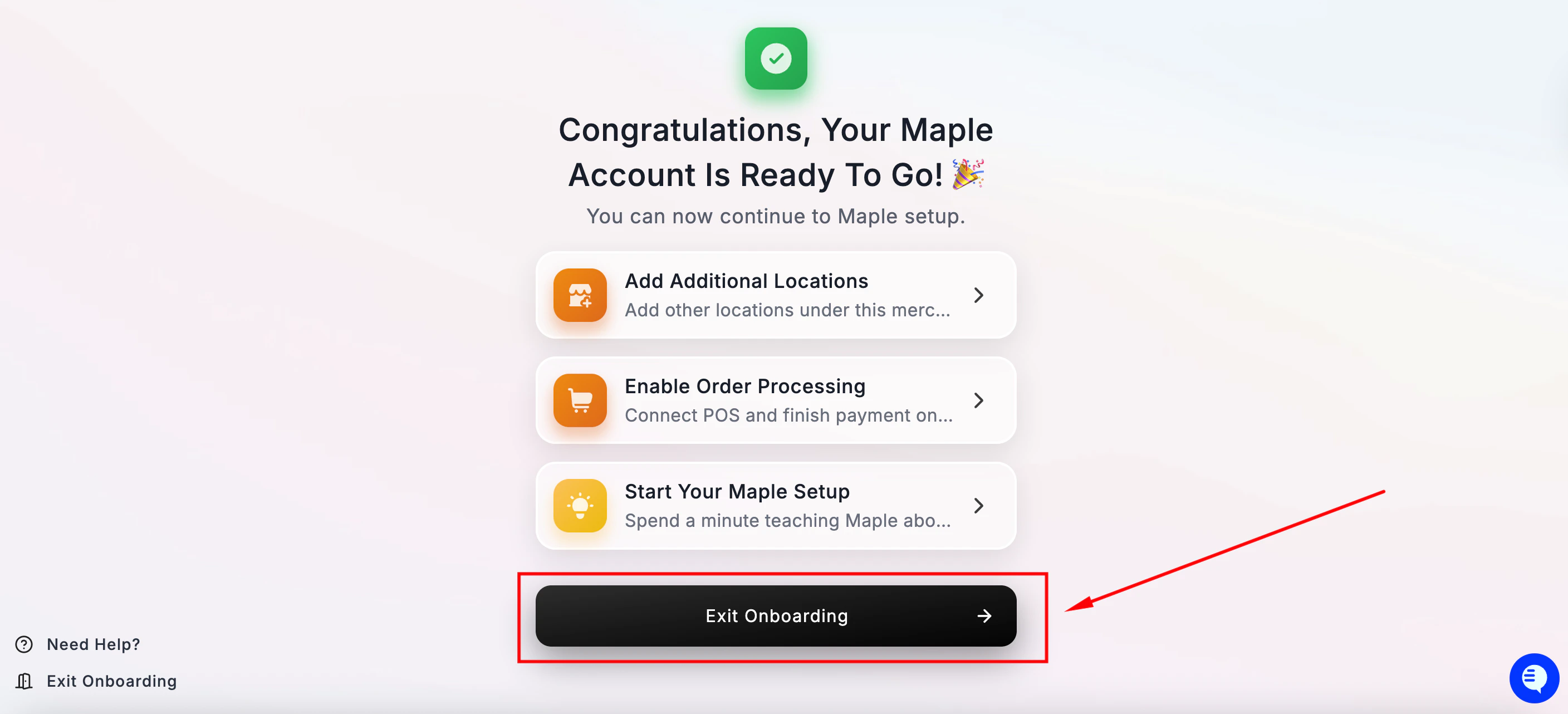
What to do next
Before going live, we recommend completing these steps in your dashboard:- Maple Dashboard Overview — a complete walkthrough of your dashboard
- Going Live — test your agent and switch on call forwarding
Need Help?
- Email: hello@maple.inc
- Live support hours: Monday–Friday, 9 AM – 6 PM EST
- Dashboard: app.maple.inc