> ## Documentation Index
> Fetch the complete documentation index at: https://docs.maple.inc/llms.txt
> Use this file to discover all available pages before exploring further.
# 完成入驻
> 设置您的 Maple AI 电话助手
完成您的 AI 电话助手设置,为正式上线做好准备。
本指南将带您完成账户和账单设置之后的入驻流程。
## **开始之前**
### 请确认您已完成:
* 创建您的 Maple 账户
* 填写您的企业法定名称
* 选择您的套餐并完成付款
* 准备好您餐厅的主电话号码
* 准备一条用于转接的**第二条电话线路**——它必须与您餐厅的主线路不同。
**为什么需要第二条线路?** 当顾客需要转接给员工时,Maple 会拨打您的转接号码。如果它与您的主线路相同,接听的会再次是 Maple 而不是真人,从而形成循环。经理的手机或后厨线路都很合适。
***
### **第 1 步——开始**
完成付款后,您会看到 **Payment Successful** 确认页面。您的商户账户现已就绪。
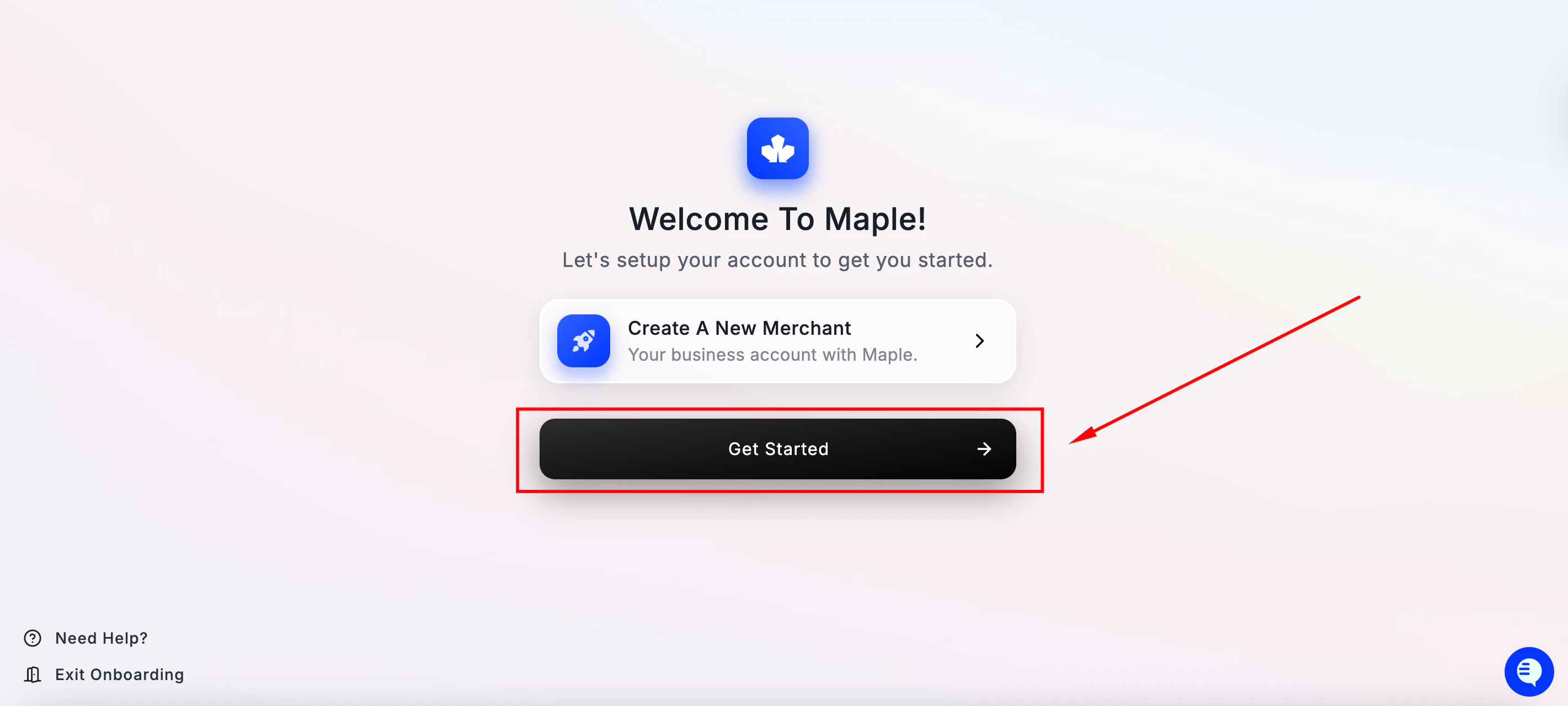 点击 **Setup Your First Location** 继续。
***
### **第 2 步——设置您的第一个门店**
您会看到一个页面,列出设置门店所需的内容:
点击 **Setup Your First Location** 继续。
***
### **第 2 步——设置您的第一个门店**
您会看到一个页面,列出设置门店所需的内容:
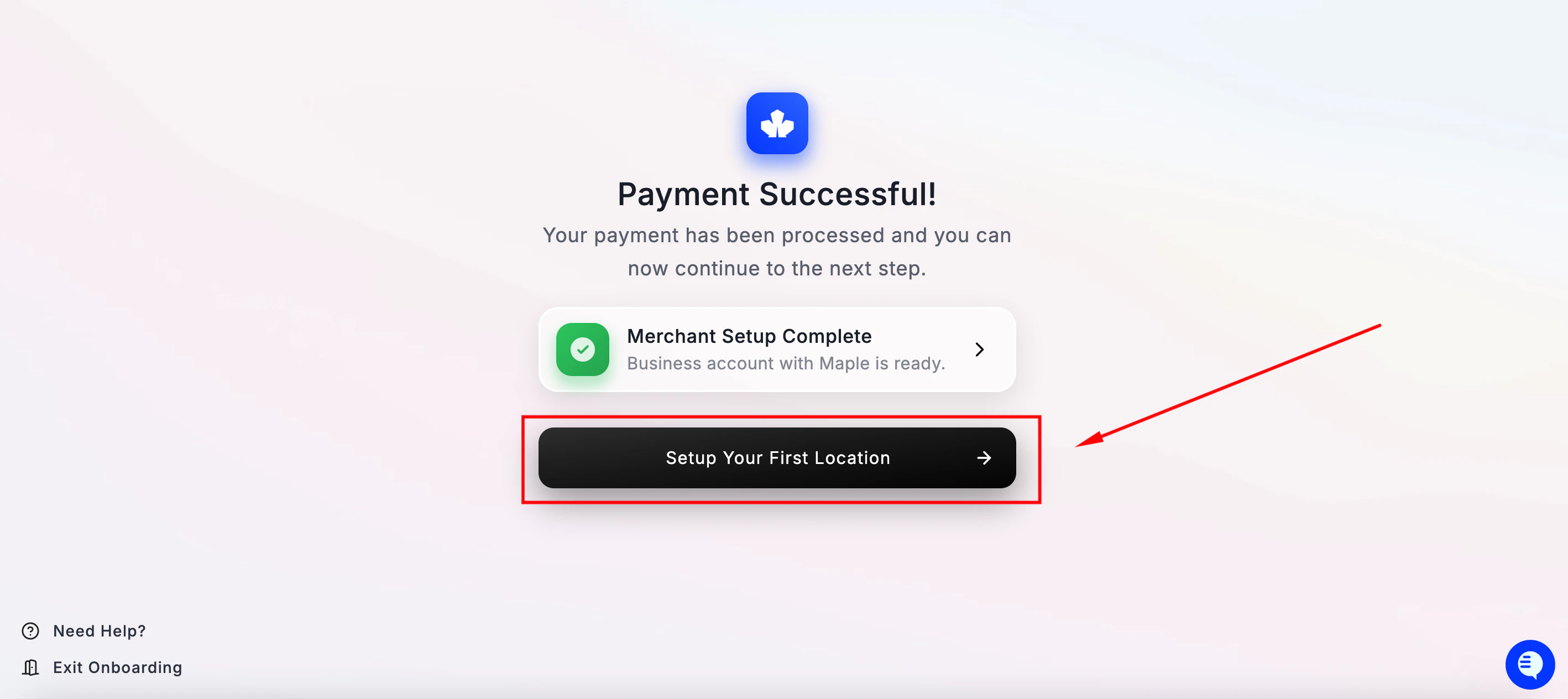
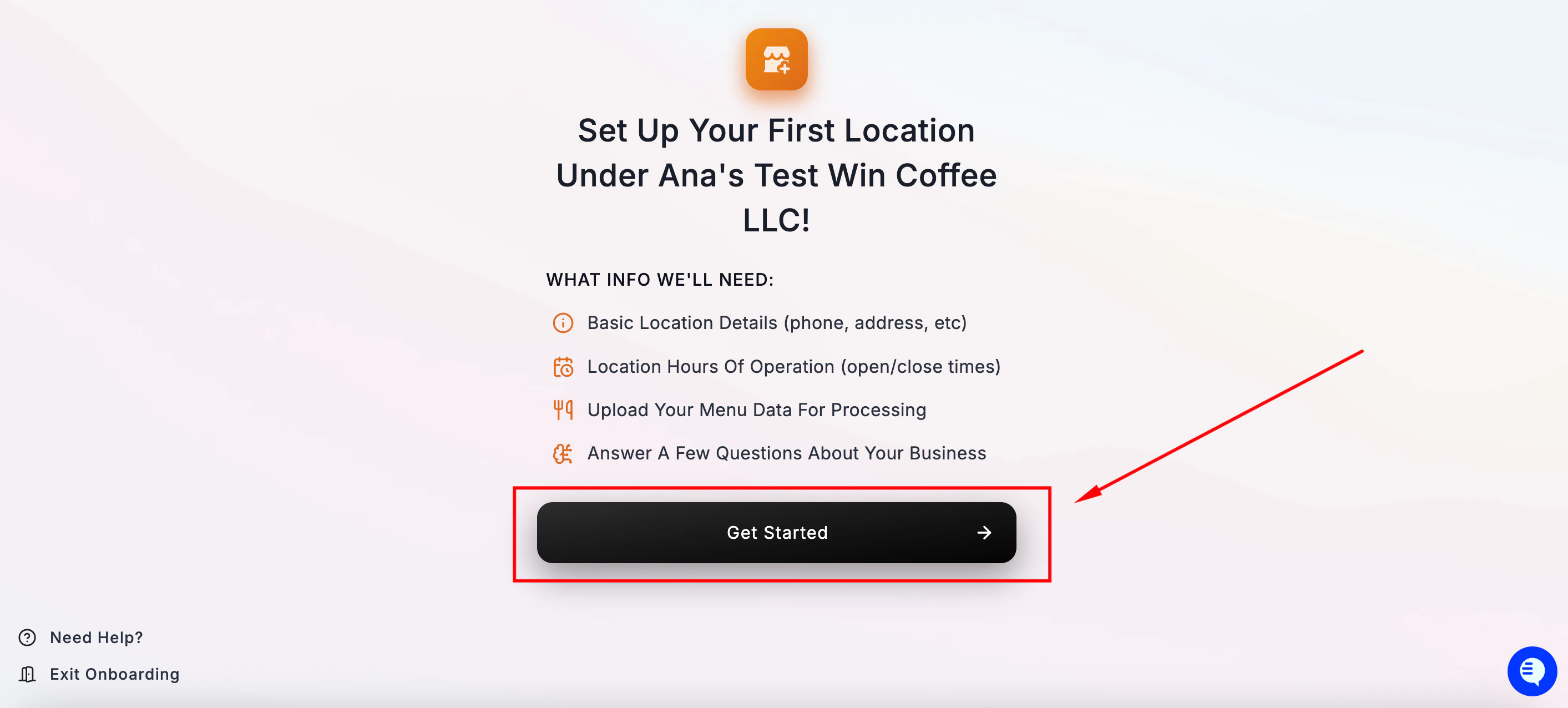 点击 **Get Started** 开始。
***
### **第 3 步——查找您的门店**
Maple 会尝试自动找到您的餐厅,以预填门店信息。
在搜索栏中输入您餐厅的名称。选中它,然后点击 **Confirm Location Details**。系统会在网上搜索您的餐厅,并获取名称、位置和营业时间。
点击 **Get Started** 开始。
***
### **第 3 步——查找您的门店**
Maple 会尝试自动找到您的餐厅,以预填门店信息。
在搜索栏中输入您餐厅的名称。选中它,然后点击 **Confirm Location Details**。系统会在网上搜索您的餐厅,并获取名称、位置和营业时间。
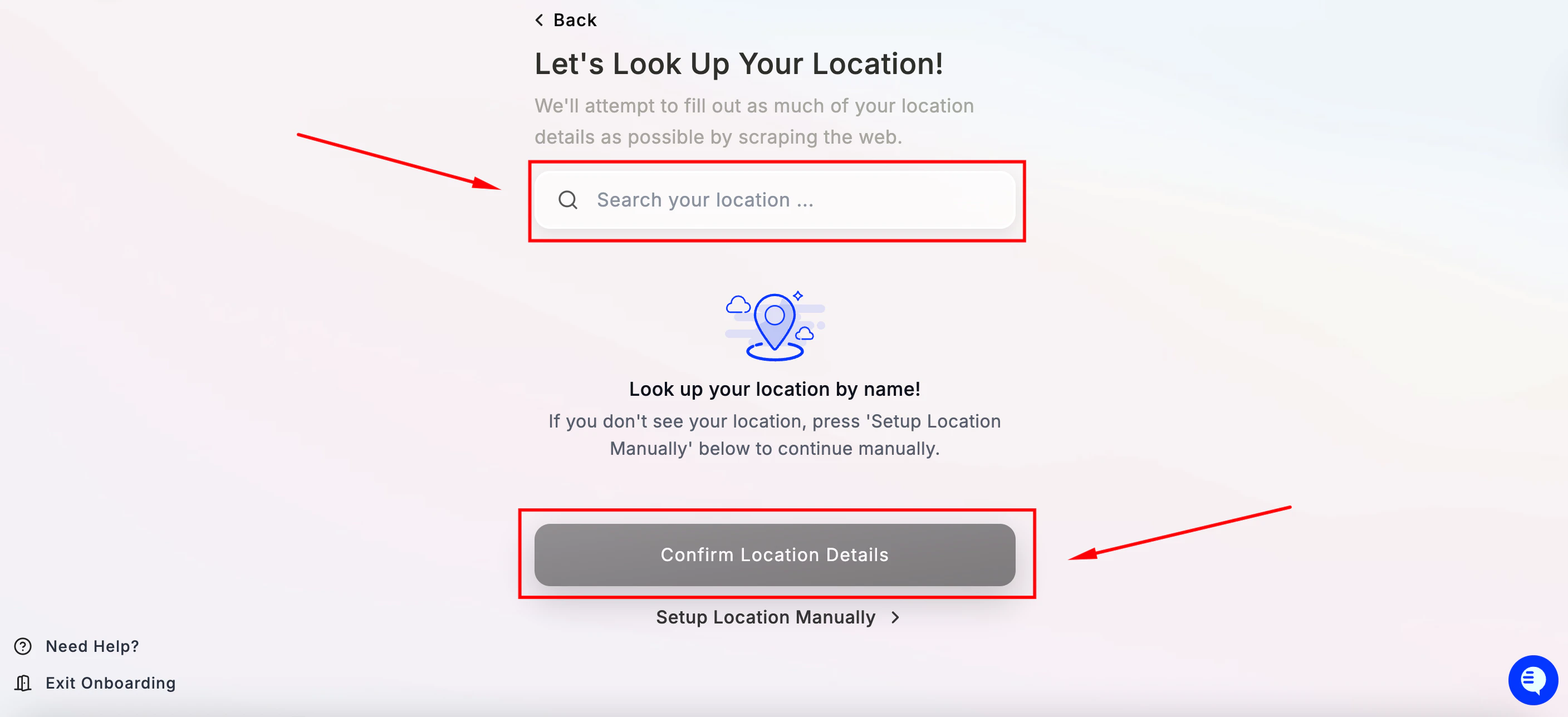 如果找不到您的门店,请点击 **Setup Location Manually** 手动填写信息。
***
### **第 4 步——创建您的 Maple AI 电话助手**
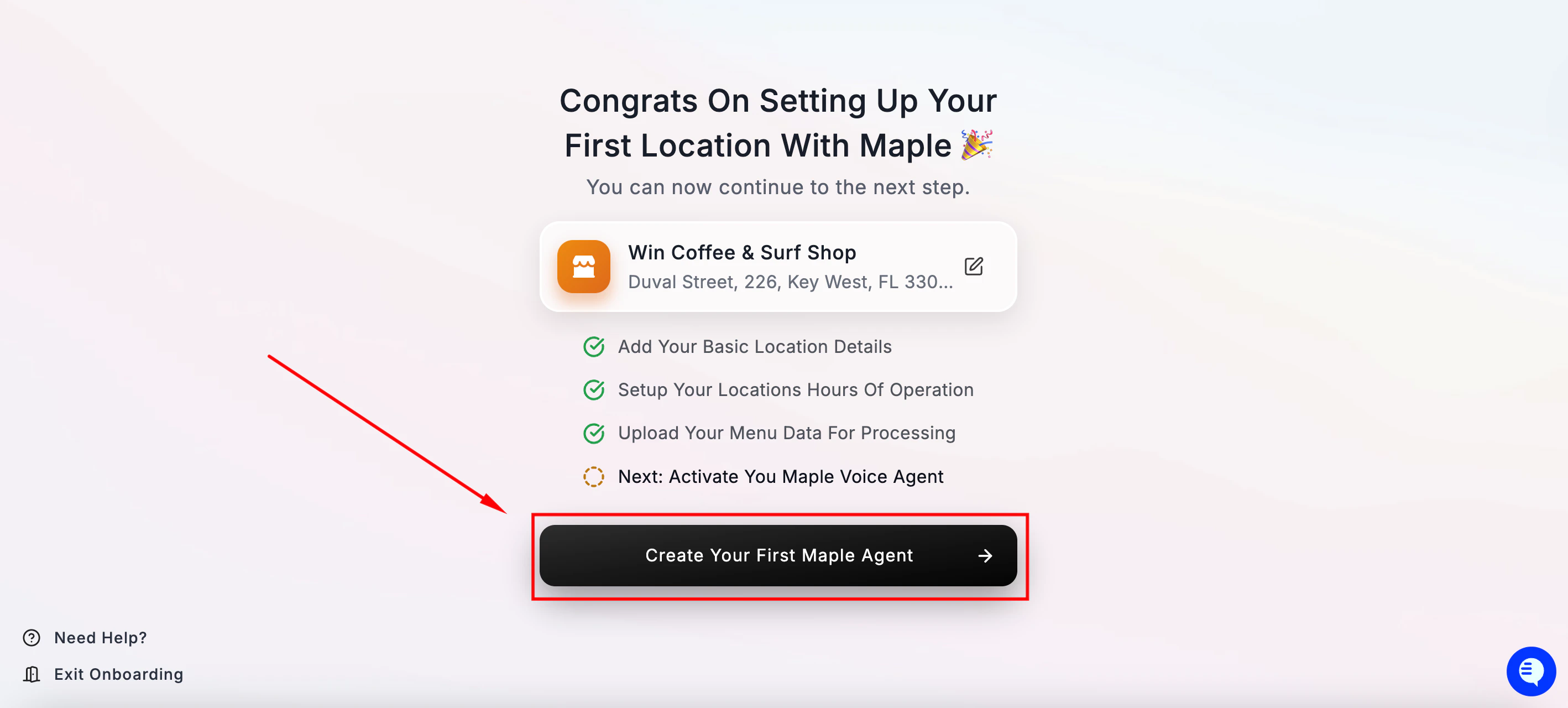
您会看到确认页面,提示您的 AI 电话助手可以创建了。点击 **Get Started** 开始设置助手。
如果找不到您的门店,请点击 **Setup Location Manually** 手动填写信息。
***
### **第 4 步——创建您的 Maple AI 电话助手**
您会看到确认页面,提示您的 AI 电话助手可以创建了。点击 **Get Started** 开始设置助手。
.png) ***
### **第 5 步——为您的 AI 电话助手分配电话号码**
Maple 会为您的助手推荐一个自动分配的电话号码。这是用于路由的内部号码——您的顾客不会看到它,也不会直接拨打它。
***
### **第 5 步——为您的 AI 电话助手分配电话号码**
Maple 会为您的助手推荐一个自动分配的电话号码。这是用于路由的内部号码——您的顾客不会看到它,也不会直接拨打它。
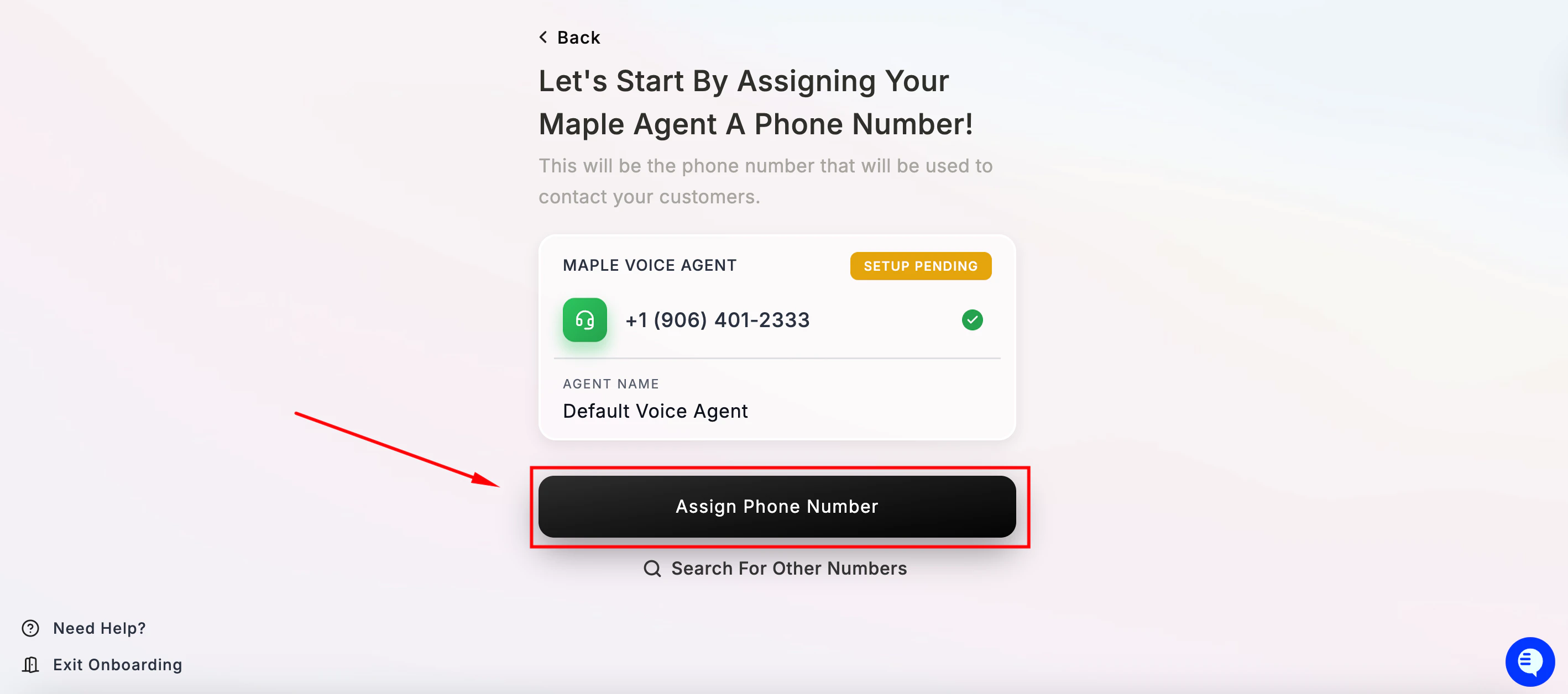 点击 **Assign Phone Number** 确认。如果您想使用其他号码或区号,也可以点击 **Search For Other Numbers**。
***
### **第 6 步——设置欢迎语**
这是顾客来电时听到的第一句话。Maple 会根据您的门店名称生成默认欢迎语。
点击 **Assign Phone Number** 确认。如果您想使用其他号码或区号,也可以点击 **Search For Other Numbers**。
***
### **第 6 步——设置欢迎语**
这是顾客来电时听到的第一句话。Maple 会根据您的门店名称生成默认欢迎语。
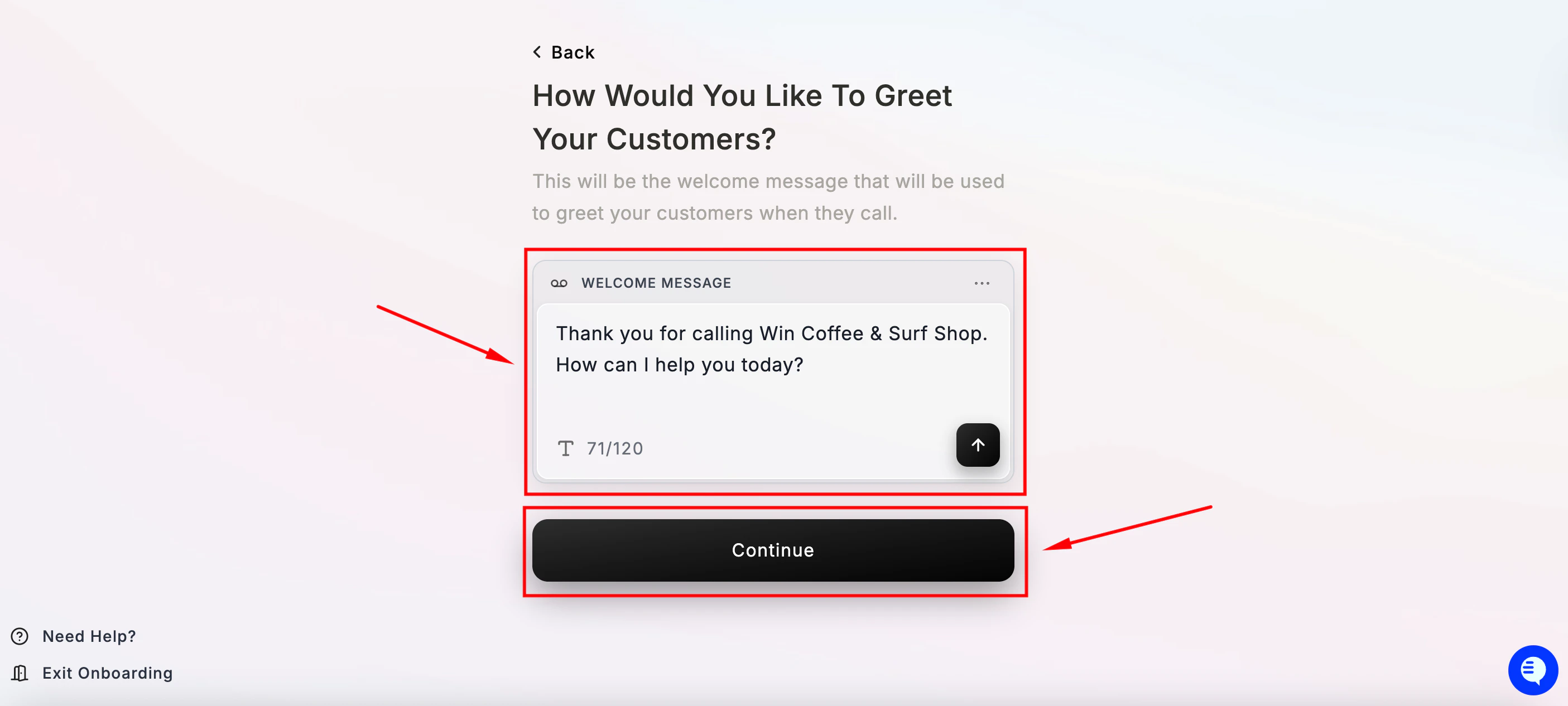 您可以在这里自定义,之后也可随时在控制台中修改,使其符合您餐厅的风格。请保持简短、亲切、直接——最多 120 个字符。
准备好后点击 **Continue**。
***
### **第 7 步——设置转接号码**
您可以在这里自定义,之后也可随时在控制台中修改,使其符合您餐厅的风格。请保持简短、亲切、直接——最多 120 个字符。
准备好后点击 **Continue**。
***
### **第 7 步——设置转接号码**
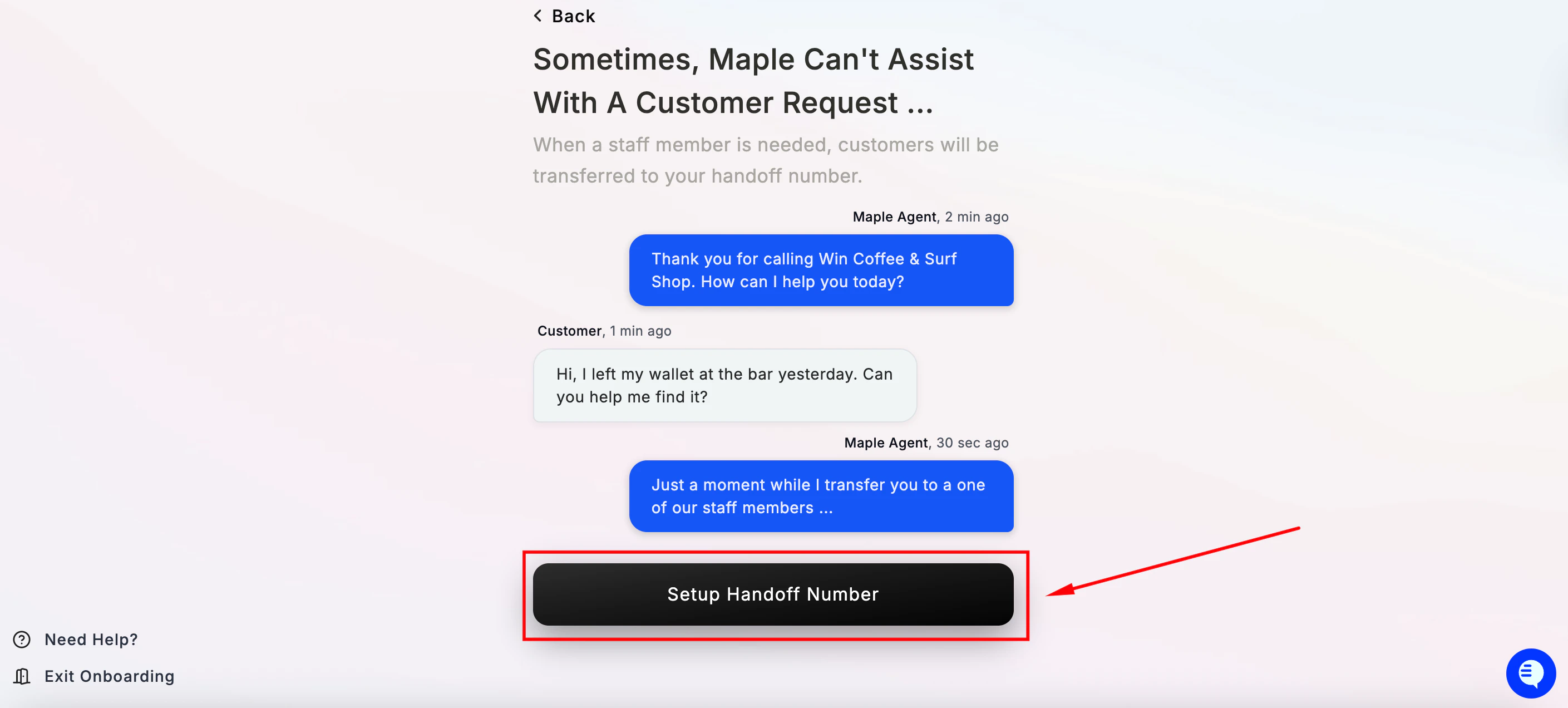 当 Maple 无法帮助顾客,或顾客要求与真人通话时,来电会被转接到您的转接号码。
请输入一个您的员工能够接听的电话号码。它**必须与您餐厅的主线路不同**。
当 Maple 无法帮助顾客,或顾客要求与真人通话时,来电会被转接到您的转接号码。
请输入一个您的员工能够接听的电话号码。它**必须与您餐厅的主线路不同**。
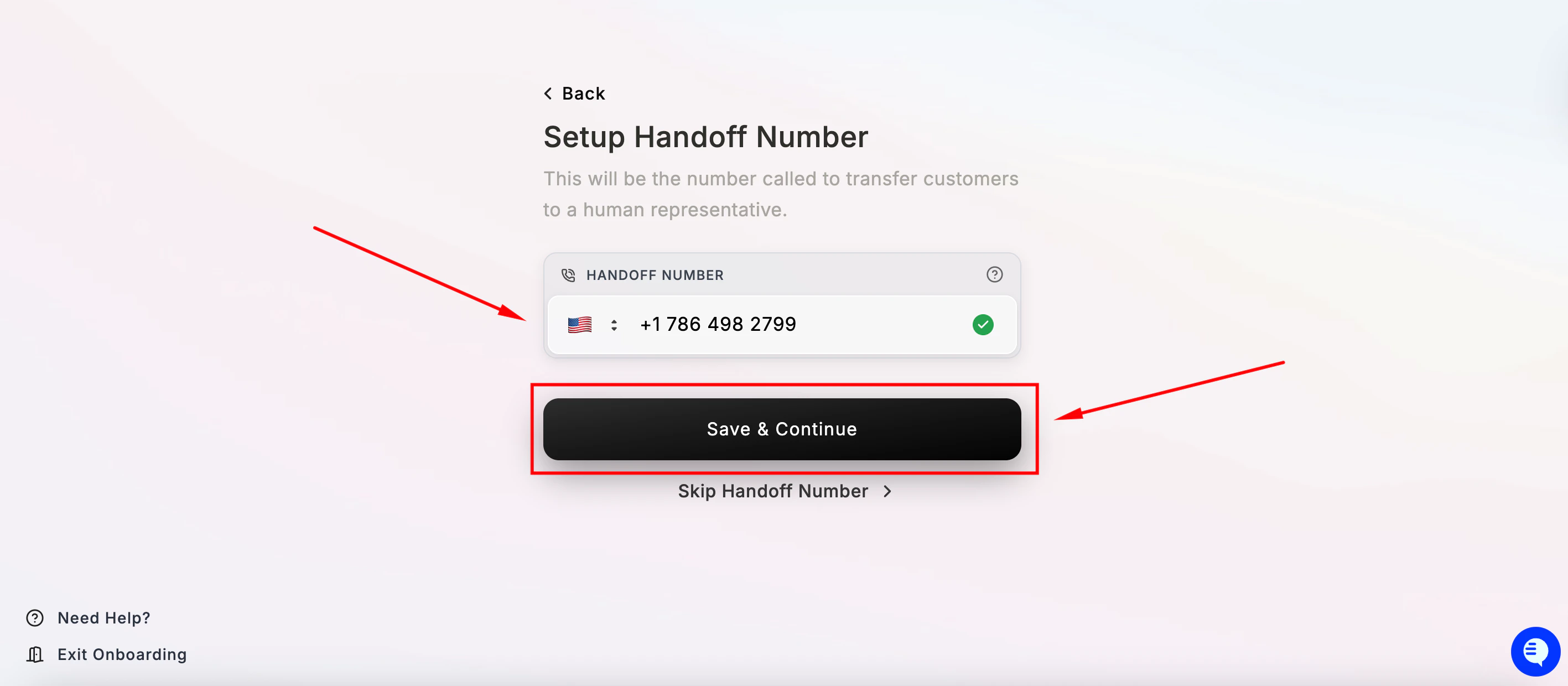 点击 **Save & Continue**。如果您想暂时跳过,请点击 **Skip Handoff Number**——但我们强烈建议您在正式上线前完成这项设置。
**重要:** 使用与主线路相同的号码会造成 AI 循环。接听的会再次是 AI 电话助手,而不是员工。
***
### **第 8 步——继续设置来电转接**
点击 **Save & Continue**。如果您想暂时跳过,请点击 **Skip Handoff Number**——但我们强烈建议您在正式上线前完成这项设置。
**重要:** 使用与主线路相同的号码会造成 AI 循环。接听的会再次是 AI 电话助手,而不是员工。
***
### **第 8 步——继续设置来电转接**
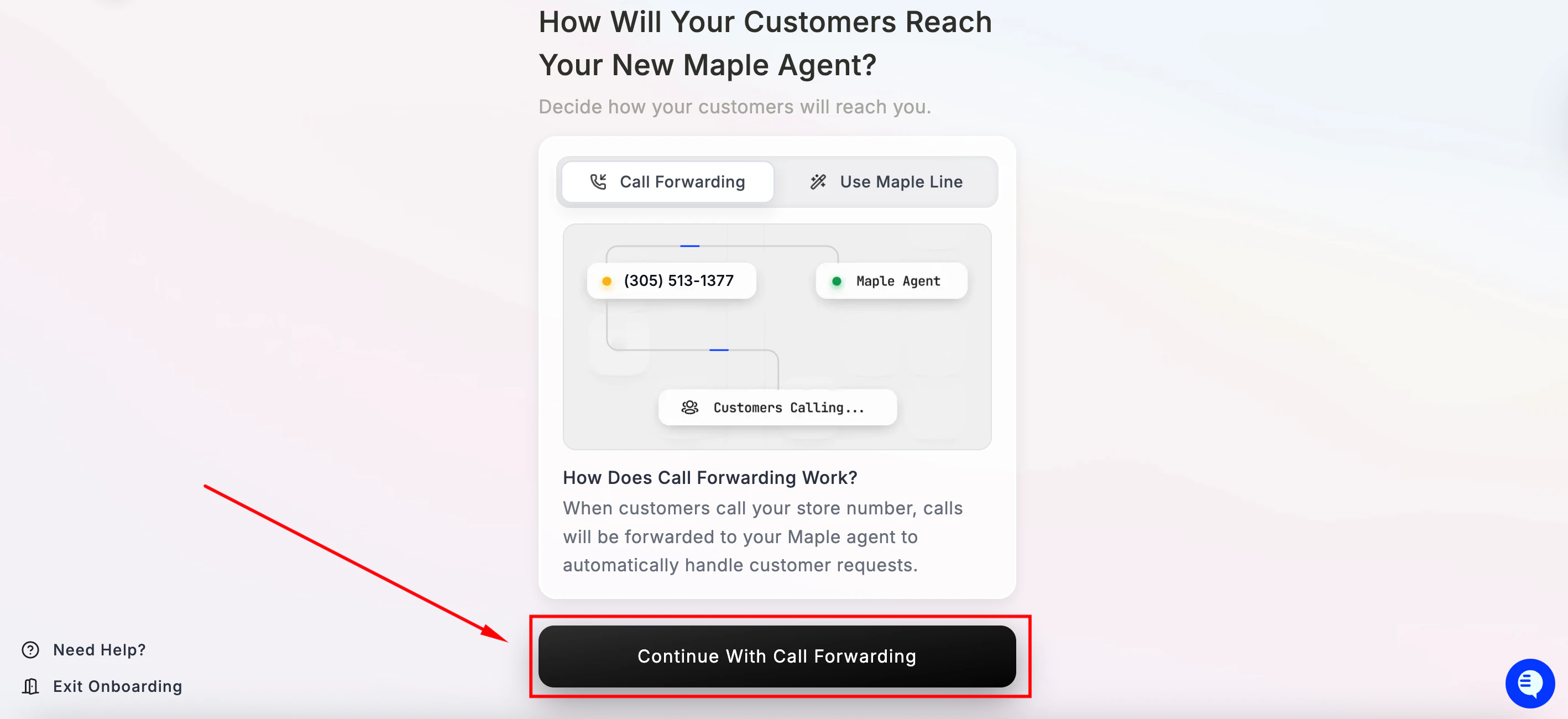 设置完成后,顾客拨打您现有的餐厅号码时,来电会自动转接到 Maple。这是让您的 AI 电话助手通过 Maple 正式上线的最后一步。
选择 **Continue With Call Forwarding**,按推荐的方式继续设置。
设置完成后,顾客拨打您现有的餐厅号码时,来电会自动转接到 Maple。这是让您的 AI 电话助手通过 Maple 正式上线的最后一步。
选择 **Continue With Call Forwarding**,按推荐的方式继续设置。
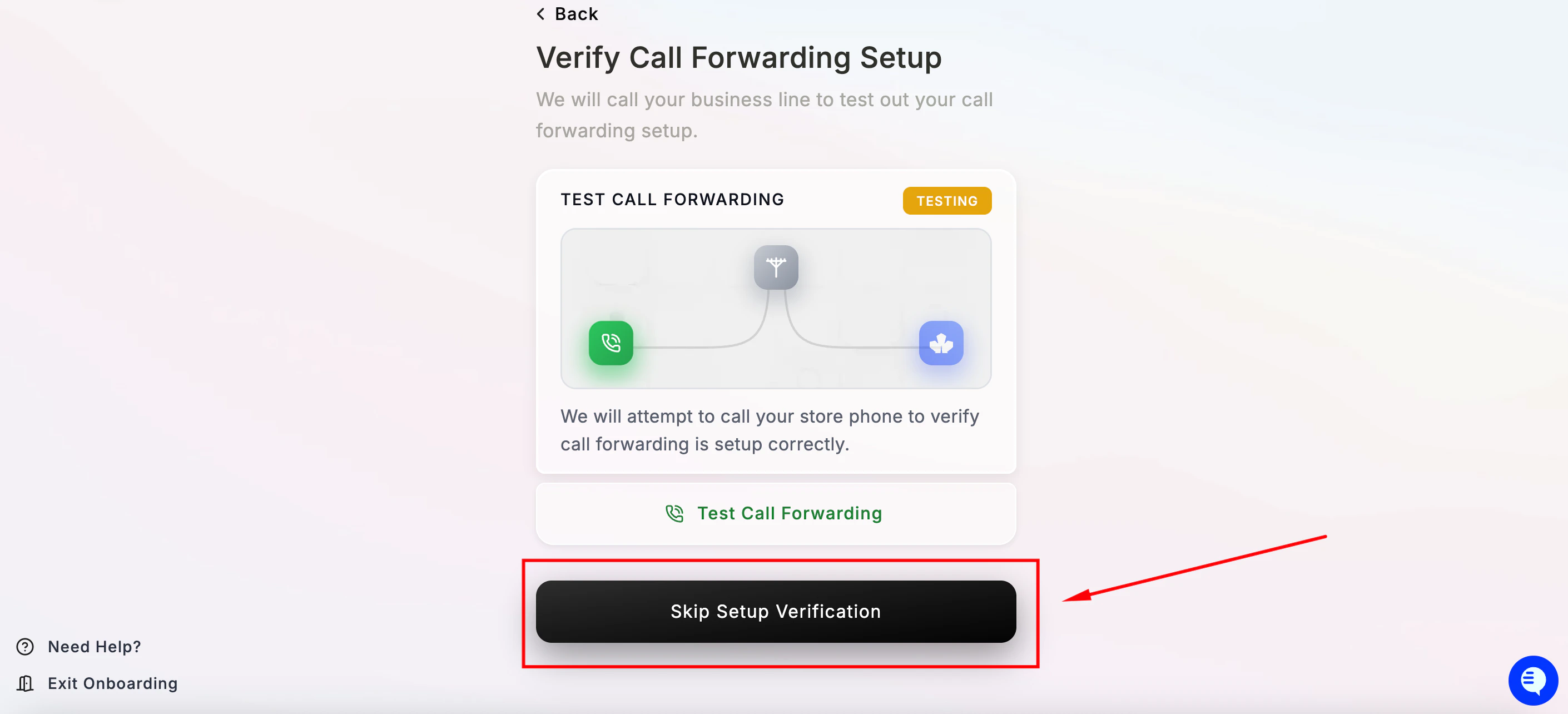
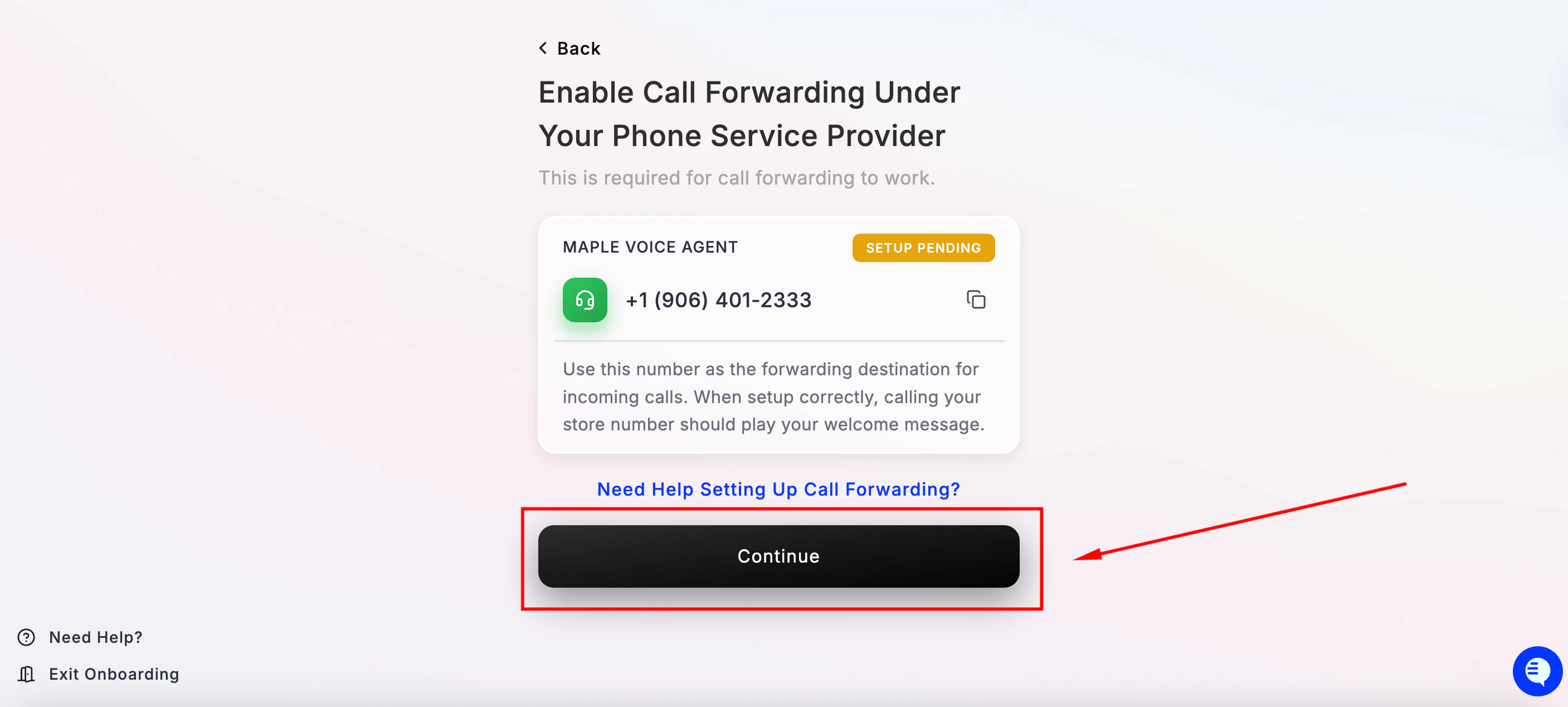 然后暂时选择 **Skip Setup Verification**。
 ***
### **第 9 步——短信设置 *(可选)***
Maple 可以向您的顾客发送短信——支付链接、预订确认、在线点餐链接等。
***
### **第 9 步——短信设置 *(可选)***
Maple 可以向您的顾客发送短信——支付链接、预订确认、在线点餐链接等。
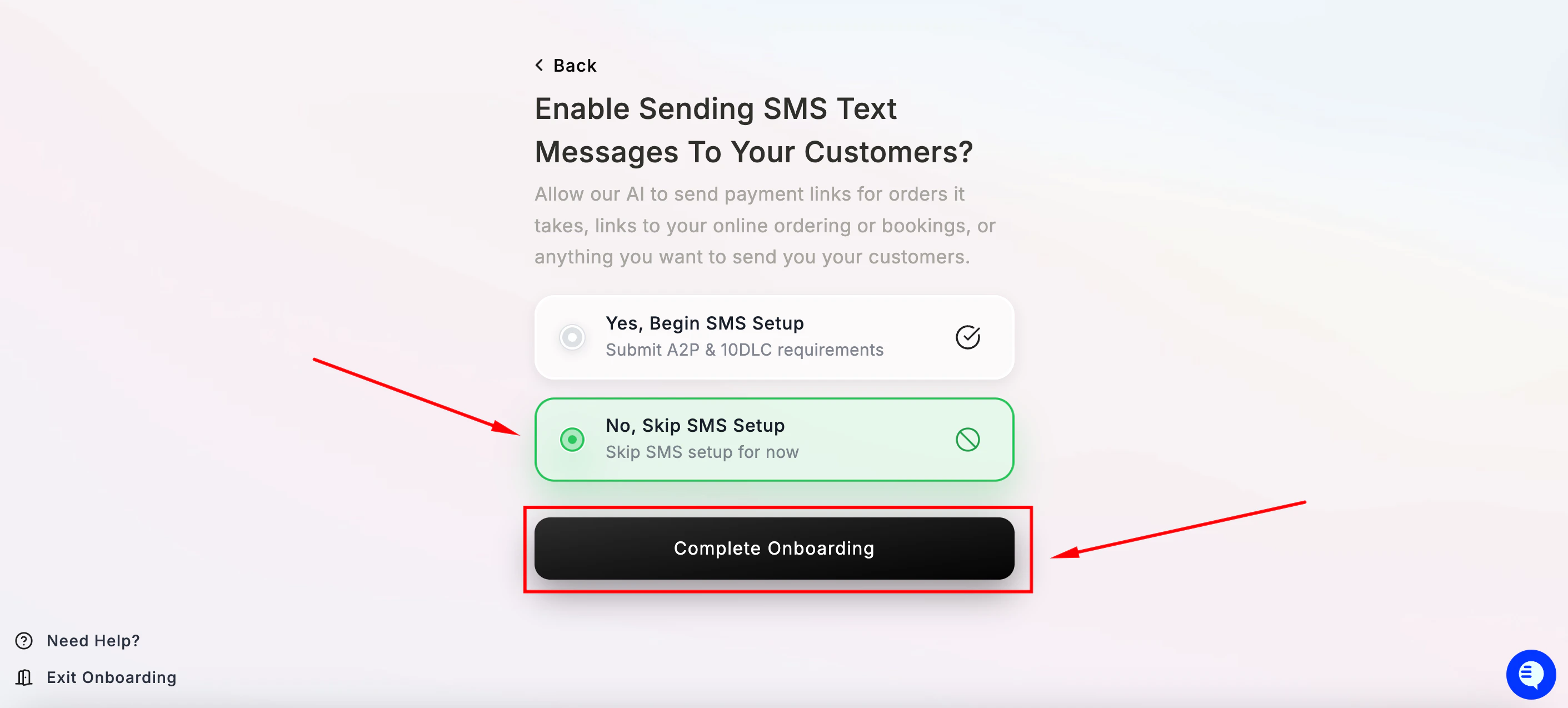 请选择:**No, Skip SMS Setup**——暂时跳过,稍后再在控制台中设置。然后点击 **Complete Onboarding**。
短信设置需要企业验证(A2P 合规)。您之后随时可以回来完成。
***
### **第 10 步——一切就绪!🎉**
请选择:**No, Skip SMS Setup**——暂时跳过,稍后再在控制台中设置。然后点击 **Complete Onboarding**。
短信设置需要企业验证(A2P 合规)。您之后随时可以回来完成。
***
### **第 10 步——一切就绪!🎉**
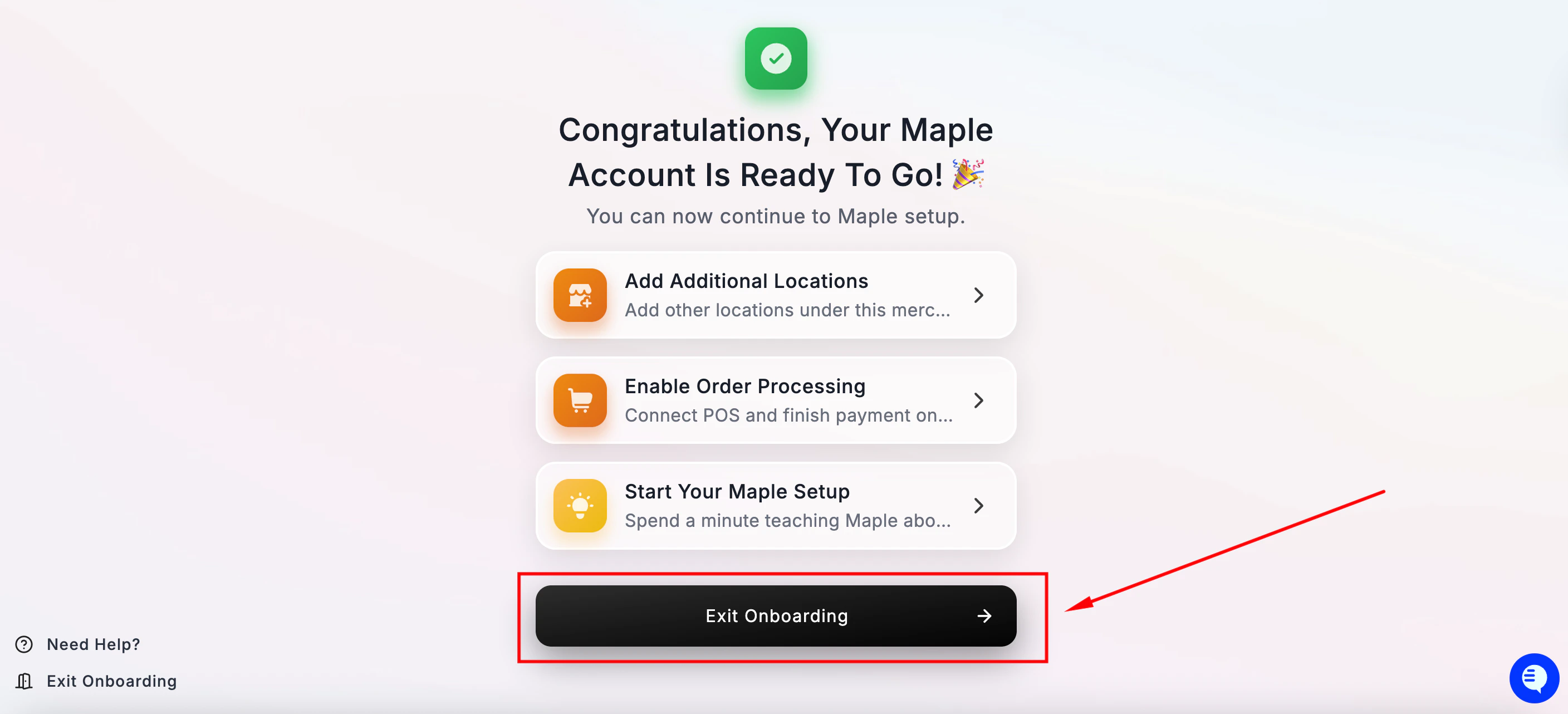 点击 **Exit Onboarding** 进入控制台,继续完成设置。
***
### **接下来做什么**
在正式上线之前,我们建议您在控制台中完成以下步骤:
* **[Maple 控制台概览](/zh/dashboard-overview)**——控制台的完整使用指南
* **[正式上线](/zh/going-live)**——测试您的 AI 电话助手并开启来电转接
***
### **需要帮助?**
* **电子邮件:** [hello@maple.inc](mailto:hello@maple.inc)
* **在线支持时间:** 周一至周五,上午 9 点至下午 6 点(美国东部时间)
* **控制台:** [app.maple.inc](https://app.maple.inc)
This documentation is built and hosted on [Mintlify](https://mintlify.com), a developer documentation platform.
点击 **Exit Onboarding** 进入控制台,继续完成设置。
***
### **接下来做什么**
在正式上线之前,我们建议您在控制台中完成以下步骤:
* **[Maple 控制台概览](/zh/dashboard-overview)**——控制台的完整使用指南
* **[正式上线](/zh/going-live)**——测试您的 AI 电话助手并开启来电转接
***
### **需要帮助?**
* **电子邮件:** [hello@maple.inc](mailto:hello@maple.inc)
* **在线支持时间:** 周一至周五,上午 9 点至下午 6 点(美国东部时间)
* **控制台:** [app.maple.inc](https://app.maple.inc)
This documentation is built and hosted on [Mintlify](https://mintlify.com), a developer documentation platform.