> ## Documentation Index
> Fetch the complete documentation index at: https://docs.maple.inc/llms.txt
> Use this file to discover all available pages before exploring further.
# Store Hours Configuration
> Set your operating hours and special schedules
Configure your store's operating hours so your voice AI knows when you're open and can provide accurate information to customers.
Store hours control your AI's behavior and available capabilities. When the store is closed, certain features like
call passthrough are automatically disabled.
## How Store Hours Work
Store hours determine what your AI can do and which tools it has access to. The AI's capabilities change based on:
* Whether the store is currently open or closed
* Whether you have menus configured
* Whether menus are currently active (within menu hours)
* Whether ordering is enabled (pickup\_order or phone\_order)
You no longer need to include regular store hours in your FAQs—the AI uses the configured store hours automatically.
However, **keep holiday hours in your FAQs** as they require special handling.
## AI Behavior Based on Store Status
When **pickup\_order** or **phone\_order** is enabled, your AI's capabilities vary based on store and menu status:
### Store Open with Active Menus
* **Scenario**: Store has menus, is open, and menus are active
* **Capabilities**: Can answer detailed menu questions, take orders, provide FAQ information, share links, and transfer calls
### Store Open with Inactive Menus
* **Scenario**: Store has menus, is open, but menu hours have ended (menu hours end earlier than store hours)
* **Capabilities**: Can provide general menu recommendations, answer FAQ questions, share links, and transfer calls
### Store Closed with Active Menus
* **Scenario**: Store has menus, is closed, but menus are still active (unrealistic configuration where menu hours extend beyond store hours)
* **Capabilities**: Can provide general menu recommendations, answer FAQ questions, and share links
* **Note**: Call passthrough is disabled when store is closed
### Store Closed with Inactive Menus
* **Scenario**: Store has menus, is closed, and menus are inactive
* **Capabilities**: Can provide general menu recommendations, answer FAQ questions, and share links
### Store Open, No Menus
* **Scenario**: Store has no menus configured, is open
* **Capabilities**: Can answer FAQ questions, share links, and transfer calls (FAQ-only mode)
### Store Closed, No Menus
* **Scenario**: Store has no menus configured, is closed
* **Capabilities**: Can answer FAQ questions and share links (FAQ-only mode)
## Setting Up Store Hours
### Navigate to Store Hours
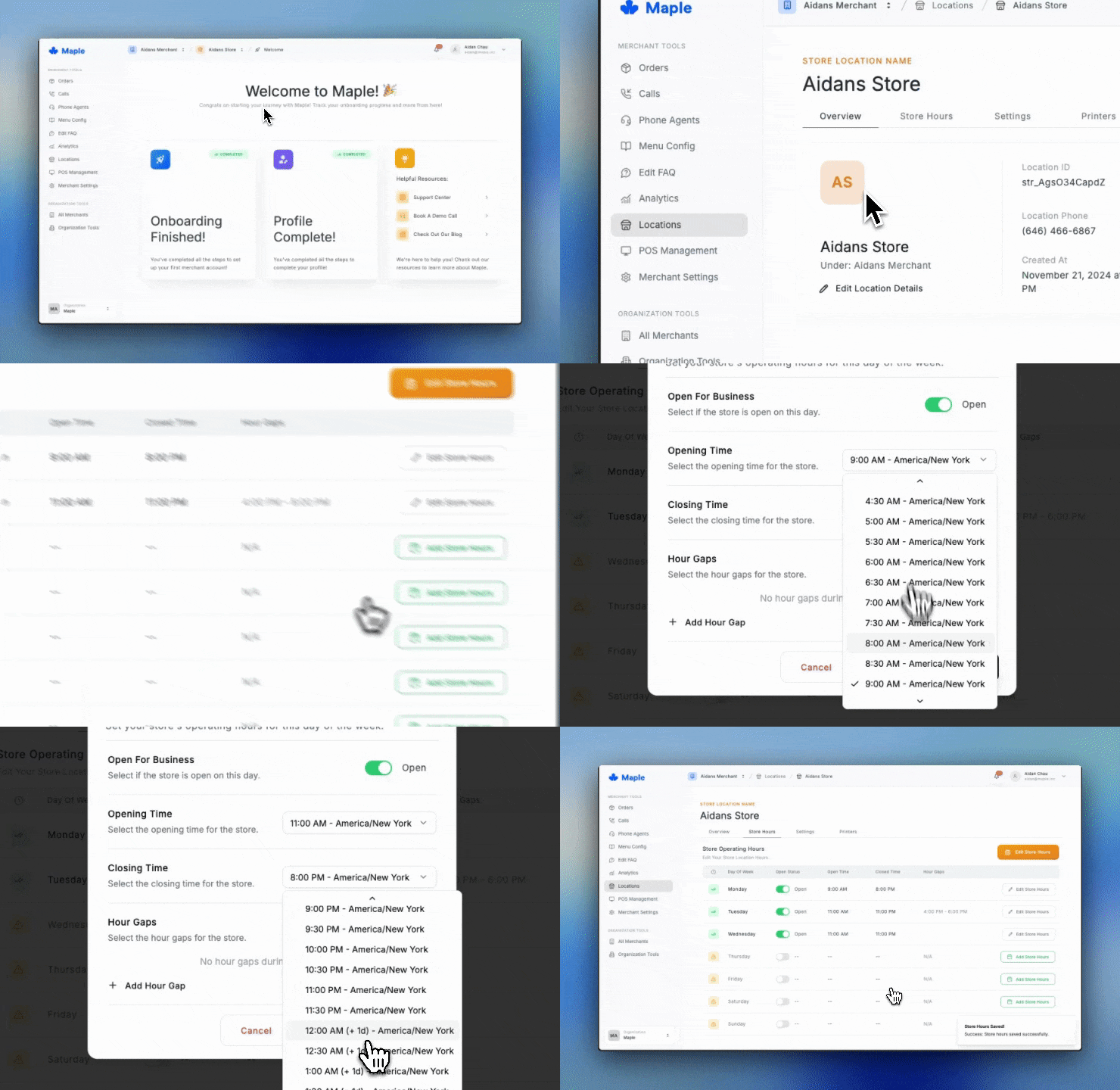
1. Click **Locations** in the sidebar
2. Select your store location
3. Click the **Store Hours** tab
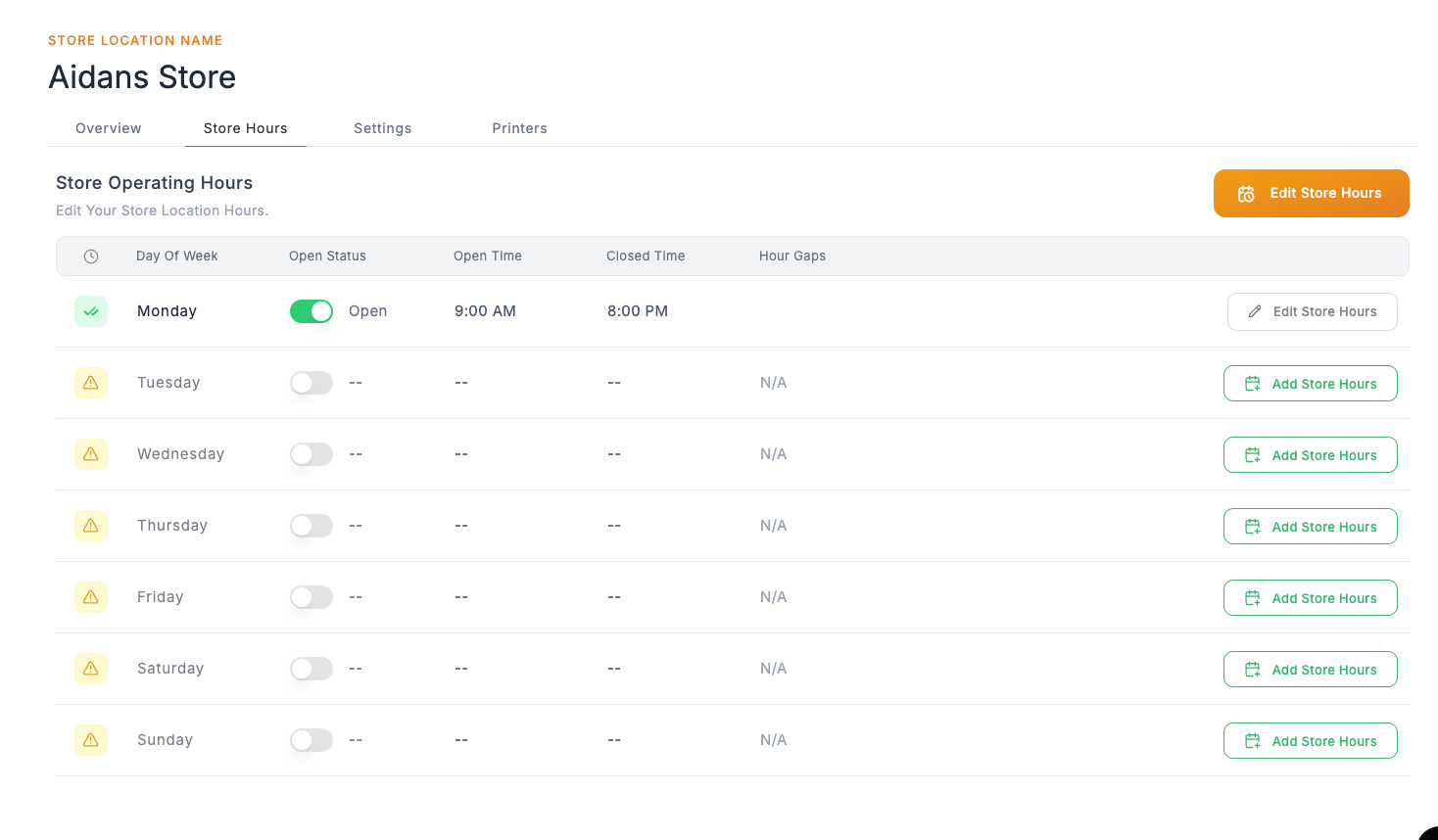
You'll see a table showing each day of the week. Days with warning icons (⚠️) indicate the store is closed on those days.
Click **Add Store Hours** on the right side of any day to configure that day's schedule.
In the configuration popup, set when your store opens and closes for the day (your actual operating hours, not when you stop taking orders). Toggle **Open For Business** off for days you're closed.
 **Hour Gaps** are for split shifts or breaks during the day (e.g., closing between lunch and dinner service). Click **+ Add Hour Gap** to add a break period with start and end times.
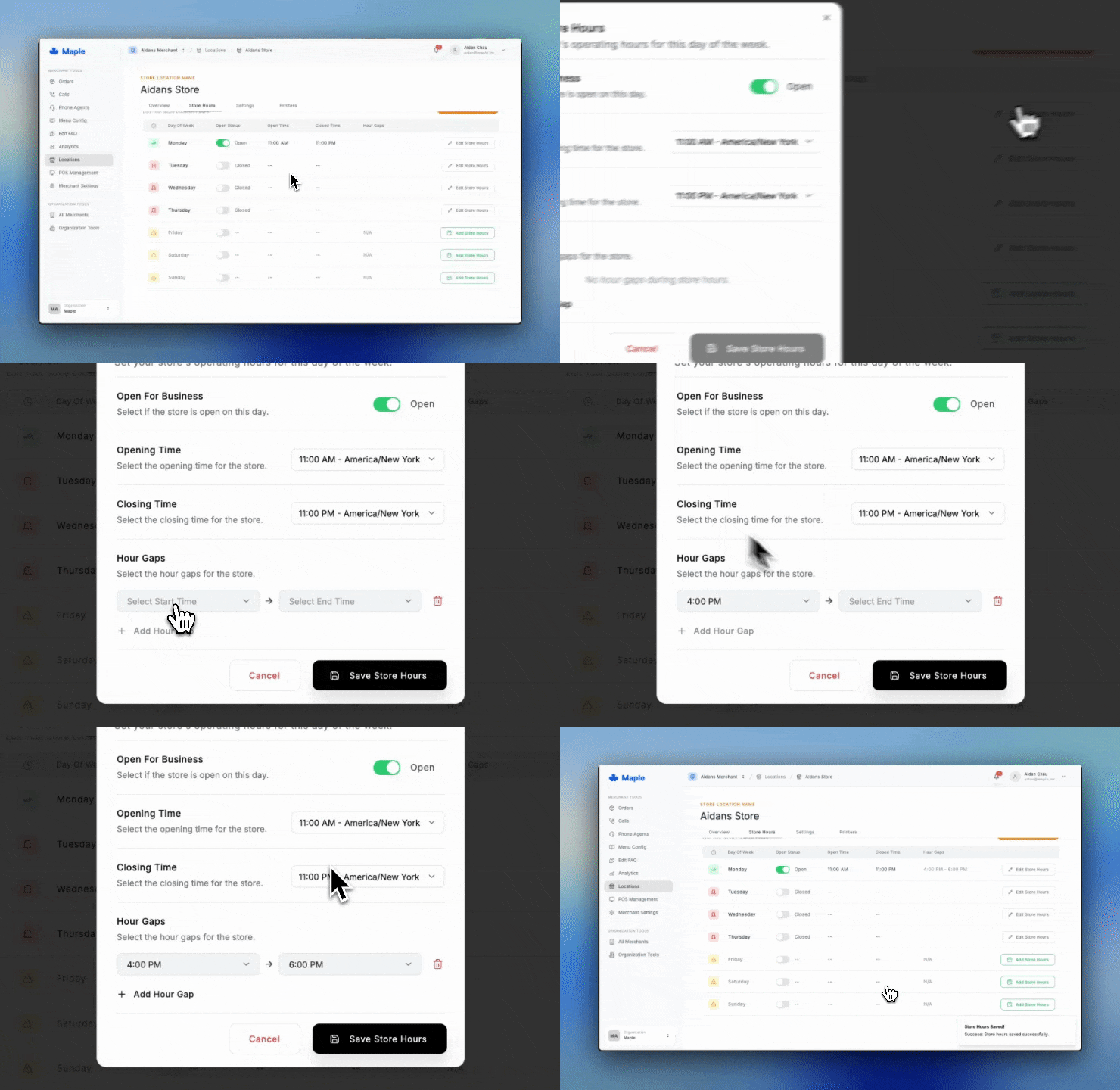 Once you've configured the day, click **Save Store Hours**. You'll see the day update with a checkmark (✓) and the times displayed.
Note the red door update when the location is marked as closed.
Once you've configured the day, click **Save Store Hours**. You'll see the day update with a checkmark (✓) and the times displayed.
Note the red door update when the location is marked as closed.
 ## Best Practices
**Store Hours vs Menu Hours**
* Set your actual closing time in store hours
* Use menu availability times to indicate last call for orders
* The AI's capabilities automatically adjust based on these settings
**Split Shifts**
* Use hour gaps for lunch/dinner restaurants
* Example: Open 11 AM - 2 PM (lunch), gap from 2 PM - 5 PM, reopen 5 PM - 9 PM (dinner)
**FAQ Management**
* Remove regular store hours from FAQs (no longer needed)
* **Keep holiday hours in FAQs** for special scheduling
* The AI automatically uses configured store hours for regular operations
**Consistent Updates**
* Update store hours before holidays or special events
* Keep them in sync with your actual operating schedule
* Review weekly to ensure accuracy
## Next Steps
Add knowledge base content
Customize AI voice
## Best Practices
**Store Hours vs Menu Hours**
* Set your actual closing time in store hours
* Use menu availability times to indicate last call for orders
* The AI's capabilities automatically adjust based on these settings
**Split Shifts**
* Use hour gaps for lunch/dinner restaurants
* Example: Open 11 AM - 2 PM (lunch), gap from 2 PM - 5 PM, reopen 5 PM - 9 PM (dinner)
**FAQ Management**
* Remove regular store hours from FAQs (no longer needed)
* **Keep holiday hours in FAQs** for special scheduling
* The AI automatically uses configured store hours for regular operations
**Consistent Updates**
* Update store hours before holidays or special events
* Keep them in sync with your actual operating schedule
* Review weekly to ensure accuracy
## Next Steps
Add knowledge base content
Customize AI voice