> ## Documentation Index
> Fetch the complete documentation index at: https://docs.maple.inc/llms.txt
> Use this file to discover all available pages before exploring further.
# Quickstart
> Get your Maple voice AI up and running in 15 minutes
## Before You Begin
You'll need:
* Your restaurant's basic information (name, address, hours)
* A valid credit card for billing
* About 10 minutes
Use your restaurant's main email address for easier team management later.
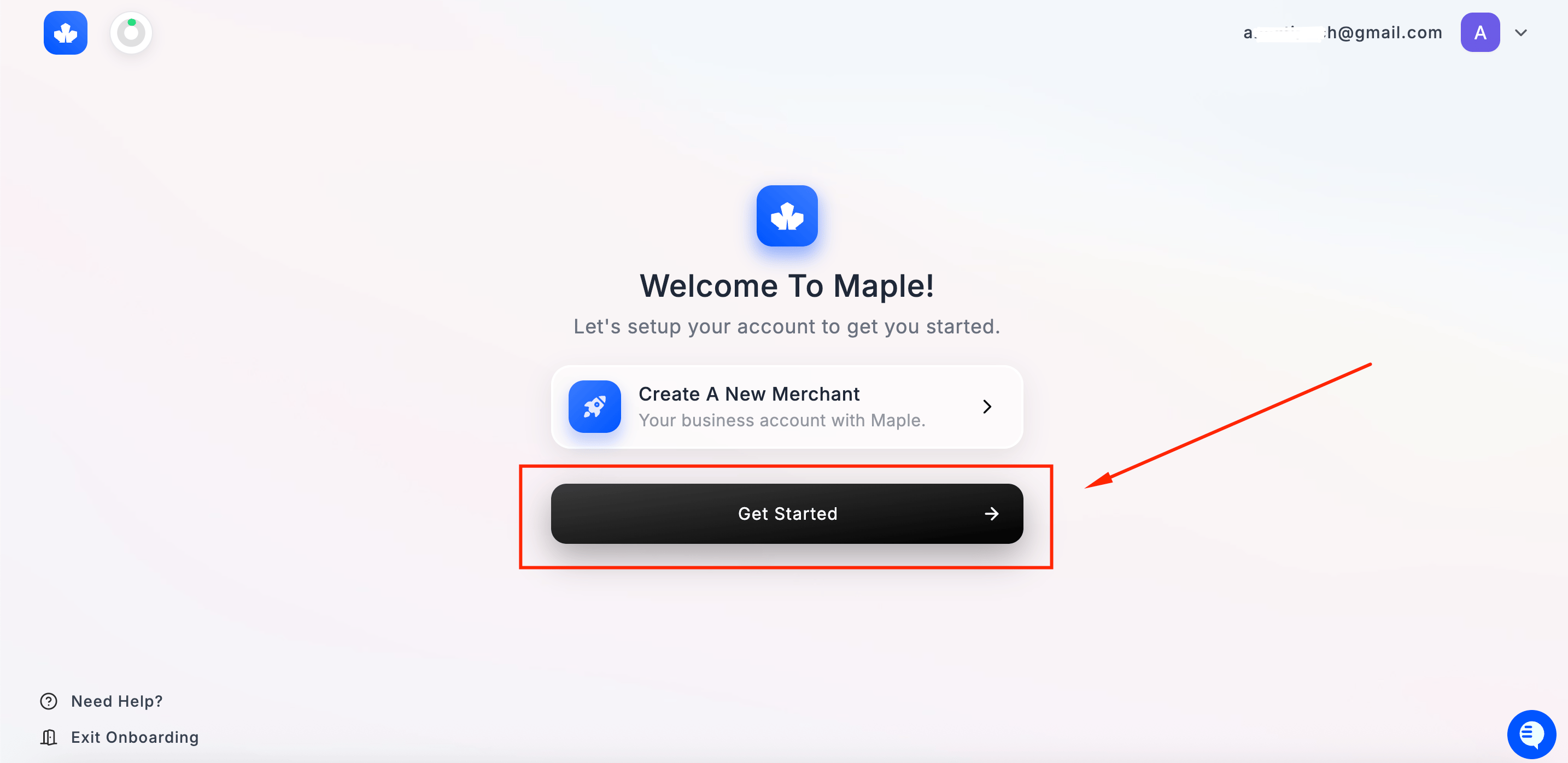 1. Visit [**app.maple.inc**](https://app.maple.inc) and sign in or create your account
2. You'll land on the **Welcome to Maple** screen
3. Click **Get Started** to begin setting up your merchant account
1. Visit [**app.maple.inc**](https://app.maple.inc) and sign in or create your account
2. You'll land on the **Welcome to Maple** screen
3. Click **Get Started** to begin setting up your merchant account
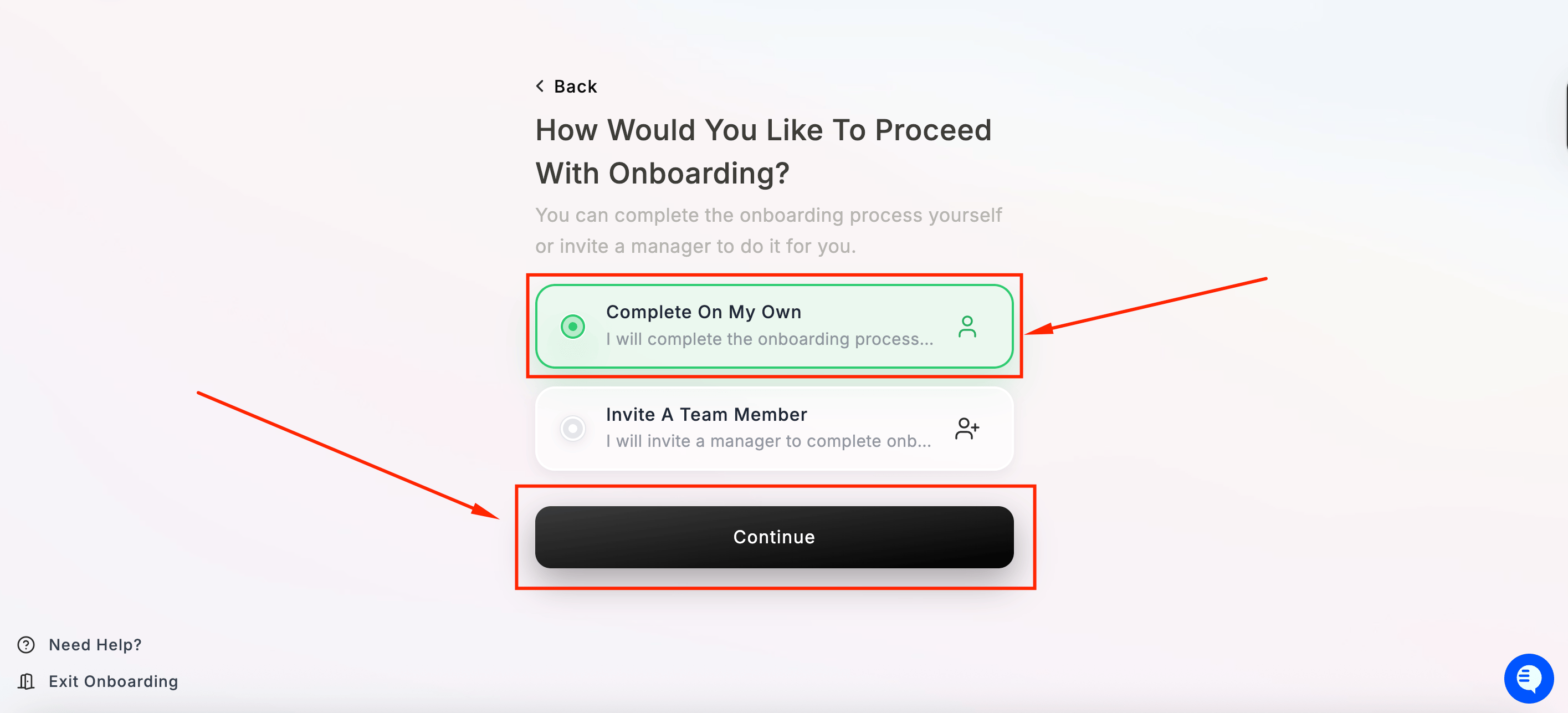 You'll be asked how you'd like to complete onboarding:
* **Complete On My Own** — you'll fill in all the details yourself
* **Invite A Team Member** — send the onboarding to a manager to complete on your behalf
Select your preferred option and click **Continue**.
**Tip:** If you're the owner or manager setting things up directly, select "Complete On My Own" to get through this fastest.
Enter the **legal name of your business entity** — for example, *Maple's Burgers LLC*. This is used for your merchant account and billing records. It will **not** be visible to your customers.
You'll be asked how you'd like to complete onboarding:
* **Complete On My Own** — you'll fill in all the details yourself
* **Invite A Team Member** — send the onboarding to a manager to complete on your behalf
Select your preferred option and click **Continue**.
**Tip:** If you're the owner or manager setting things up directly, select "Complete On My Own" to get through this fastest.
Enter the **legal name of your business entity** — for example, *Maple's Burgers LLC*. This is used for your merchant account and billing records. It will **not** be visible to your customers.
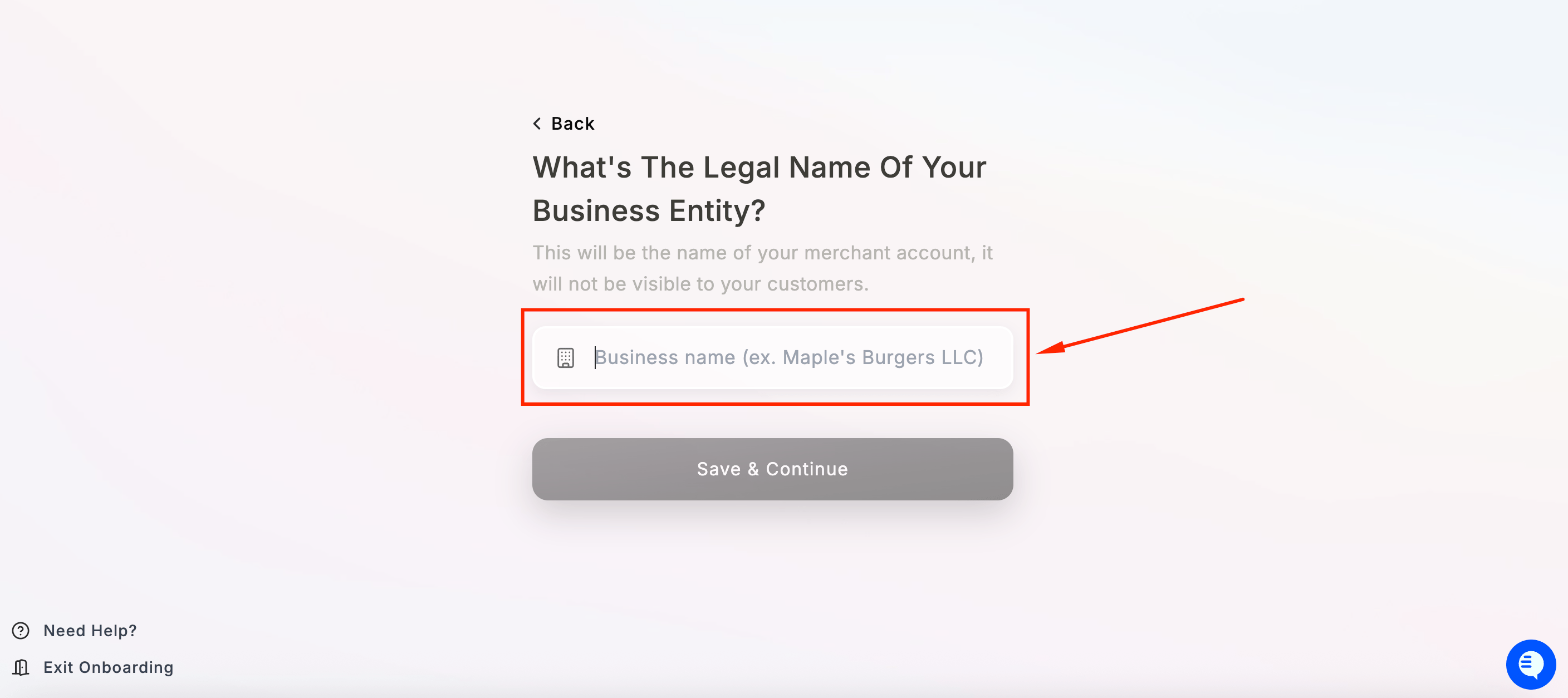 Once you see the green checkmark confirming the name is valid, click **Save & Continue**.\
\
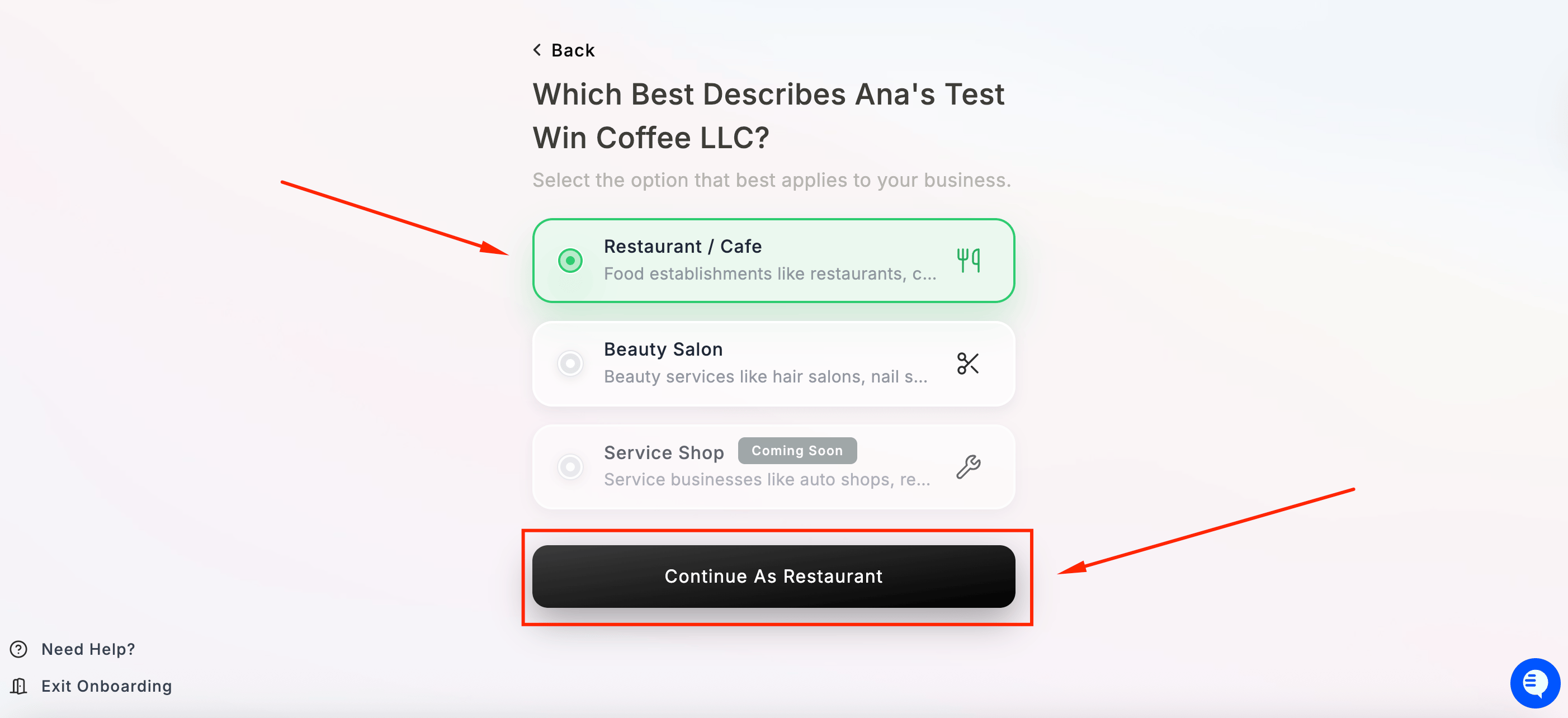
Choose the option that best describes your business:
Currently, we support the following store types: Restaurant and Salon.
Select **Restaurant / Cafe** and click **Continue as Restaurant**.
Once you see the green checkmark confirming the name is valid, click **Save & Continue**.\
\
Choose the option that best describes your business:
Currently, we support the following store types: Restaurant and Salon.
Select **Restaurant / Cafe** and click **Continue as Restaurant**.
 Enter how many locations you operate under this business entity. Use the **–** and **+** buttons to adjust.
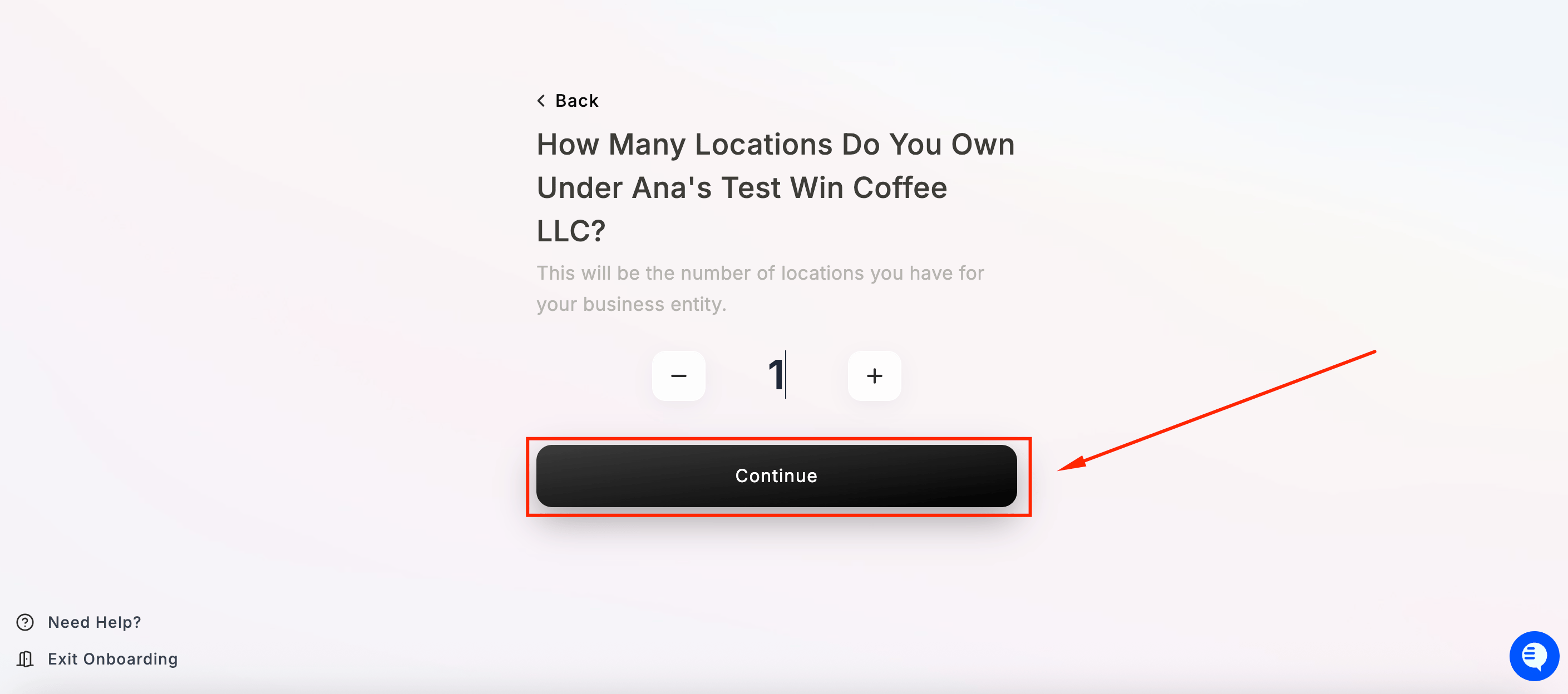 Click **Continue** when done.
You can always add more locations later from your dashboard.
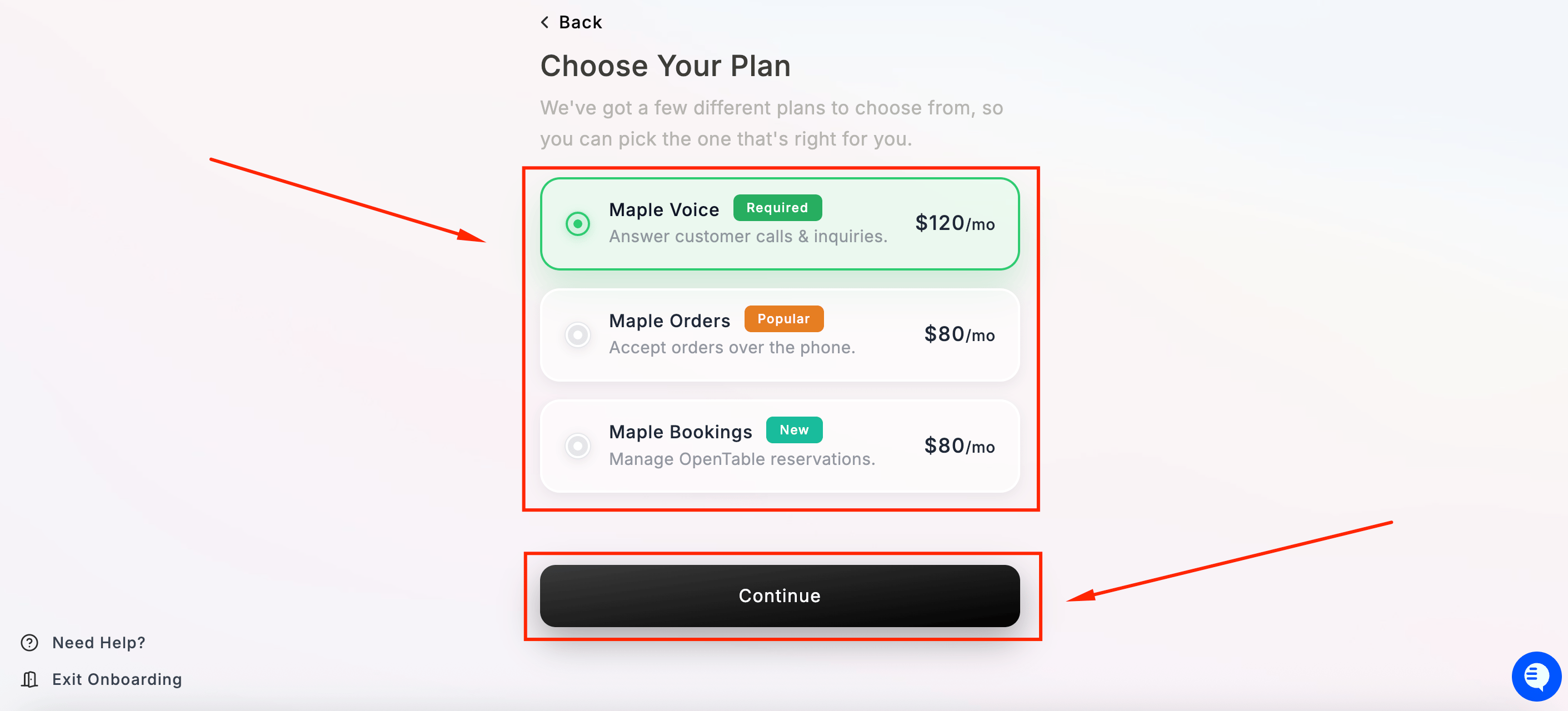
Select the plan that fits your needs. Maple Voice is required and included in all plans. Add Orders or Bookings if needed.
Click **Continue** when ready.
You can change your plan at any time from your dashboard.
Click **Continue** when done.
You can always add more locations later from your dashboard.
Select the plan that fits your needs. Maple Voice is required and included in all plans. Add Orders or Bookings if needed.
Click **Continue** when ready.
You can change your plan at any time from your dashboard.
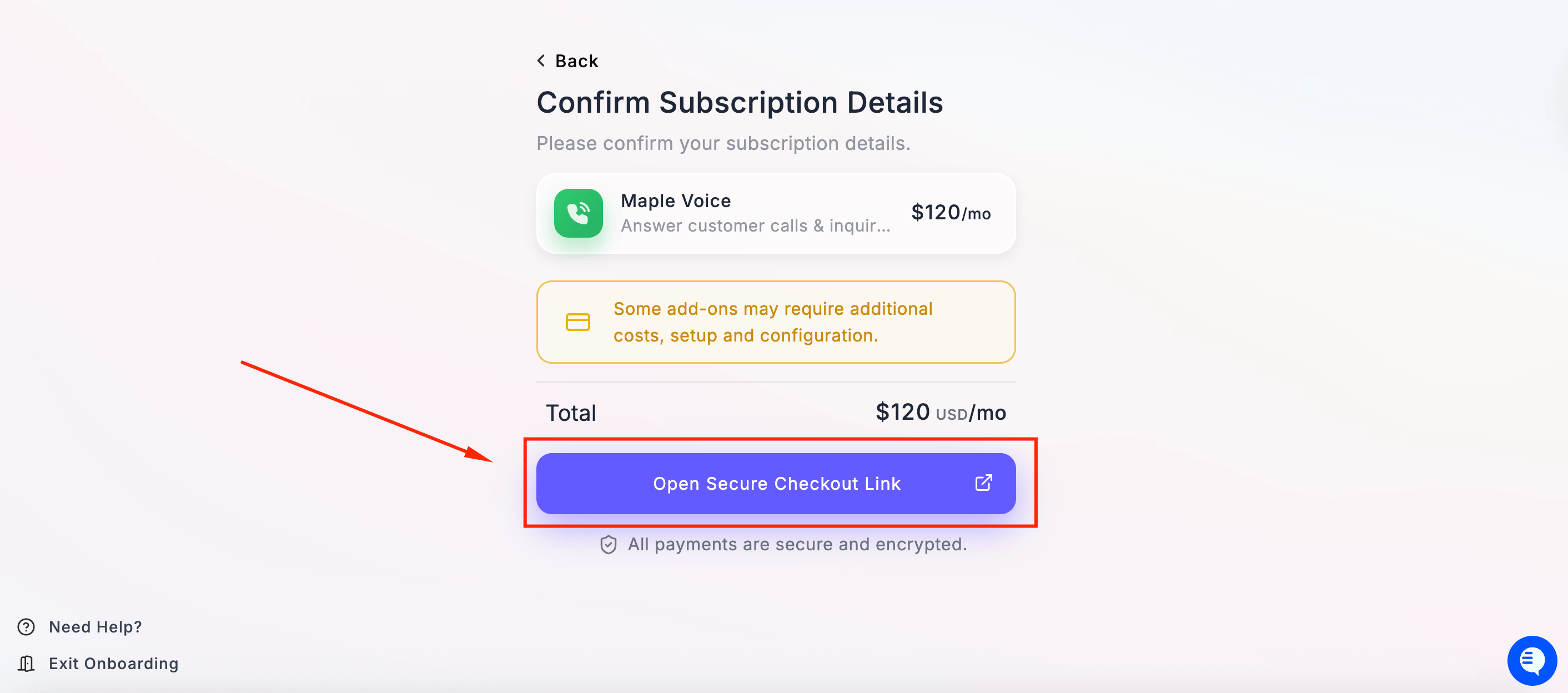
 \
Review your subscription summary. Click **Open Secure Checkout Link** to proceed to payment.
\
Review your subscription summary. Click **Open Secure Checkout Link** to proceed to payment.
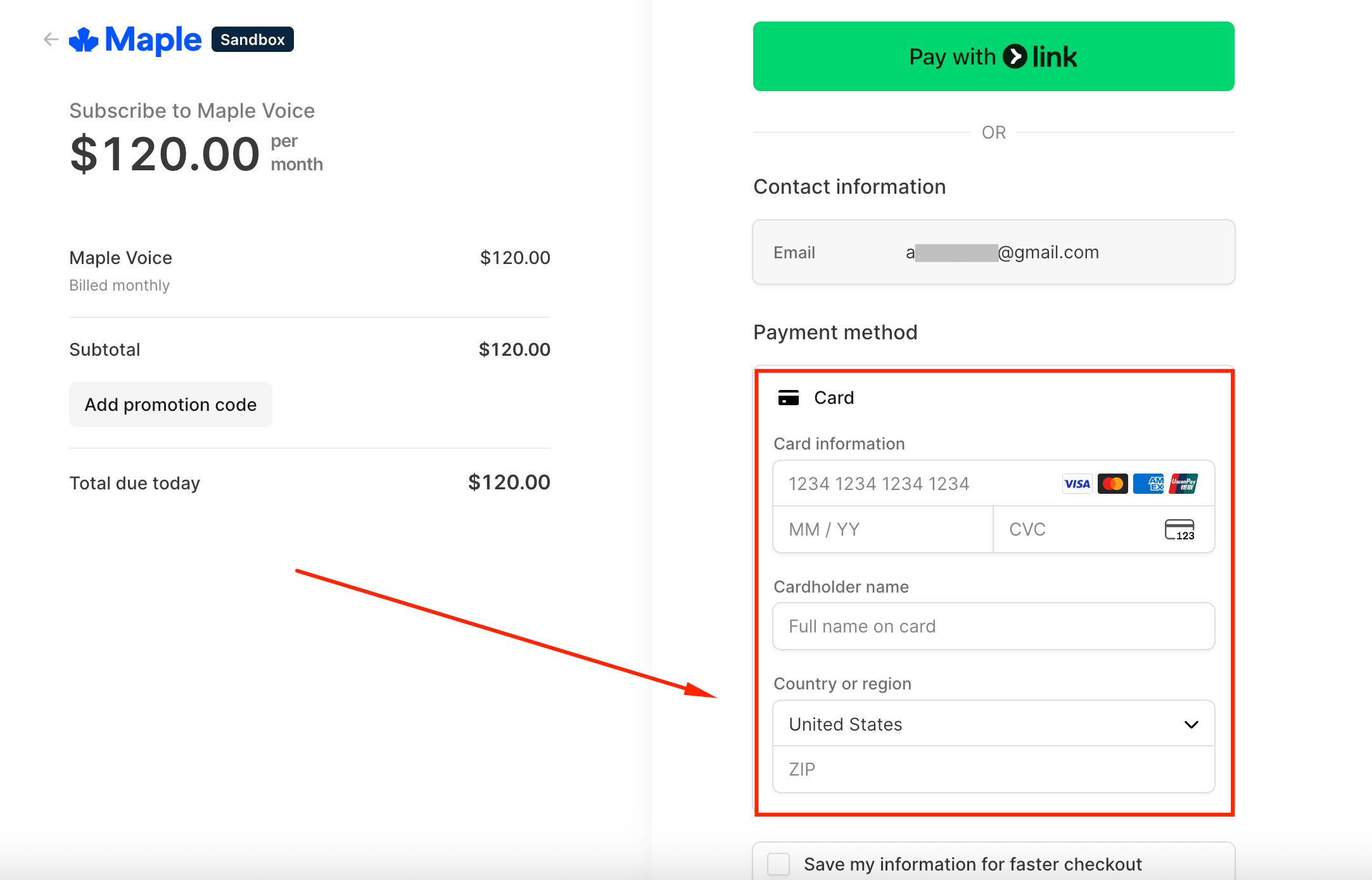
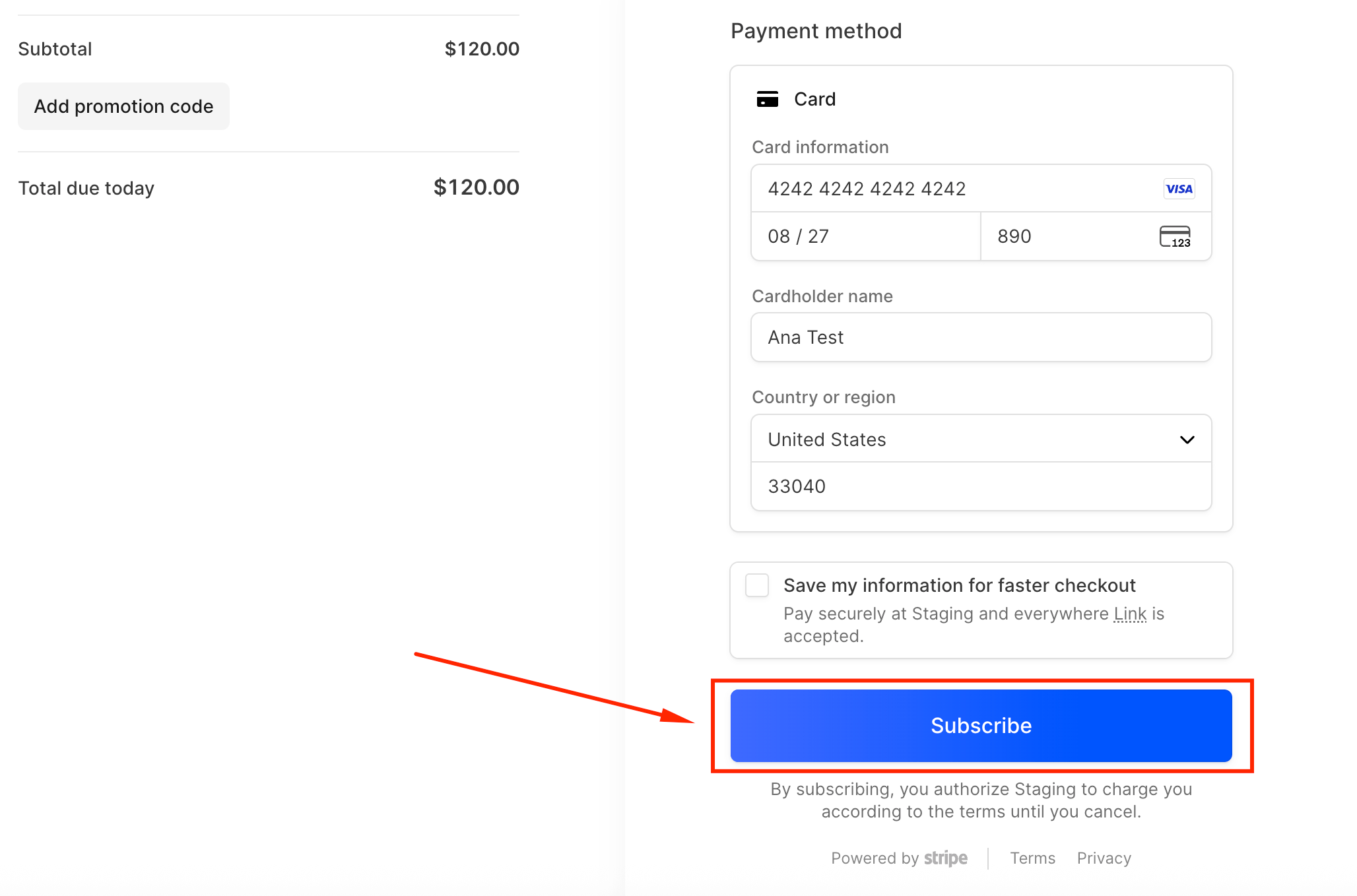
 On the checkout page:
1. Enter your **card number, expiration date, and CVC**
2. Enter your **cardholder's name**
3. Select your **country** and enter your **ZIP code**
4. Optionally add a **promotion code** if you have one
5. Click **Subscribe** to complete your purchase
All payments are processed securely through **Stripe**. Your card will be billed monthly.
On the checkout page:
1. Enter your **card number, expiration date, and CVC**
2. Enter your **cardholder's name**
3. Select your **country** and enter your **ZIP code**
4. Optionally add a **promotion code** if you have one
5. Click **Subscribe** to complete your purchase
All payments are processed securely through **Stripe**. Your card will be billed monthly.
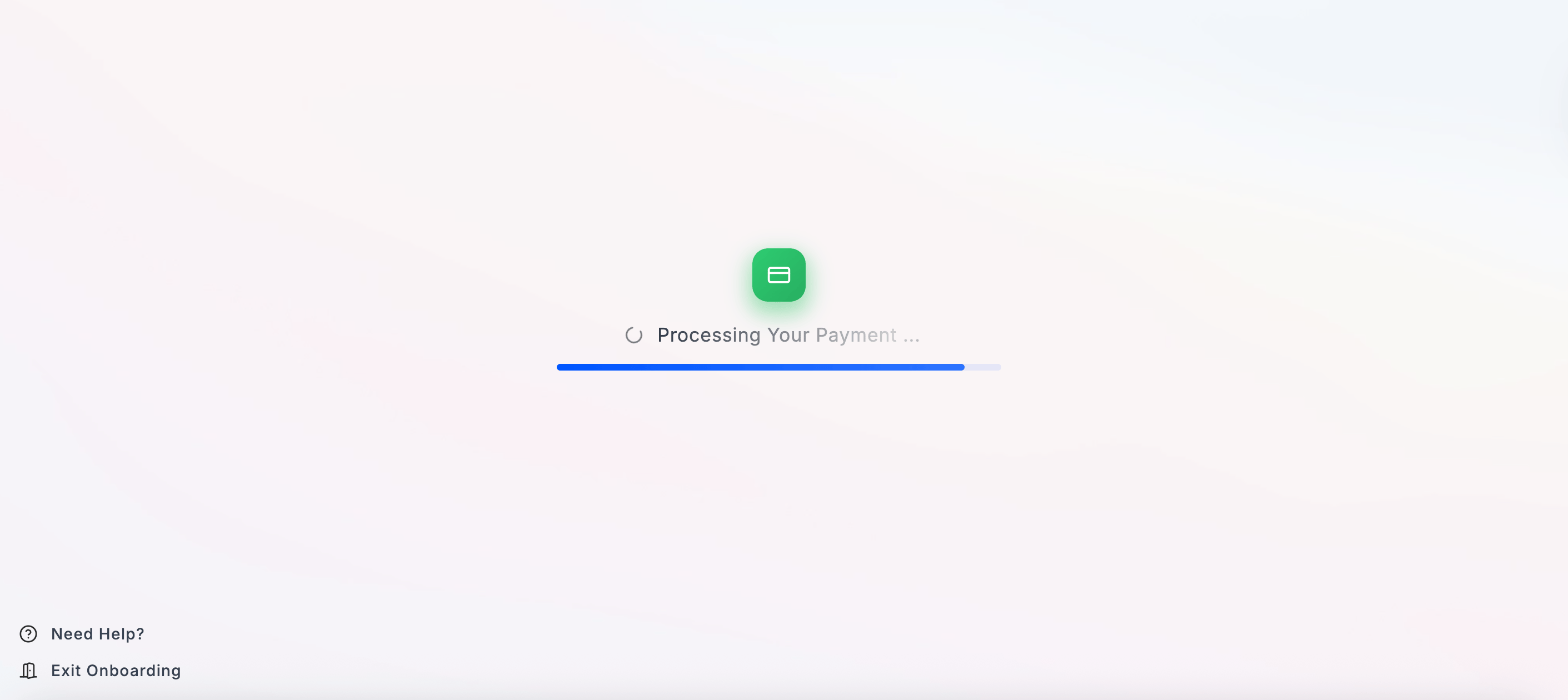
 A **Processing Your Payment** screen will appear — wait for it to complete before proceeding.
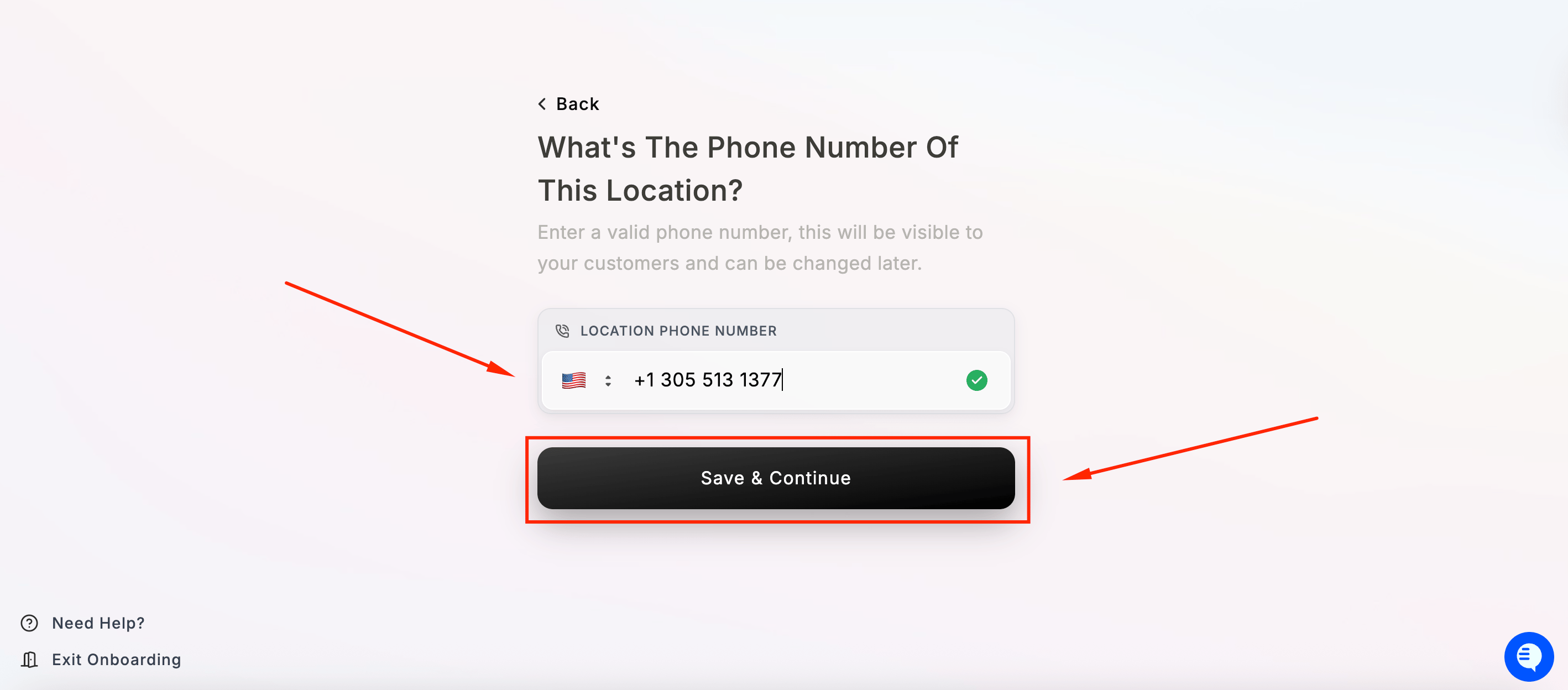 Enter your restaurant's **main phone number**. This will be visible to your customers and can be changed later.
Click **Save & Continue**.
This is your existing restaurant line — the one customers already call. You'll set up call forwarding at the end of onboarding.
Enter your restaurant's **main phone number**. This will be visible to your customers and can be changed later.
Click **Save & Continue**.
This is your existing restaurant line — the one customers already call. You'll set up call forwarding at the end of onboarding.
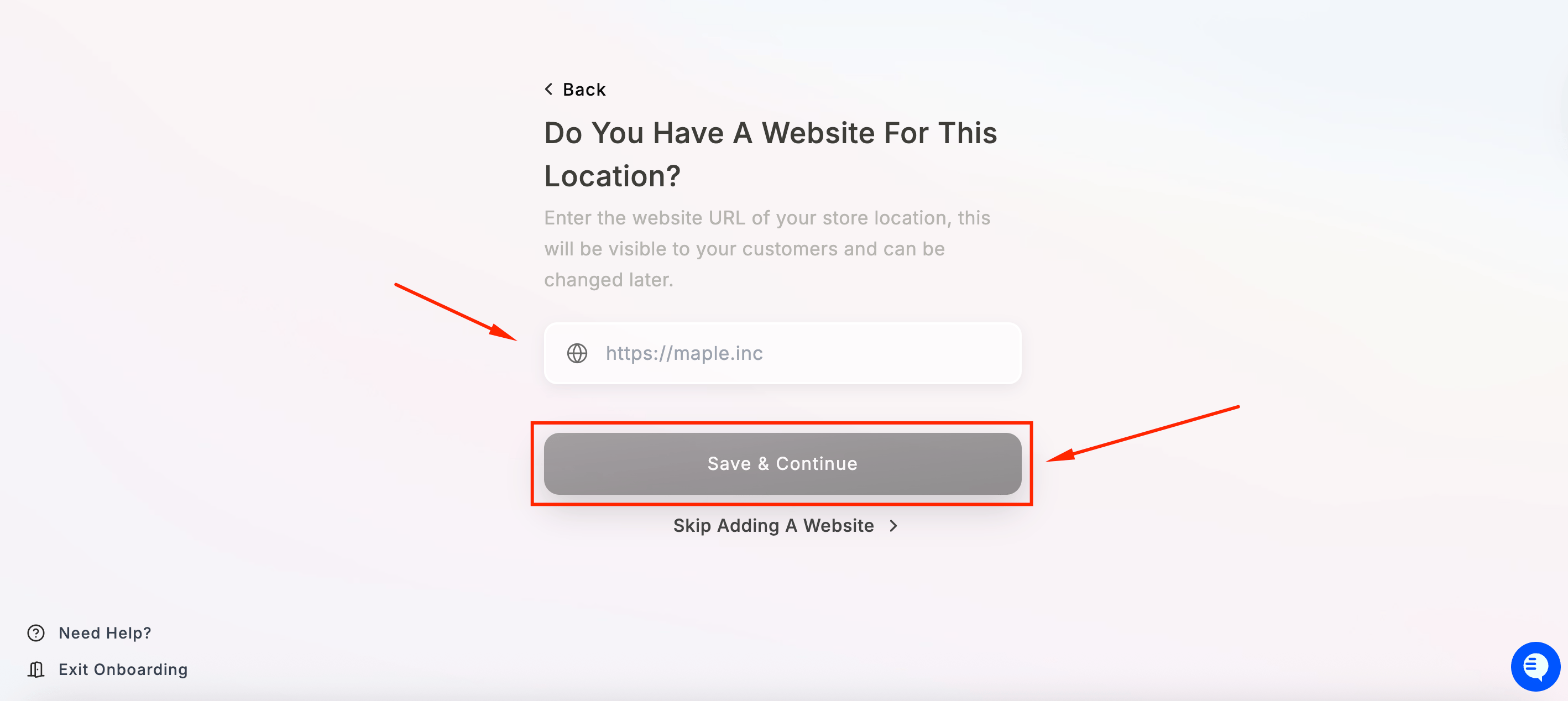 Enter your restaurant's website URL if you have one. Maple uses this to learn more about your business and tailor the AI to your needs.
If you don't have a website, click **Skip Adding A Website**.
Otherwise, enter your URL and click **Save & Continue**.
You're all set with the basics! Here's what to do next:
* **Complete your Onboarding**
* **Maple Dashboard Overview**
* **Need Help?**
## What's Next?
Adjust voice settings and personality
Add more FAQs and train your AI
Start taking orders automatically
Enable text messaging capabilities
Set detailed hours and holidays
Monitor performance and insights
## Need Help?
* **Common Issues**: Check our [Maple Voice Core Troubleshooting](/troubleshooting/voice-core)
* **Live Support**: Available Monday-Friday, 9 AM - 6 PM EST
Enter your restaurant's website URL if you have one. Maple uses this to learn more about your business and tailor the AI to your needs.
If you don't have a website, click **Skip Adding A Website**.
Otherwise, enter your URL and click **Save & Continue**.
You're all set with the basics! Here's what to do next:
* **Complete your Onboarding**
* **Maple Dashboard Overview**
* **Need Help?**
## What's Next?
Adjust voice settings and personality
Add more FAQs and train your AI
Start taking orders automatically
Enable text messaging capabilities
Set detailed hours and holidays
Monitor performance and insights
## Need Help?
* **Common Issues**: Check our [Maple Voice Core Troubleshooting](/troubleshooting/voice-core)
* **Live Support**: Available Monday-Friday, 9 AM - 6 PM EST