> ## Documentation Index
> Fetch the complete documentation index at: https://docs.maple.inc/llms.txt
> Use this file to discover all available pages before exploring further.
# Complete your Onboarding
> Setting Up Your Maple Agent
Complete your agent setup and get ready to go live.
This guide walks you through the onboarding flow after your account and billing are set up.
## **Before You Begin**
### Make sure you have completed:
* Created your Maple account
* Entered your legal business name
* Selected your plan and completed billing
* Your restaurant's main phone number
* A **second phone line** for handoff — this must be different from your main restaurant line.
**Why do I need a second line?** When a customer needs to be transferred to a staff member, Maple calls your handoff number. If this is the same as your main line, Maple will pick up again instead of a human — creating a loop. A manager's cell or back-of-house line works perfectly.
***
### **Step 1 — Get started**
After completing billing, you'll see a **Payment Successful** confirmation screen. Your merchant account is now ready.
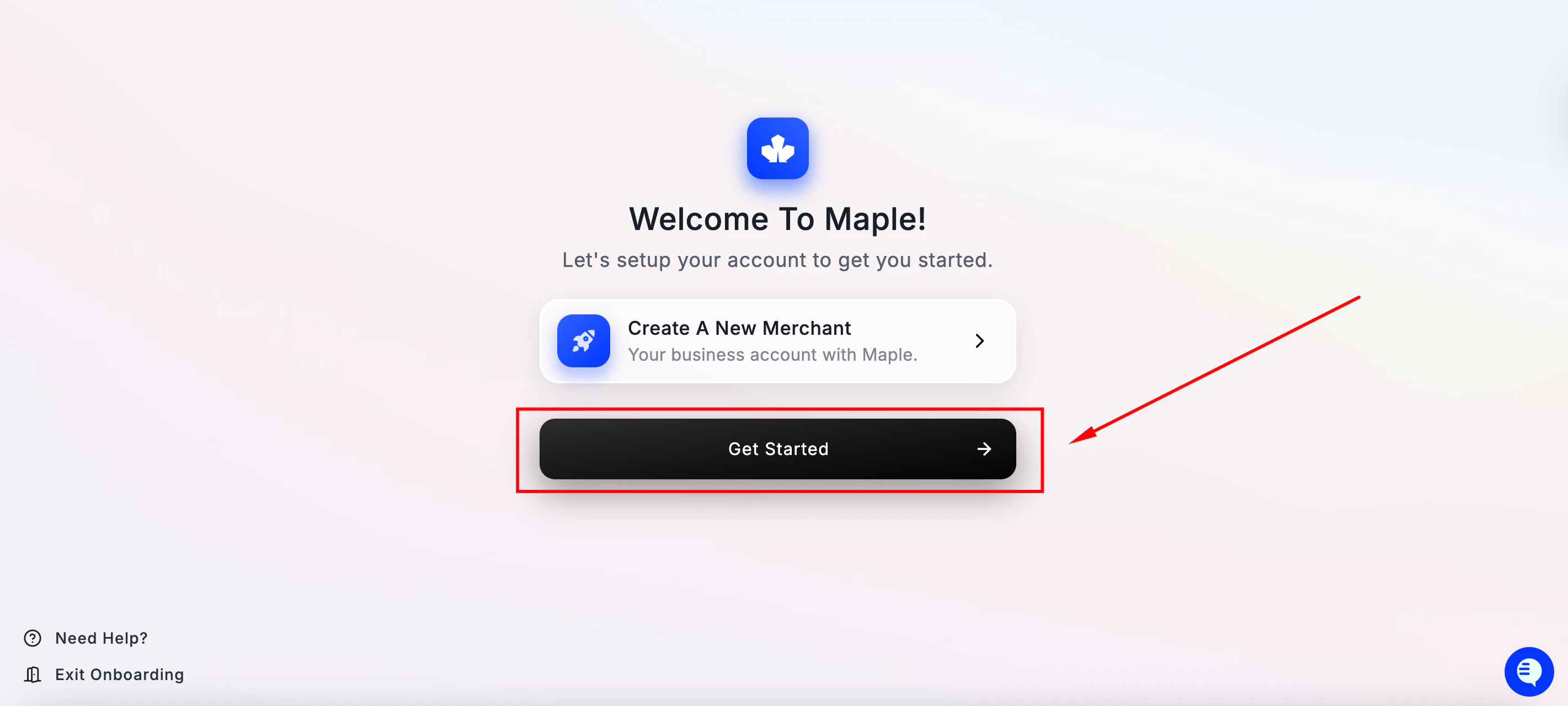 Click **Setup Your First Location** to continue.
***
### **Step 2 — Set up your first location**
You'll see a screen outlining what's needed to set up your location:
Click **Setup Your First Location** to continue.
***
### **Step 2 — Set up your first location**
You'll see a screen outlining what's needed to set up your location:
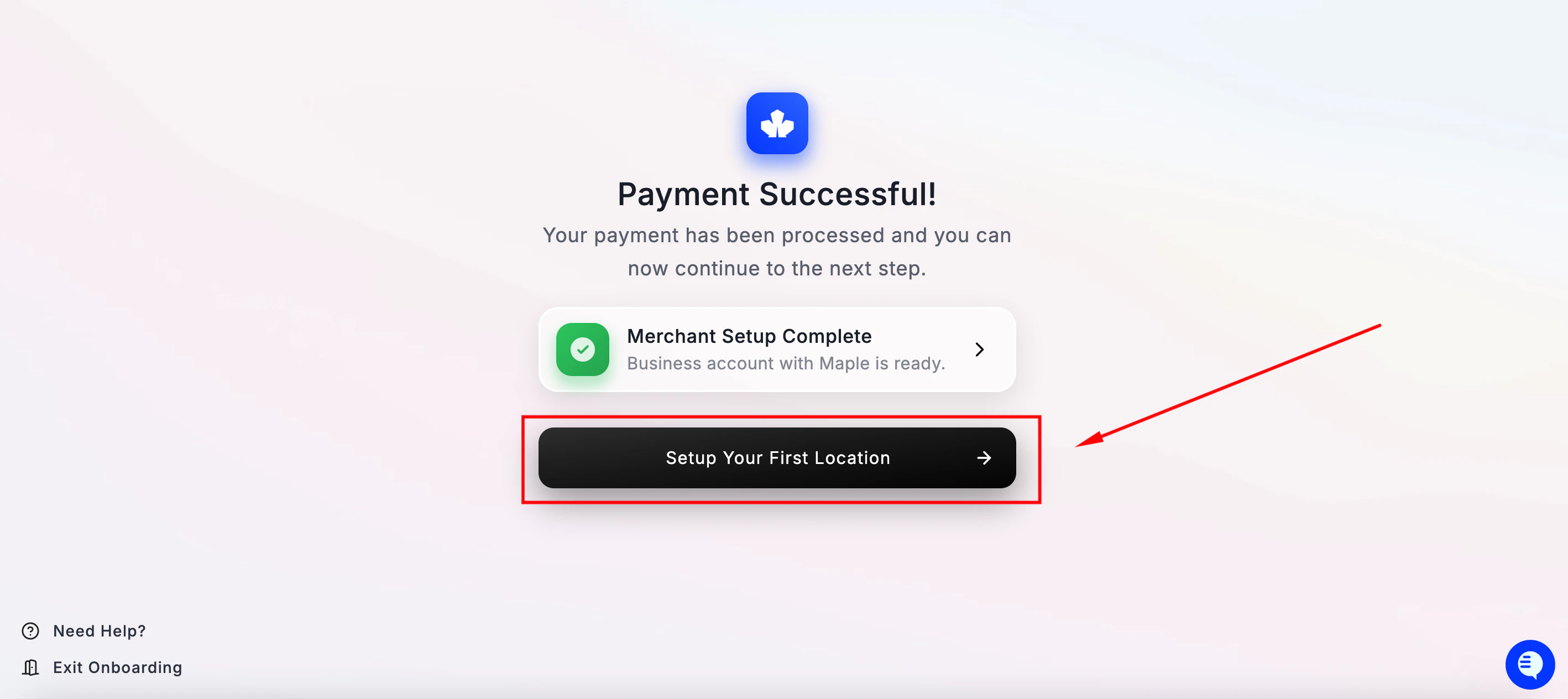
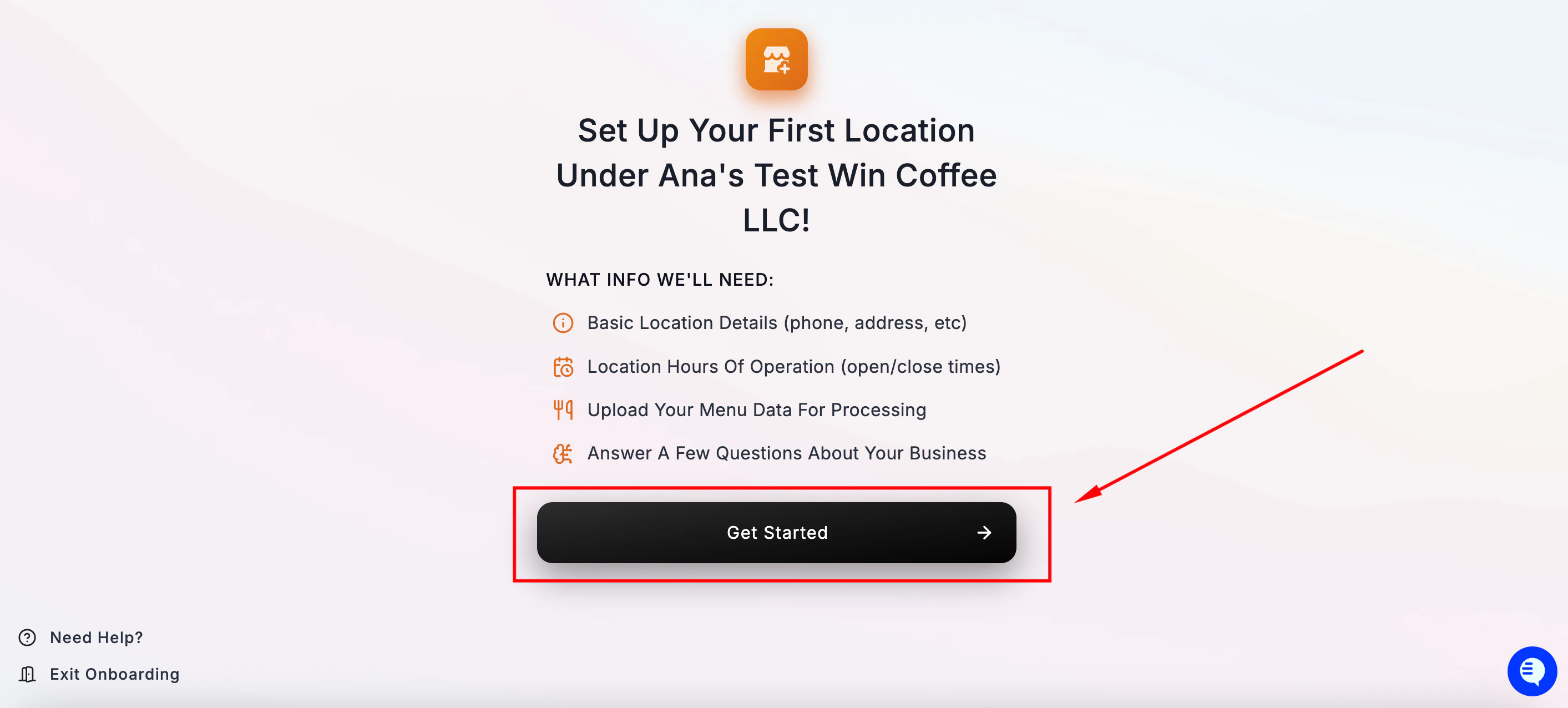 Click **Get Started** to begin.
***
### **Step 3 — Look up your location**
Maple will try to find your restaurant automatically to pre-fill your location details.
Type your restaurant's name in the search bar. Select it and click **Confirm Location Details**. It will search for your restaurant online and pull the name, location, and hours of operation.
Click **Get Started** to begin.
***
### **Step 3 — Look up your location**
Maple will try to find your restaurant automatically to pre-fill your location details.
Type your restaurant's name in the search bar. Select it and click **Confirm Location Details**. It will search for your restaurant online and pull the name, location, and hours of operation.
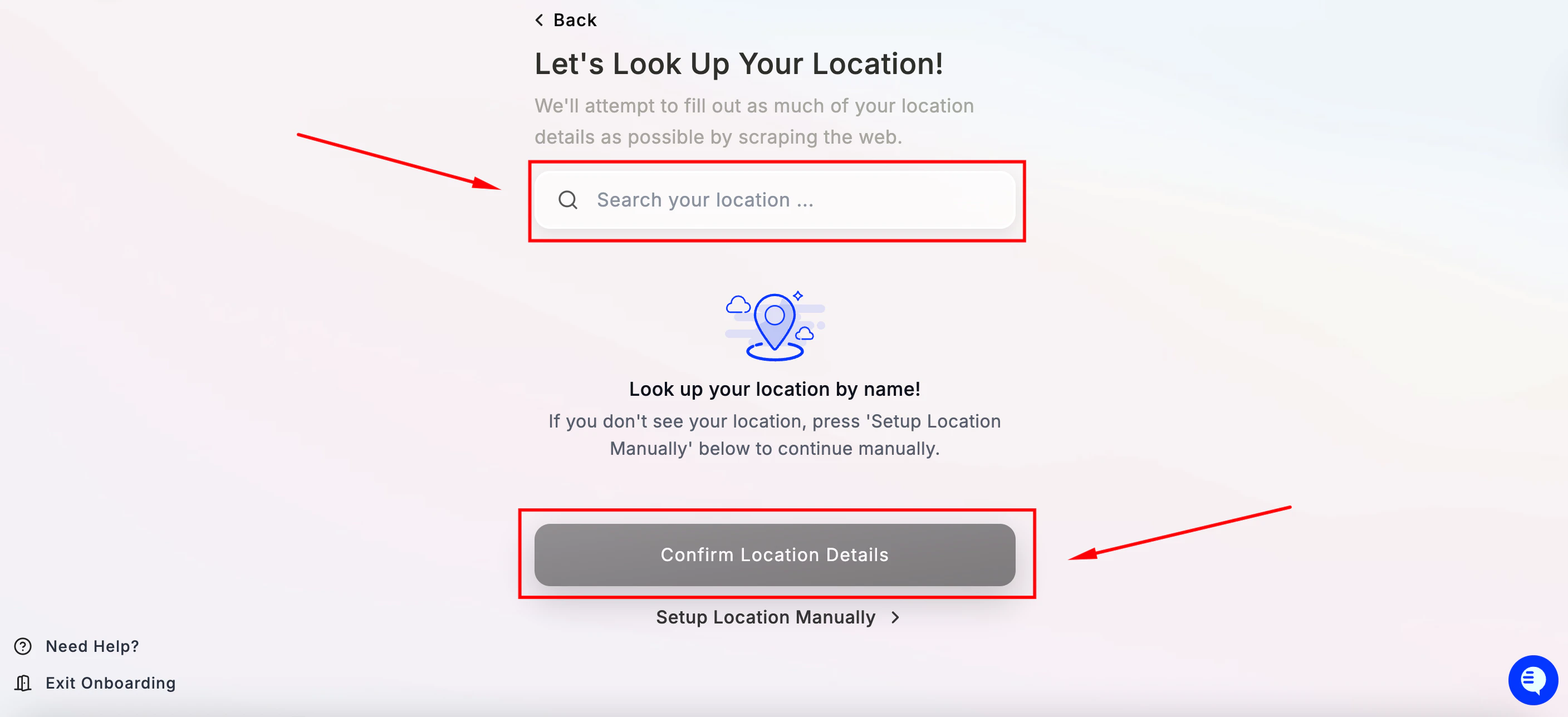 If your location doesn't appear, click **Setup Location Manually** to enter your details by hand.
***
### **Step 4 — Create your Maple agent**
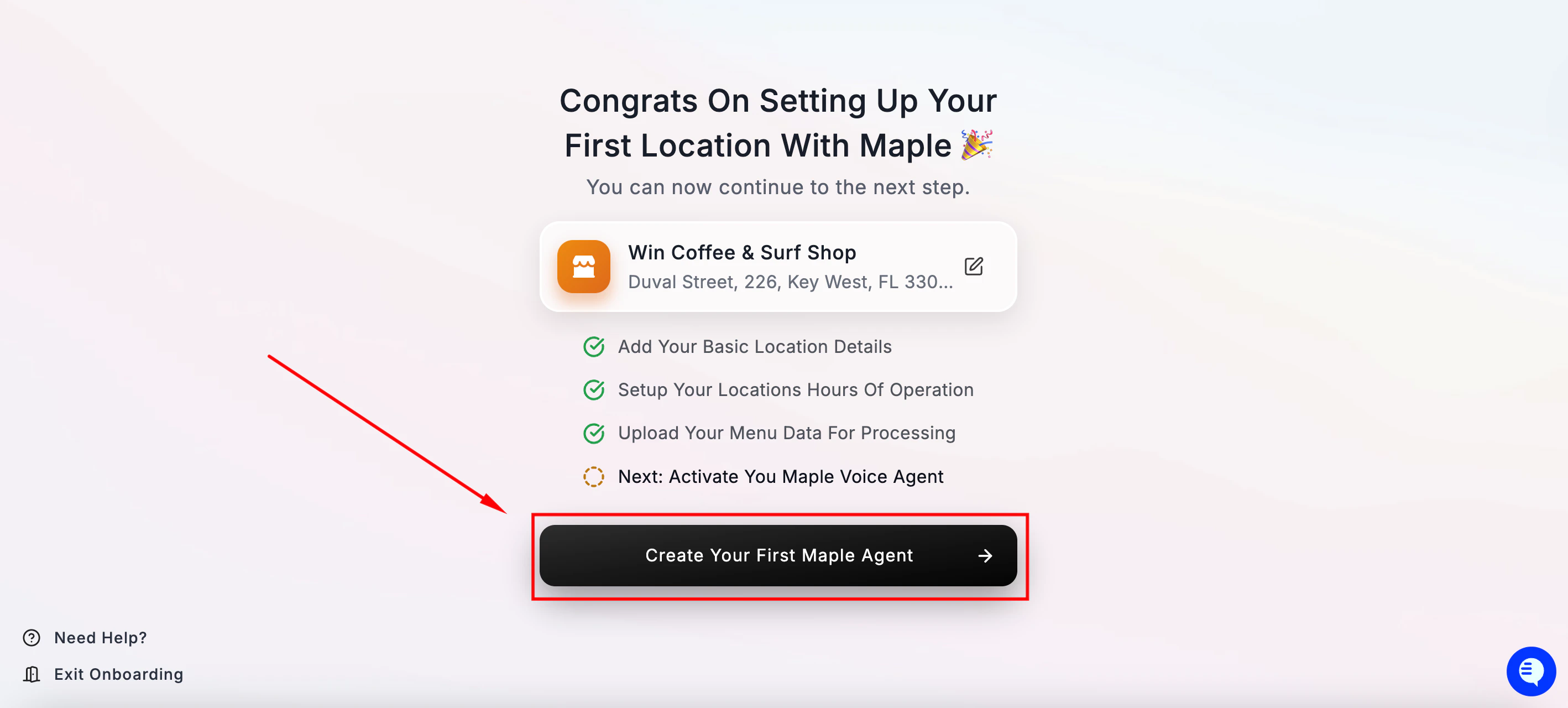
You'll see a confirmation that your agent is ready to be created. Click **Get Started** to begin agent setup.
If your location doesn't appear, click **Setup Location Manually** to enter your details by hand.
***
### **Step 4 — Create your Maple agent**
You'll see a confirmation that your agent is ready to be created. Click **Get Started** to begin agent setup.
.png) ***
### **Step 5 — Assign a phone number to your agent**
Maple will suggest an auto-assigned phone number for your agent. This is an internal number used for routing — your customers will never see it or dial it directly.
***
### **Step 5 — Assign a phone number to your agent**
Maple will suggest an auto-assigned phone number for your agent. This is an internal number used for routing — your customers will never see it or dial it directly.
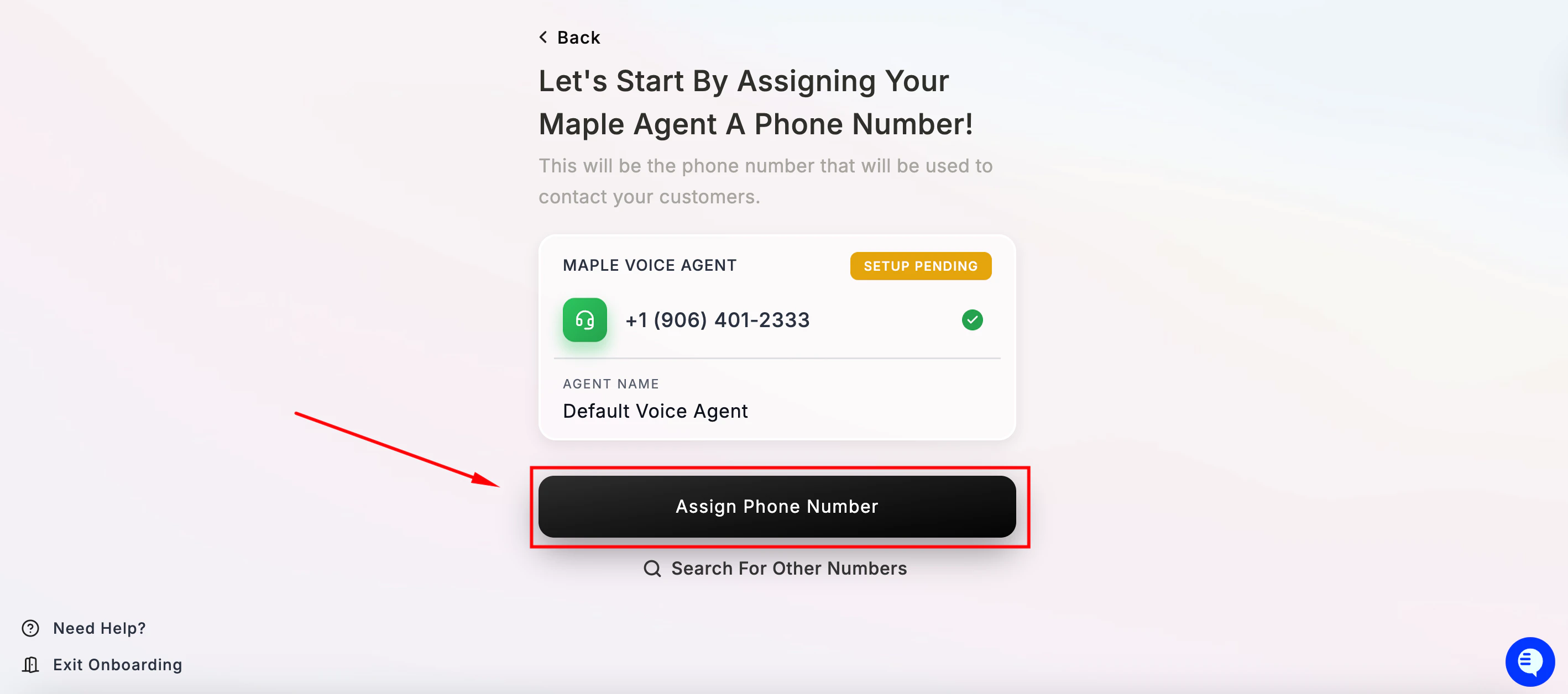 Click **Assign Phone Number** to confirm. You can also click **Search For Other Numbers** if you'd prefer a different number or area code.
***
### **Step 6 — Set your welcome message**
This is the first thing your customers hear when they call. Maple generates a default message based on your location name.
Click **Assign Phone Number** to confirm. You can also click **Search For Other Numbers** if you'd prefer a different number or area code.
***
### **Step 6 — Set your welcome message**
This is the first thing your customers hear when they call. Maple generates a default message based on your location name.
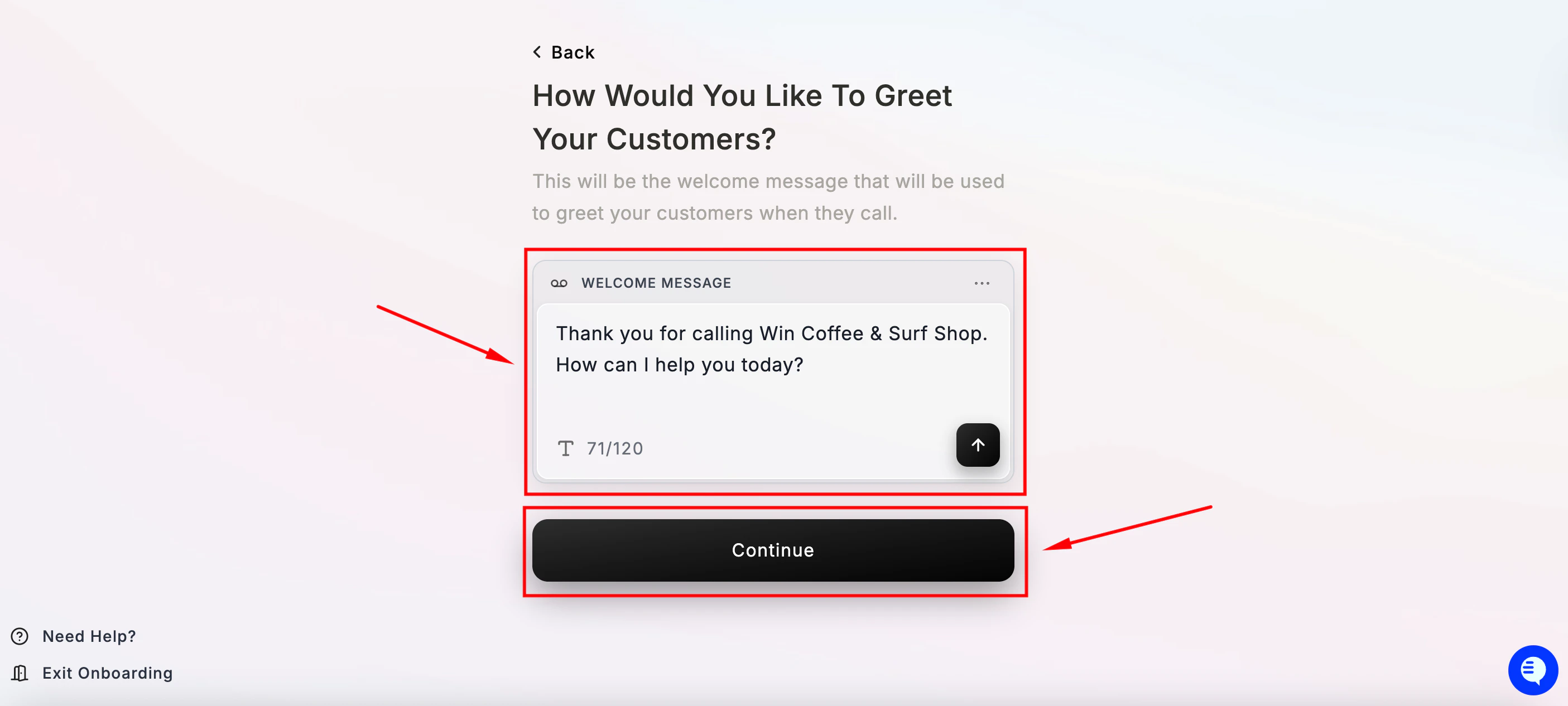 You can customize this here, and anytime from your dashboard, to match your restaurant's tone. Keep it short, warm, and direct — up to 120 characters.
Click **Continue** when ready.
***
### **Step 7 — Set up your handoff number**
You can customize this here, and anytime from your dashboard, to match your restaurant's tone. Keep it short, warm, and direct — up to 120 characters.
Click **Continue** when ready.
***
### **Step 7 — Set up your handoff number**
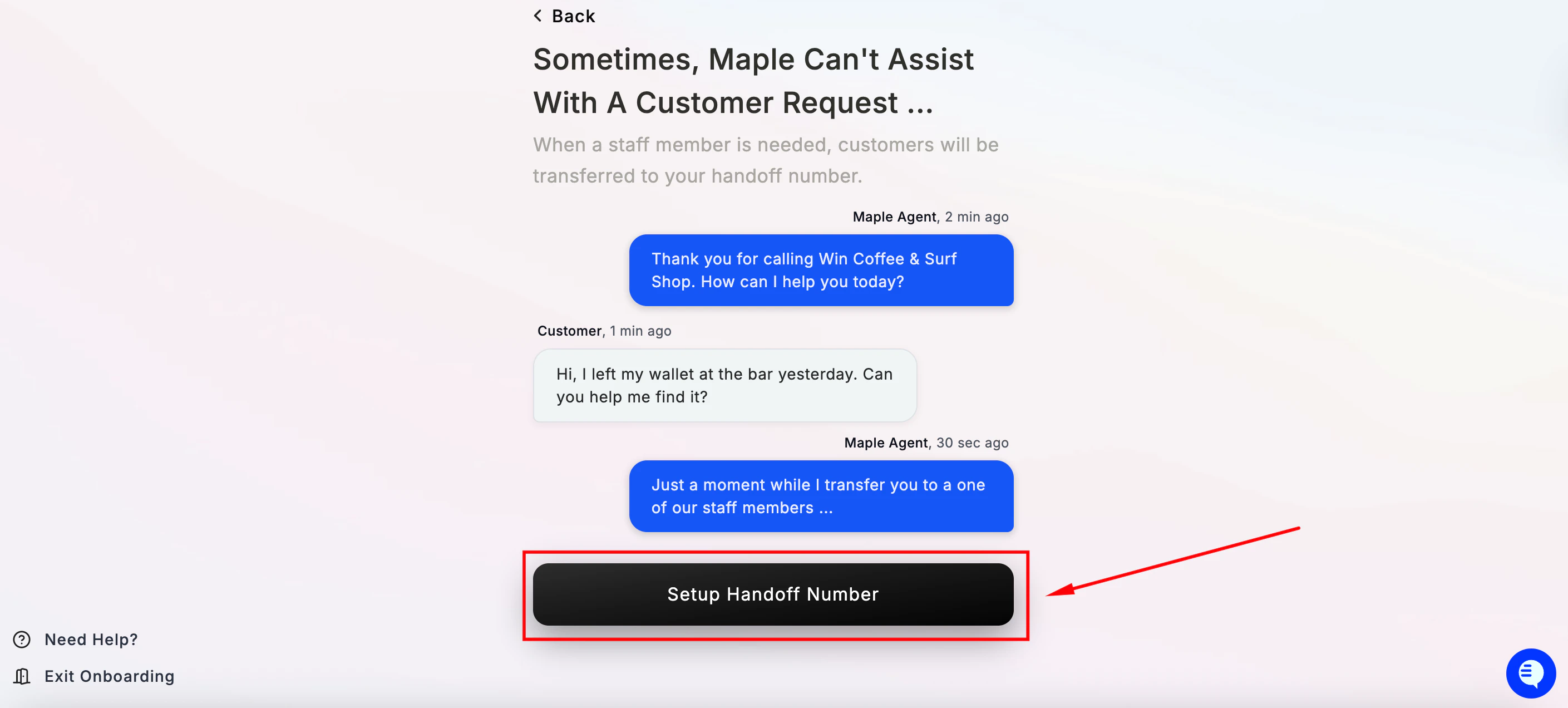 When Maple can't help a customer — or they ask to speak with someone — the call gets transferred to your handoff number.
Enter a phone number that your staff can answer. This **must be different from your main restaurant line**.
When Maple can't help a customer — or they ask to speak with someone — the call gets transferred to your handoff number.
Enter a phone number that your staff can answer. This **must be different from your main restaurant line**.
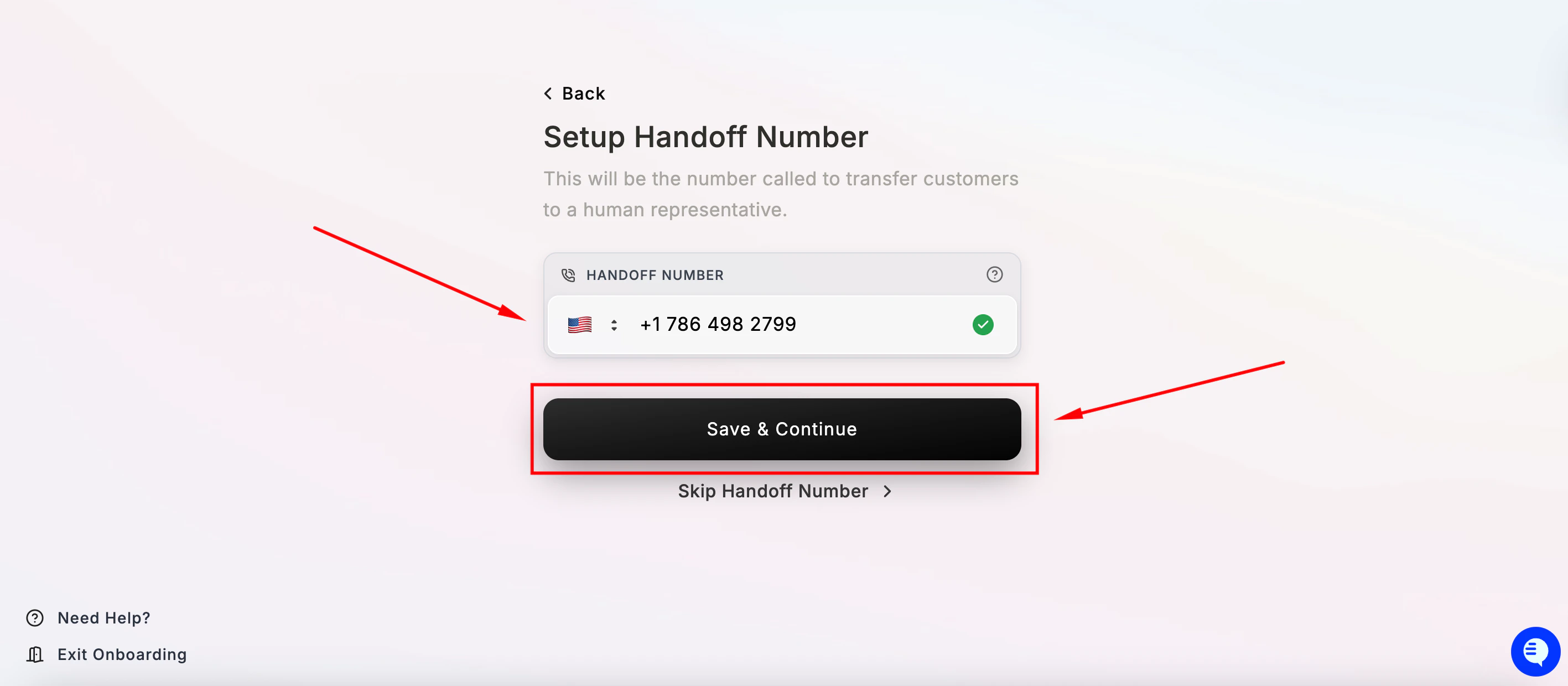 Click **Save & Continue**. If you'd like to skip this for now, click **Skip Handoff Number** — but we strongly recommend setting this up before going live.
**Important:** Using the same number as your main line will cause an AI loop. The agent will pick up again instead of a staff member.
***
### **Step 8 — Continue with Call forwarding**
Click **Save & Continue**. If you'd like to skip this for now, click **Skip Handoff Number** — but we strongly recommend setting this up before going live.
**Important:** Using the same number as your main line will cause an AI loop. The agent will pick up again instead of a staff member.
***
### **Step 8 — Continue with Call forwarding**
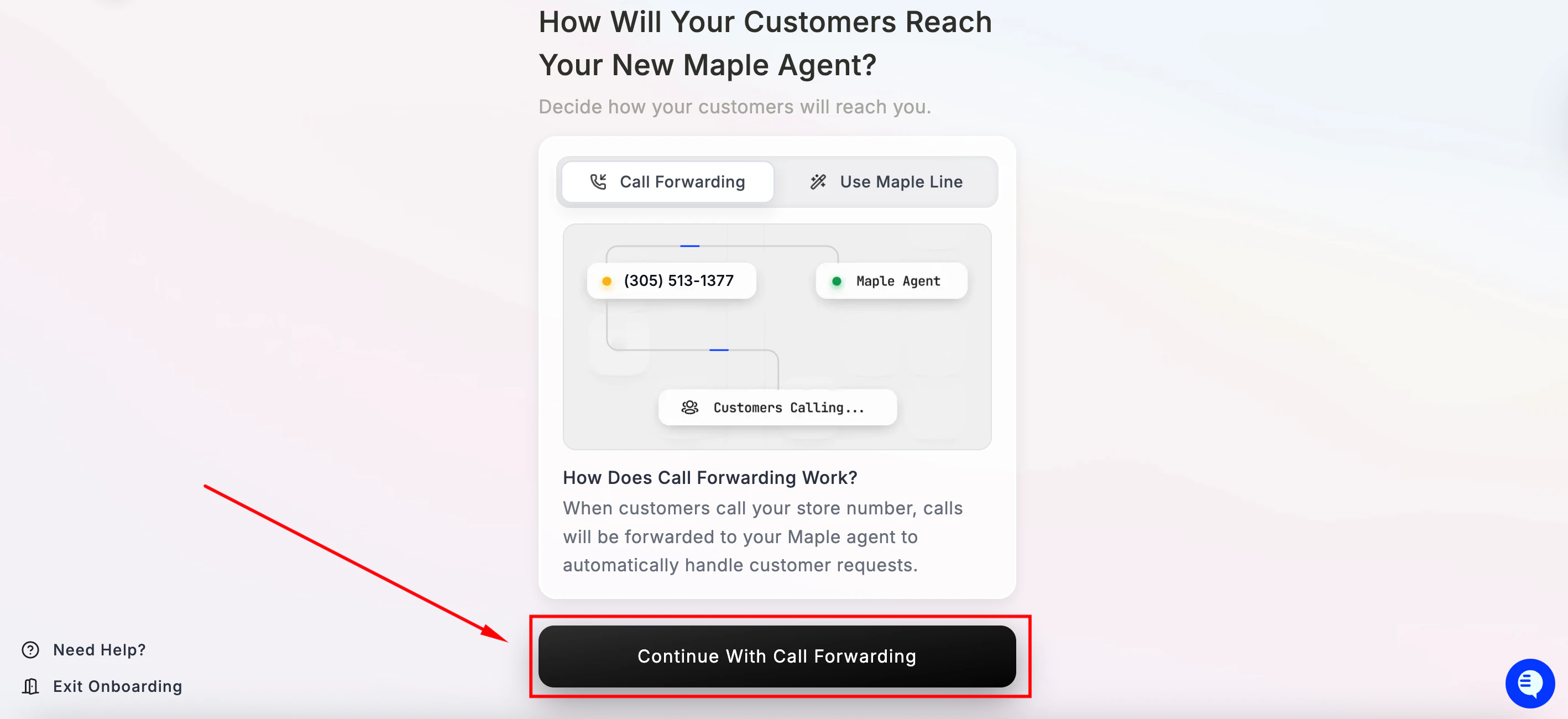 After setting this up, when customers call your existing restaurant number, calls are automatically forwarded to Maple. This will be the last step to get your agent live with Maple.
Select **Continue With Call Forwarding** to proceed with the recommended setup.
After setting this up, when customers call your existing restaurant number, calls are automatically forwarded to Maple. This will be the last step to get your agent live with Maple.
Select **Continue With Call Forwarding** to proceed with the recommended setup.
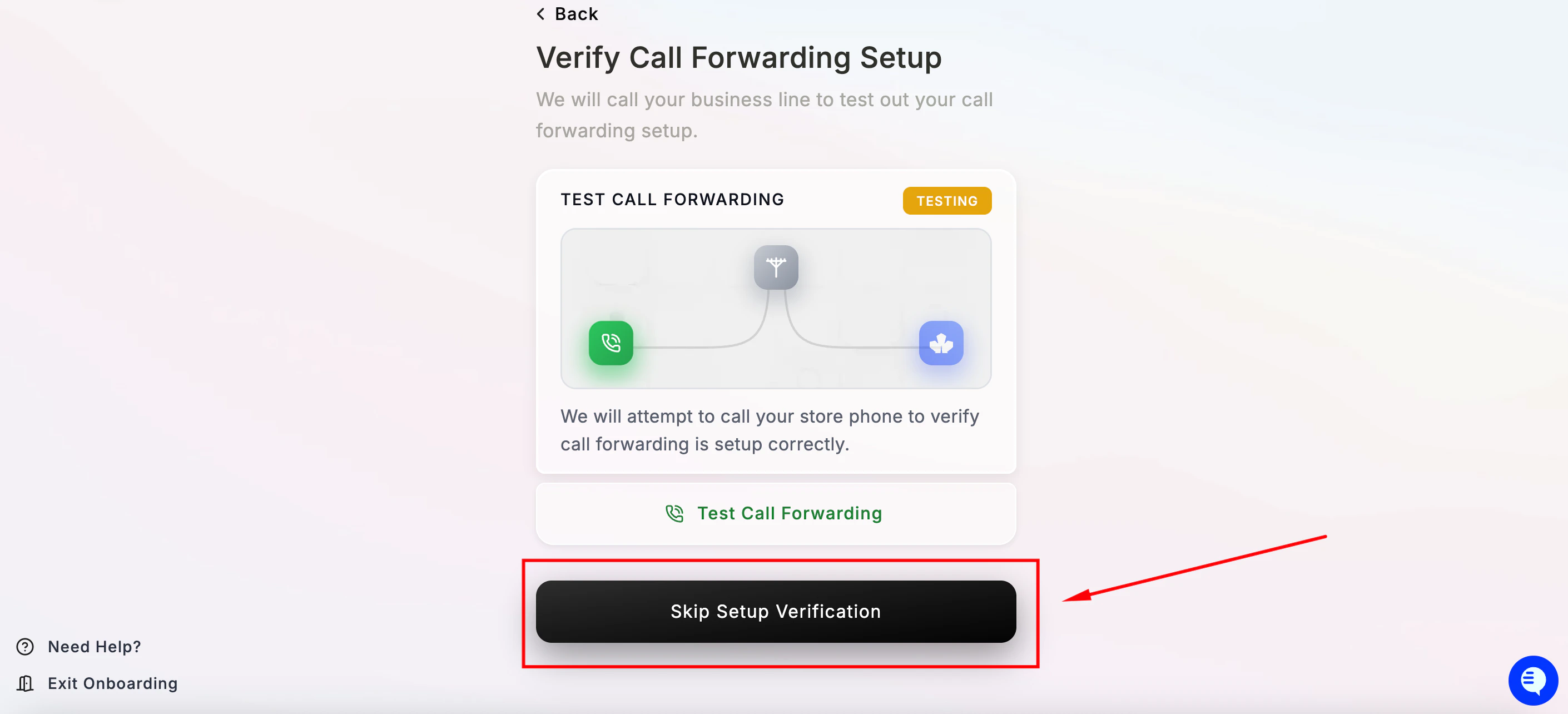
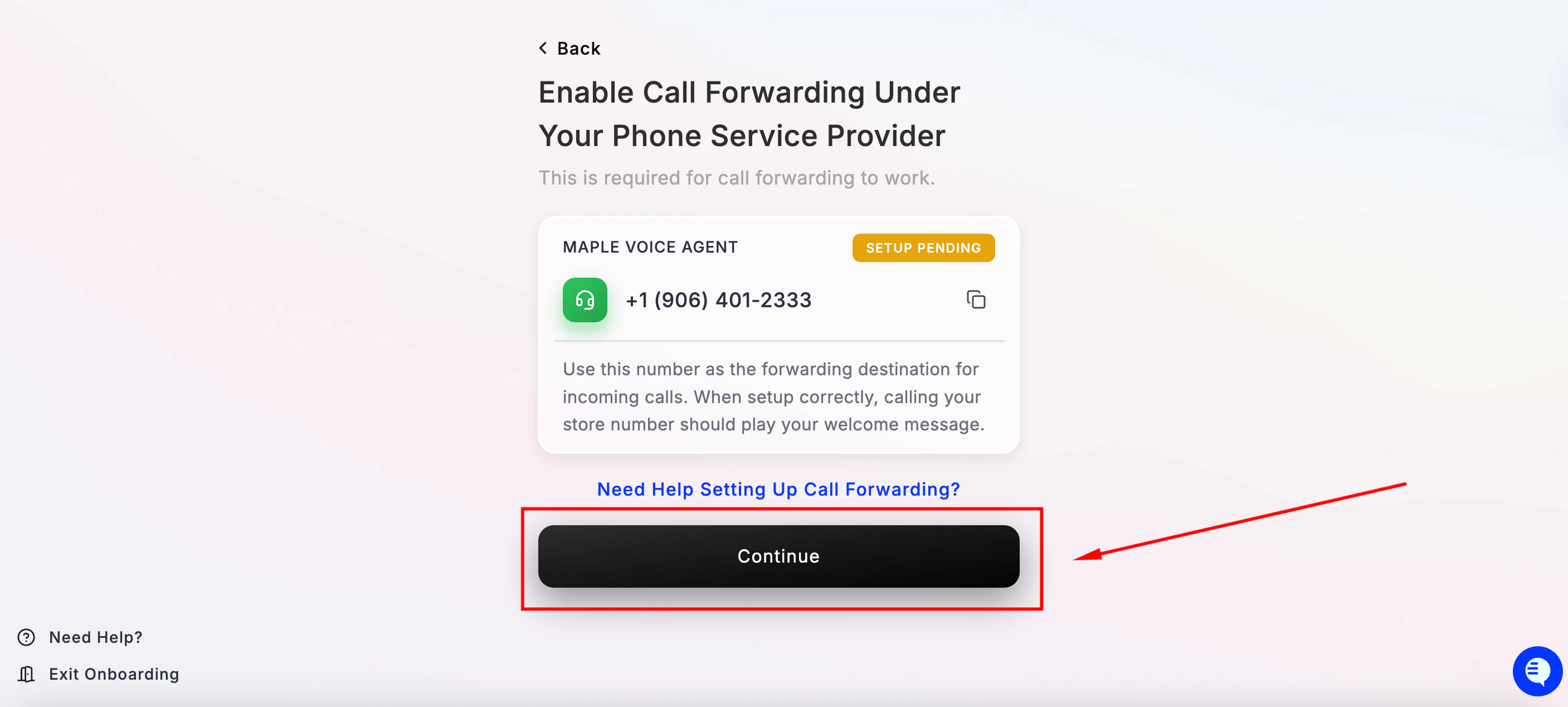 Then **Skip Setup Verification** for now.
 ***
### **Step 9 — SMS setup *(optional)***
Maple can send SMS text messages to your customers — payment links, booking confirmations, online ordering links, and more.
***
### **Step 9 — SMS setup *(optional)***
Maple can send SMS text messages to your customers — payment links, booking confirmations, online ordering links, and more.
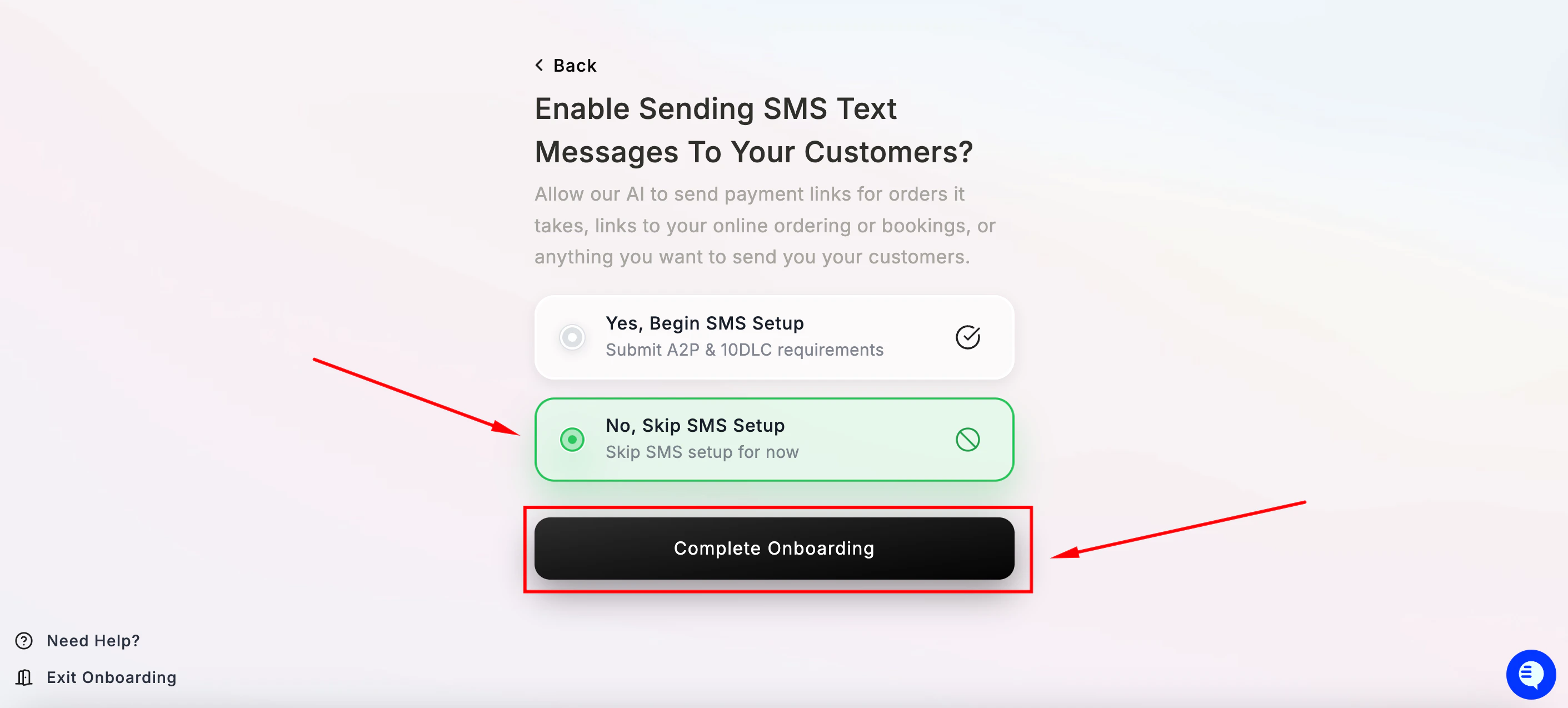 Choose: **No, Skip SMS Setup** — skip for now and set it up later from your dashboard. Then click **Complete Onboarding**.
SMS setup requires business verification (A2P compliance). You can always come back to this later.
***
### **Step 10 — You're all set! 🎉**
Choose: **No, Skip SMS Setup** — skip for now and set it up later from your dashboard. Then click **Complete Onboarding**.
SMS setup requires business verification (A2P compliance). You can always come back to this later.
***
### **Step 10 — You're all set! 🎉**
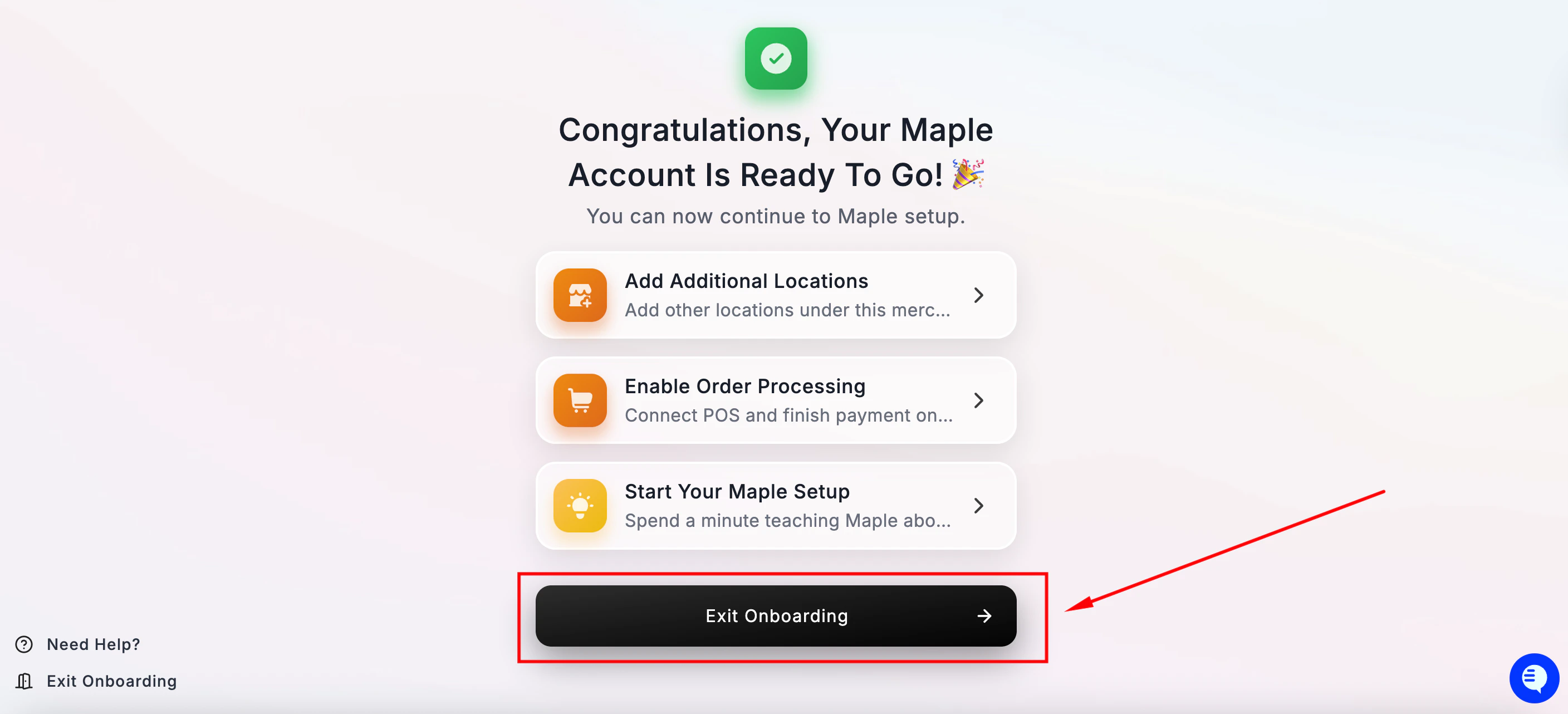 Click **Exit Onboarding** to go to your dashboard and continue setting up.
***
### **What to do next**
Before going live, we recommend completing these steps in your dashboard:
* **[Maple Dashboard Overview](/dashboard-overview)** — a complete walkthrough of your dashboard
* **[Going Live](/going-live)** — test your agent and switch on call forwarding
***
### **Need Help?**
* **Email:** [hello@maple.inc](mailto:hello@maple.inc)
* **Live support hours:** Monday–Friday, 9 AM – 6 PM EST
* **Dashboard:** [app.maple.inc](https://app.maple.inc)
Click **Exit Onboarding** to go to your dashboard and continue setting up.
***
### **What to do next**
Before going live, we recommend completing these steps in your dashboard:
* **[Maple Dashboard Overview](/dashboard-overview)** — a complete walkthrough of your dashboard
* **[Going Live](/going-live)** — test your agent and switch on call forwarding
***
### **Need Help?**
* **Email:** [hello@maple.inc](mailto:hello@maple.inc)
* **Live support hours:** Monday–Friday, 9 AM – 6 PM EST
* **Dashboard:** [app.maple.inc](https://app.maple.inc)